Creating a rule
A Britva rule is a small JavaScript function that receives a single ad as input and decides what to do with it: pause it or, on the contrary, enable it. This article is a step-by-step guide on how to create a new rule in the editor.
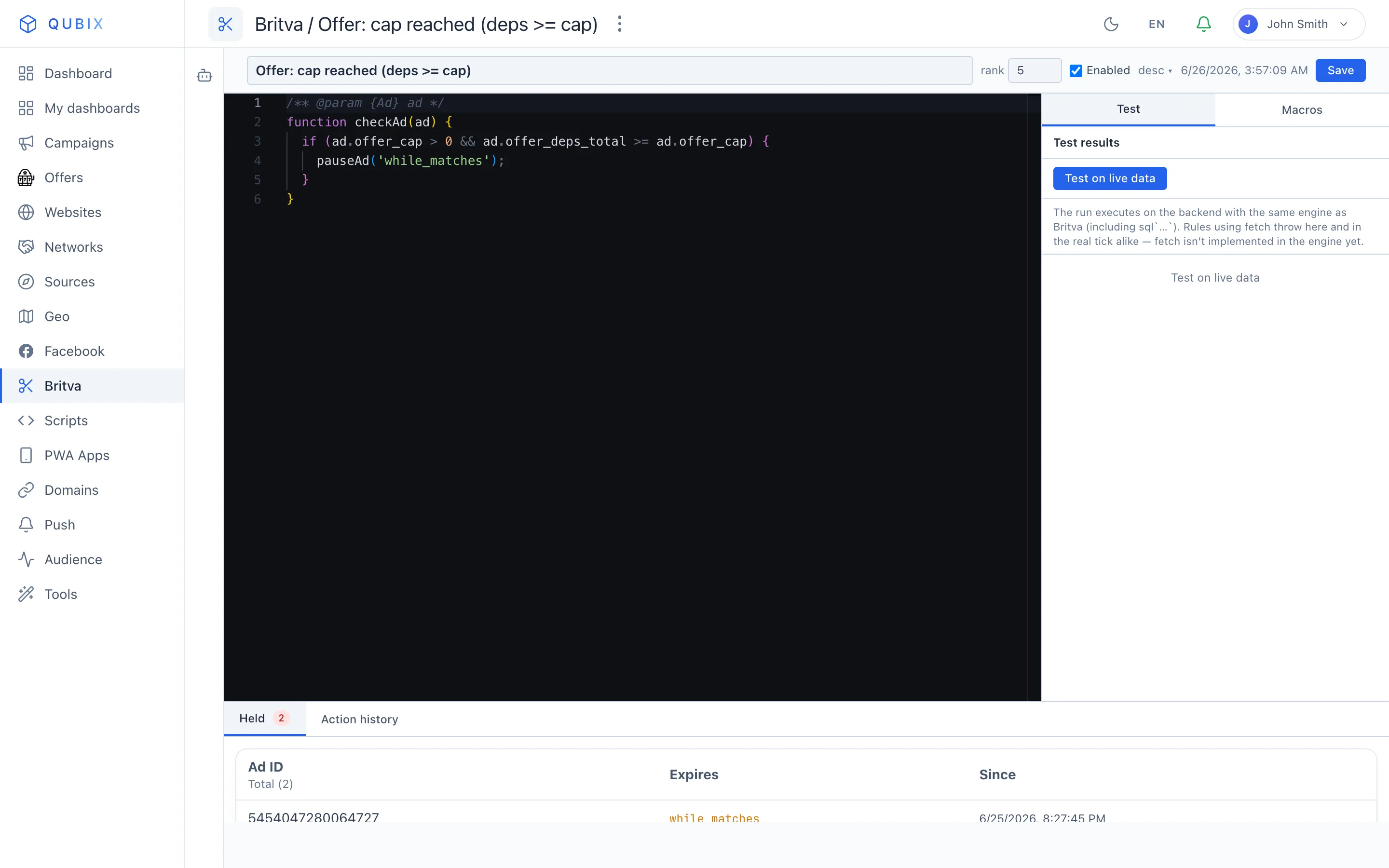
Every rule is a checkAd(ad) function. Inside it you check the ad's metrics (through the ad.* fields) and, when the condition is met, call an action — for example, a pause. Read more about the principle itself — in the How automated rules work section.
How to create a rule
-
Open the Britva section and, on the Rules tab, click + New rule.
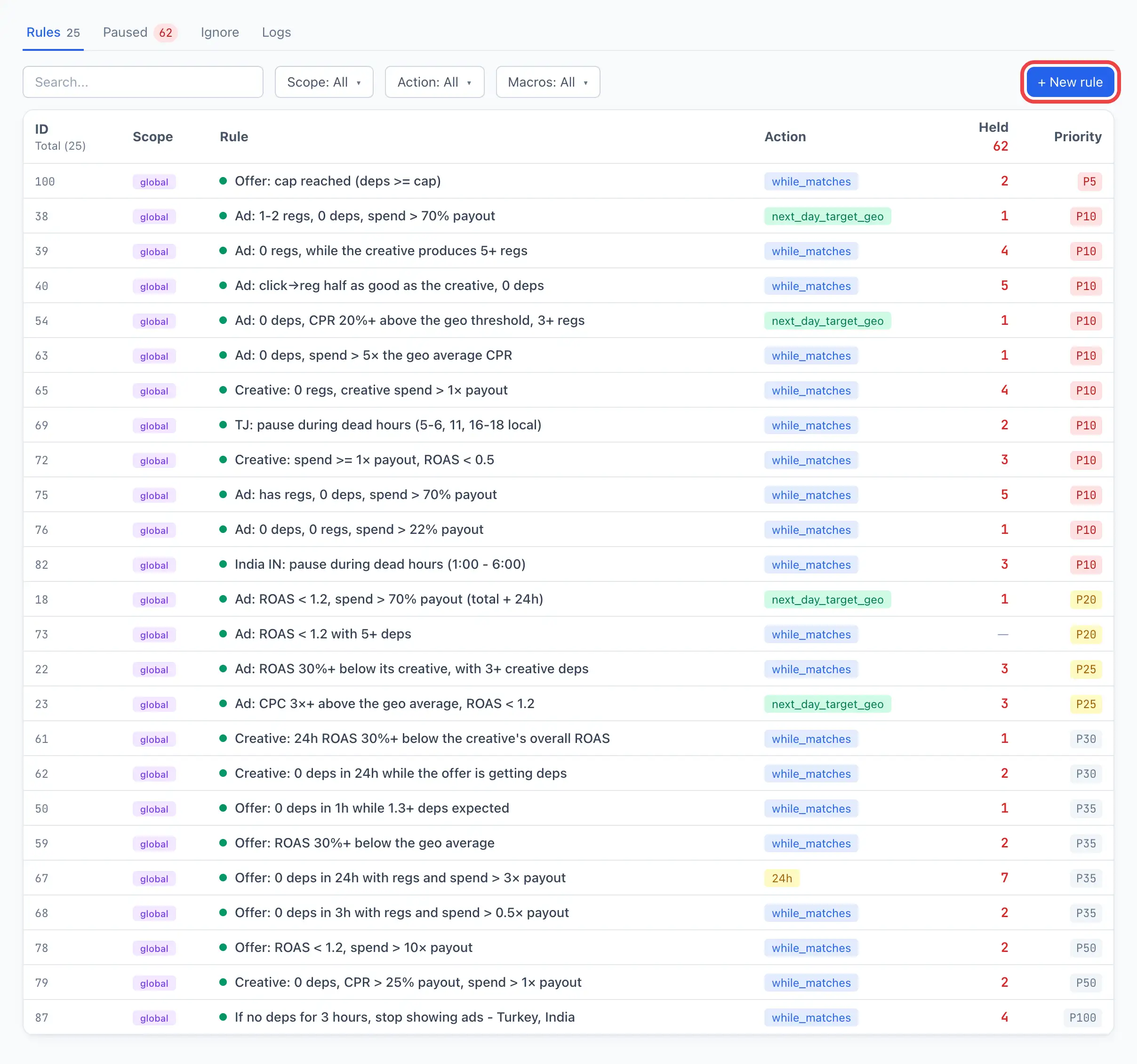
A separate page for the new rule editor will open (not a pop-up window).
-
Enter the rule Name in the field at the top — short and clear, for example "Pause without deps".
-
Choose the rule scope in the dropdown next to the name:
global,teamoruser. The available options depend on your role (see Field reference).
-
Write the rule code in the editor in the centre. By default it already contains a template with the
checkAd(ad)function and a commented-out example:JavaScript/** @param {Ad} ad */function checkAd(ad) {// Пример: пауза при 0 депов и большом расходе.// if (ad.deps_total === 0 && ad.spend_24h > 100) {// pauseAd('24h', 'no deps');// }}Uncomment the example or write your own logic. To recall which metrics are available, open the Macros tab on the right — it holds the full reference of
ad.*fields. Clicking any field inserts it into the code.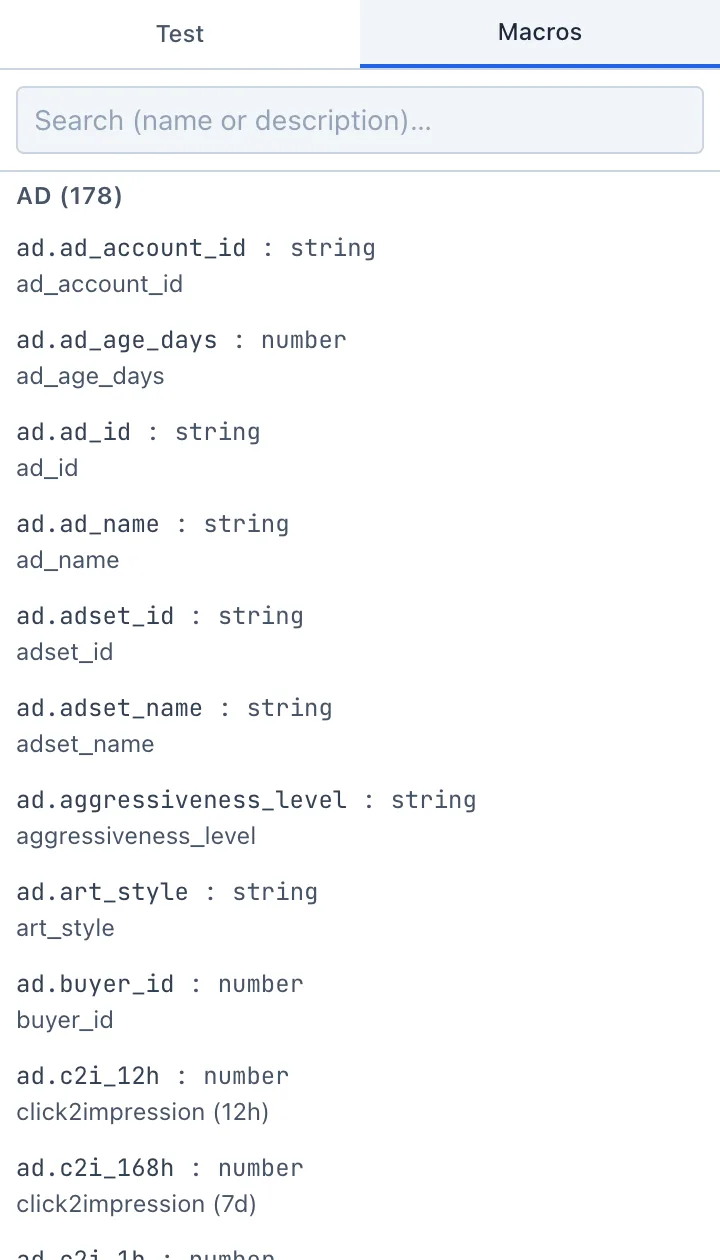
-
(Optional) Don't want to write code by hand — describe the task in words to the AI Assistant in the left column ("Pause ads with no deposits and spend above 100 per day"). The assistant will suggest ready code that you can insert into the editor in one click.
🎬 GIF: a request to the AI Assistant and inserting the suggested code into the editor.
-
Test the rule on the Test tab on the right — it will run on the current live ads and show which of them would be affected. This is safe: nothing is paused during the test. Read more — in the Testing a rule section.
-
Make sure the Enabled toggle is on, and click Create.
After saving, the rule appears in the list on the Rules tab and starts working in the common check cycle.
Create the rule disabled (clear the Enabled checkbox), run it on the Test tab, and only enable it once you are sure of the result. This way it does not trigger on live ads while you are still configuring it.
Field reference
The fields are gathered in a compact editor header, from left to right.
Name — a short name of the rule, by which you will find it in the list and in the logs. Required to save.
Scope (global / team / user) — who sees the rule and which ads it checks:
user— your personal rules, they check only your ads;team— team rules (available to team leads and administrators);global— common rules for everyone (available only to administrators).
The list of options depends on your role: an ordinary buyer sees only user, a team lead — team and user, an administrator — all three. The scope is set at creation.
rank (priority) — a number that determines the order of rules: the lower the number, the higher the priority. The default is 100. If several rules claim a single ad, the rule with the lower rank runs first.
Enabled / Disabled — a toggle. Only active rules take part in the check. A disabled rule is saved but does not trigger — convenient while you are still refining it.
desc — an arrow button that expands the Description field. Free text: what the rule does and why. Optional, but helps colleagues and your future self.
JS code (function checkAd(ad)) — the body of the rule in the central editor. Required to save. Inside the function you have access to:
- the ad fields
ad.*(spend, deposits, ROAS, geo, etc.) — the full list is on the Macros tab; - actions — pause and resume (see Actions).
A minimal example — pause the ad for a day if over 24 hours there is spend but no deposits:
/** @param {Ad} ad */
function checkAd(ad) {
  if (ad.deps_total === 0 && ad.spend_24h > 100) {
    pauseAd('24h', 'нет депов при расходе > 100');
  }
}
Here pauseAd('24h', 'причина') pauses the ad itself for 24 hours. You can also pause an adset (pauseAdset(...)) and a campaign (pauseCampaign(...)). The full list of actions, call formats and pause types — in the Actions section.
The function must be named exactly checkAd and take a single parameter ad. Do not delete the line /** @param {Ad} ad */ above the function — it enables hints for the ad.* fields right in the editor.
Not sure of a field name? Open the Macros tab and use the search by name or description. The fields are grouped: ad, creative, offer, geo, network and metrics for the previous period.
What appears after creation
A saved (already existing) rule has two tabs available below the editor:
- Held — the ads that this rule is currently holding on pause. Next to it — a counter of their number.
- Action history — the log of all triggers of the rule: when, for which ad and what was done.
A new, not-yet-saved rule does not have these tabs — they appear after the first save.
Delete (the item in the ⋮ menu in the top-right corner of the editor) does not erase history: the rule is moved to the disabled state, and the log of its triggers is kept. But you cannot restore the rule itself back to active in a single click — act deliberately.