Testing a rule
Before enabling a rule, it is worth testing it — to see exactly which ads would be affected. For this, the rule editor has a Test tab: it runs your code on the current live ads right in the browser and shows the result. This is completely safe — during the test nothing is paused, no commands are sent to Facebook.
How to test a rule
-
Open a rule in the editor (or create a new one) and write the code. Read more — Creating a rule.
-
On the right, switch to the Test tab and click Test on live data.
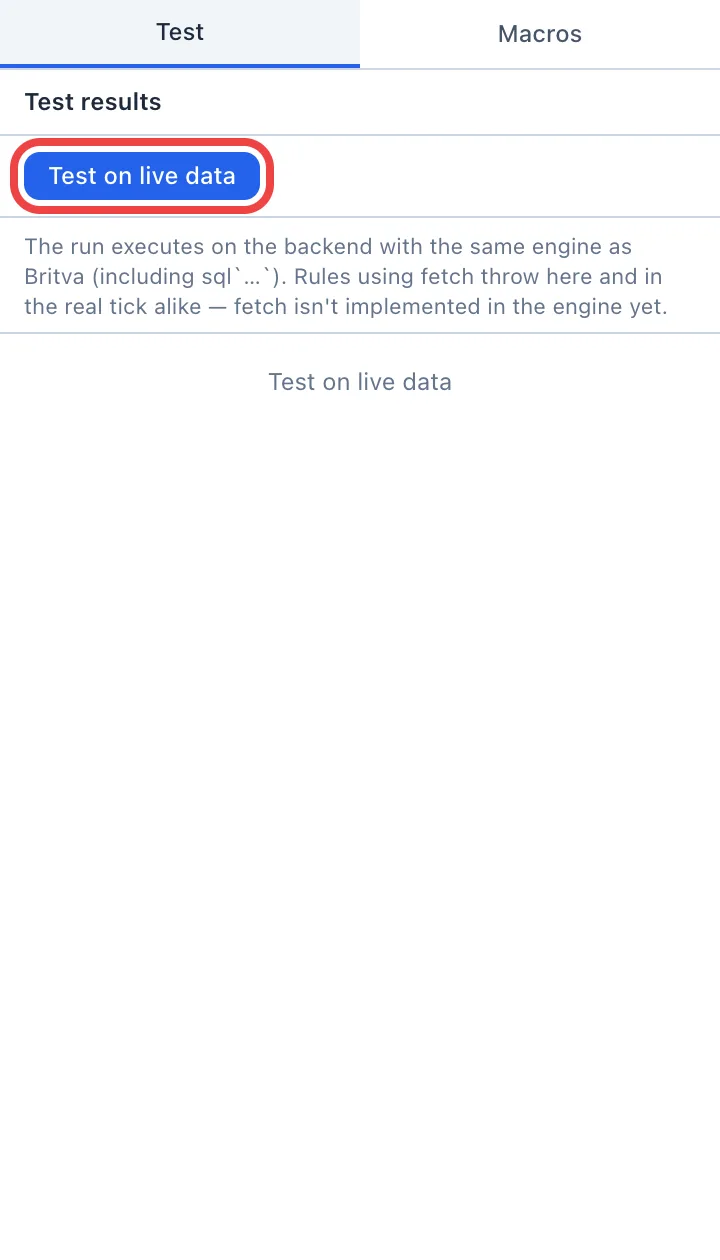
Britva will load the current ads and run your code on them.
-
Look at the result. At the top — a counter like "N / total matched": how many ads would be affected by the rule out of the total checked. Below — the list of these ads: their ID, geo, name and which action would trigger (for example,
pause ad=... 24h). -
(Optional) Clear the Active only checkbox to run the rule not only over active ads but over all loaded ones.
How to read the result
- The list of matches — ads for which the rule would call an action. Next to each — an action label (pause/activate, level and duration). The reason is shown in the label's tooltip on hover.
- Messages from the code — if the rule has console output (
console.log(...)), these lines are shown under the ad. Handy for debugging: you can output intermediate values and understand why the rule did or did not trigger. - Errors — if the code contains an error (for example, accessing a non-existent field), a red warning with the text of the first error appears at the top. Fix the code and run the test again.
Test a rule before enabling it. A convenient order: save the rule disabled, run it on the Test tab, make sure the matches include exactly the ads you expected — and only then enable it.
The test runs locally in the browser, so network requests from the rule code (fetch) do not work in test mode. If a rule uses external data, you can fully test it only in the real cycle on the server.