Ignore list
The ignore list is a list of exceptions. Anything in it Britva skips entirely during the check: it does not pause and does not touch it, no matter which rules trigger. This is a safeguard for ads, adsets or whole accounts that must keep running no matter what.
The ignore list is a separate tab in the Britva section.
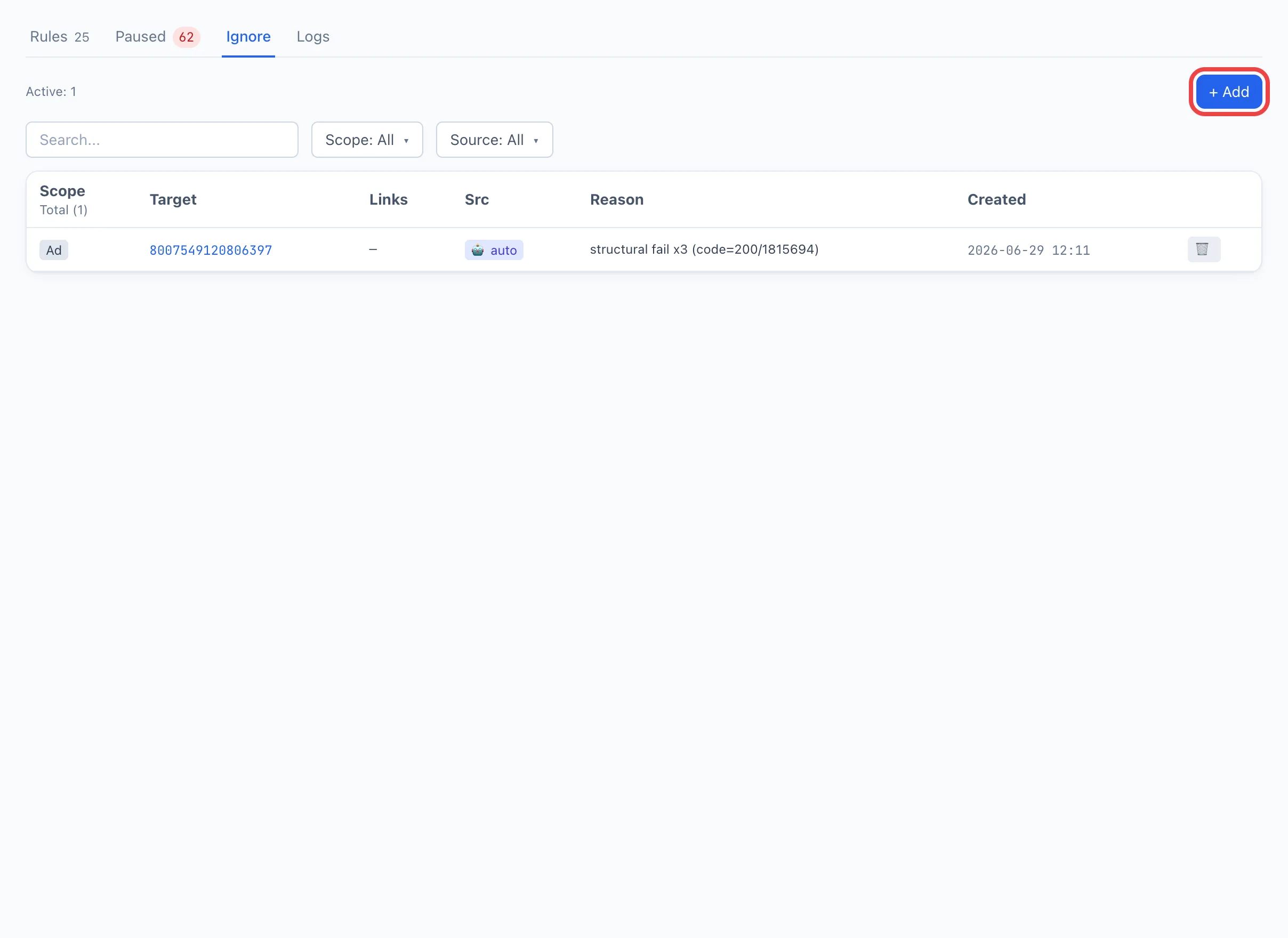
Six exclusion levels
You can exclude an entity at any of six levels — from the pinpoint to the broadest:
- Ad — one specific ad (by its Ad ID).
- AdSet — all ads of an adset (by
adset_id). - Campaign — all ads of a campaign (by
campaign_id). - Account — all ads of an ad account (by
ad_account_id). - User — all ads owned by the selected employee.
- Team — all ads belonging to a team.
The higher the level, the broader the coverage: an exclusion at the campaign level covers all of its adsets and ads.
How to add an exception
-
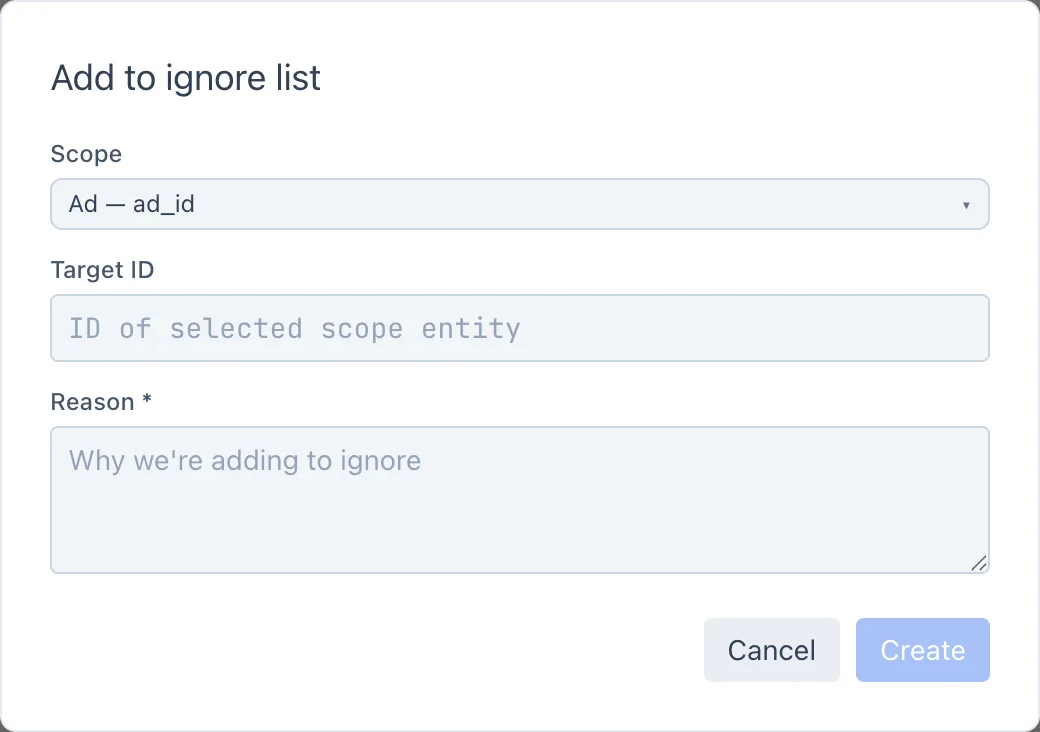
On the Ignore tab, click + Add — the Add to ignore list window opens.
-
Choose the Scope — the scale of the exception (ad, adset, campaign, account, user, team). Next to each option there is a hint about which field it works by.
-
Specify the target:
- for the User and Team levels — choose an employee or a team from the list;
- for the other levels — enter the Target ID (the identifier of the ad, adset, campaign or account).
After entering, Britva will pull the target's links (account, campaign, adset, etc.) and show how many ads will fall under the exception. If the target is not found among live ads, it can still be added — this is a manual exception "for the future".
-
Fill in the Reason — a required field. A short note on why the entity is excluded (colleagues will see it in the table).
-
Click Create. The exception will appear in the table and take effect immediately.
To add an ad to the ignore list right from the paused ones, without entering the ID by hand, use the exclude button on the Paused tab — the fields will be filled in automatically.
Table reference
- Scope — the scale of the exception (ad / adset / … / team).
- Target — the identifier of the excluded entity. Clicking it copies the value to the clipboard.
- Links — what the target relates to (account, campaign, adset, team) — to understand what exactly is excluded.
- Src — who created the exception: manual (an employee) or 🤖 auto (Britva itself, by the result of its logic).
- Reason — the note specified when adding.
- Created — the date of addition.
Above the table there are filters by Scope and Src and search by target.
Automatic exceptions
Not every entry is added by hand. Britva can add an exception itself — such rows are marked 🤖 auto in the Src column.
This happens when an ad keeps failing on the Facebook side for a structural reason — not a temporary glitch — several checks in a row, for example the ad account is blocked or the browser profile's token has stopped working. To stop hammering a broken target, Britva adds an automatic exception at the matching level and sends a Telegram alert. The Reason column shows the Facebook issue behind it.
You can review automatic exceptions, filter the table down to them by Src, and remove them just like manual ones. Once the underlying problem is fixed, remove the exception so the entity comes back under the rules.
How to remove an exception
Click the trash icon in the exception row and confirm. After removal, Britva will again start checking this entity with its rules.
As soon as you remove an exception, the ad (adset, campaign, etc.) again falls under the automated rules and may be paused on the nearest check pass.