Creating a campaign
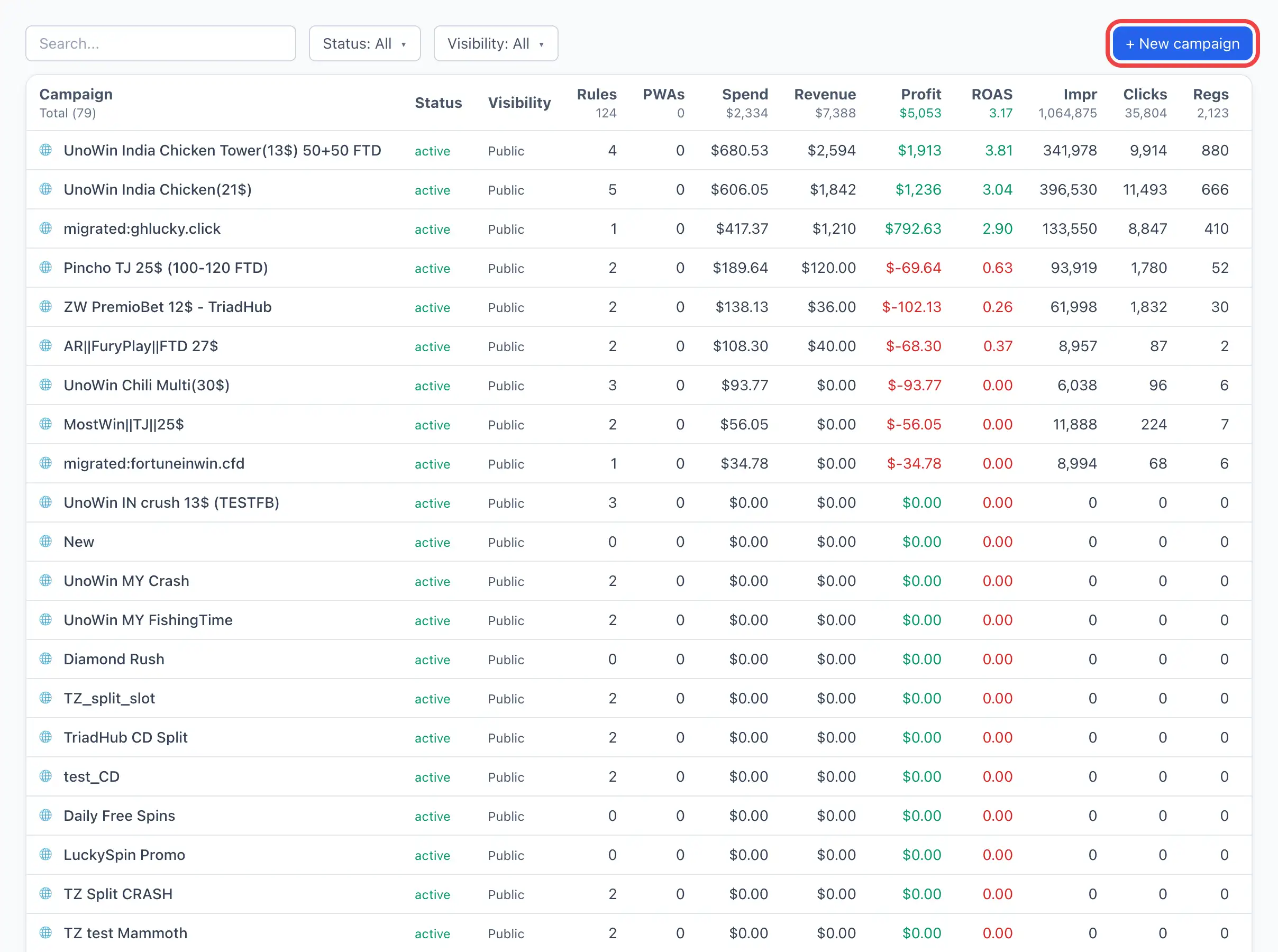
The + New campaign button immediately creates a new campaign and opens its card — there is no separate creation form. All configuration happens on the Settings tab in the card.
How to create a campaign
- Open the Campaigns section and click + New campaign.
The card of the new campaign opens (by default with the name "New").
- Go to the Settings tab (it opens first) and enter the campaign Name.
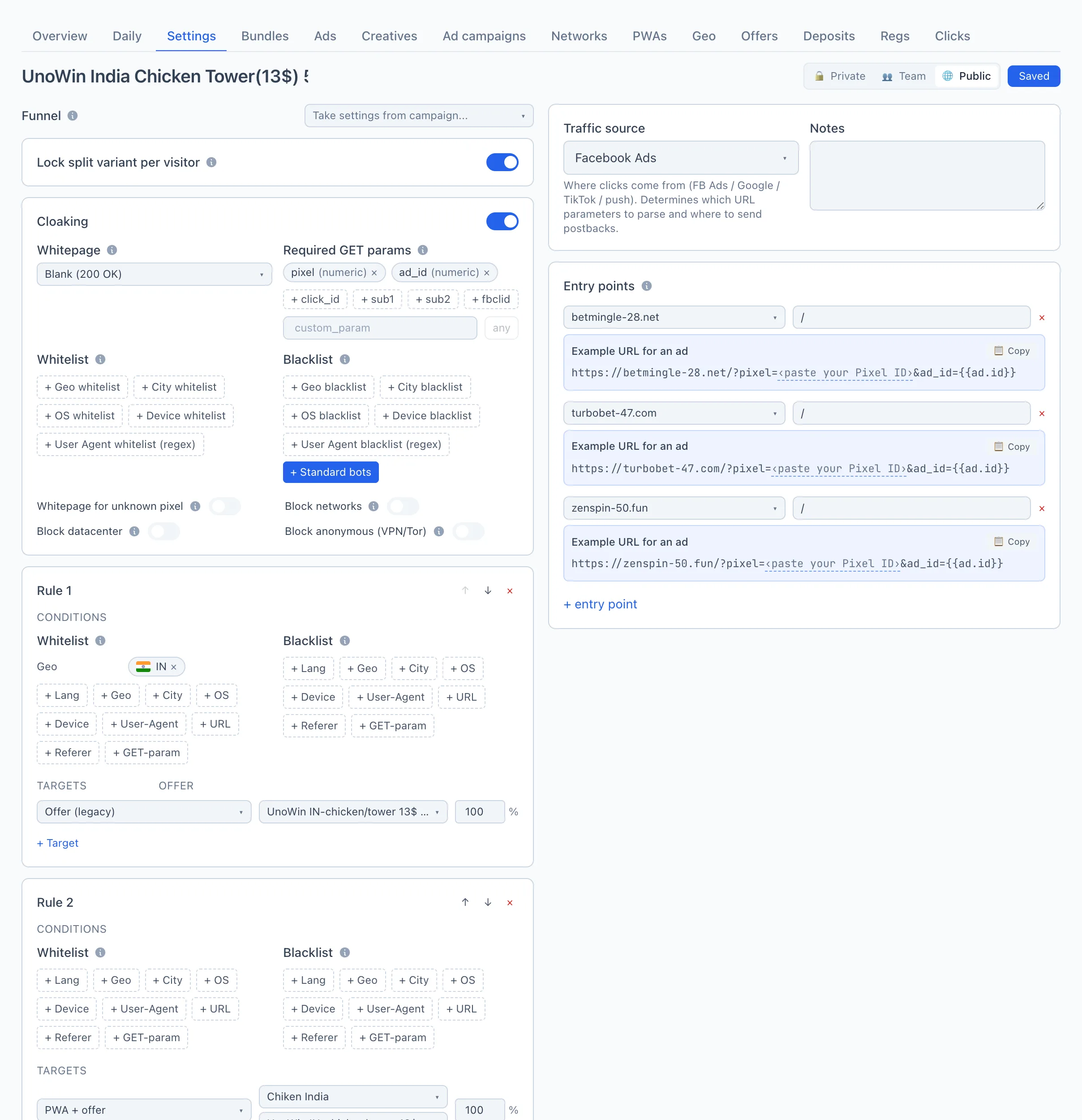
- Choose the Traffic source — where the clicks come from.
- Configure the Funnel: add rules and targets, enable cloaking if needed (see below).
- Add Entry points — the hosts and paths the traffic will arrive at.
- Click Save (the button at the top right; while there are unsaved changes it reads "Save", afterwards — "Saved").
The Save button is unavailable until the Name is filled in. Changes take effect only after saving.
Field reference (the "Settings" tab)
The tab is split into two columns: on the left — the Funnel (cloaking, rules, fallback), on the right — Traffic source, Notes and Entry points. At the top, full-width — the name, the visibility toggle and the save button.
Name
The campaign name. It is shown in the list, in the card and in the statistics. Without it the campaign cannot be saved.
Visibility
A toggle at the top right, three options:
- 🔒 Private — only you and your team lead see the campaign.
- 👥 Team — your whole team sees the campaign.
- 🌐 Public — all teams see the campaign (the default value).
Traffic source
Where the clicks come from (Facebook Ads, Google, TikTok, push, etc.). The source determines which parameters to parse from the link and where to send postbacks. If a source is selected, Qubix will show a ready example of an ad link under each entry point. Read more — Sources.
In the Take settings from campaign... dropdown (above the "Funnel" block) you can copy the rules and fallback from another campaign so as not to configure from scratch.
Notes
Free text for yourself or the team — for example, what the campaign is about or what the affiliate network's terms are. It does not affect how the campaign works.
Funnel: rules and targets
The main part of a campaign — how traffic is distributed across destinations. Here you set rules (by which conditions to catch a visitor) and targets (where to send them, with weights for a split). The full explanation of the model — in a separate article, Flows and distribution.
In short:
- Rule — a block with conditions (Whitelist / Blacklist by language, geo, OS, device, UA, referrer, URL and GET parameters) and a list of targets. Rules are checked top to bottom; you can reorder them with the ↑ ↓ arrows, add one with the + Add rule button, and remove one with the × cross.
- Target — a traffic destination: PWA + offer, prelanding + PWA + offer, landing + offer, whitepage, redirect to offer or redirect to URL. Each target has a weight in percent; if there are several targets, the traffic is split between them by weights (the ⚖️ button evens out the weights to 100%).
- Fallback (the bottom "default" block) — where the traffic that did not match any rule goes.
Cloaking
A global filter before all rules: while it is off, all visitors pass straight to the rules. When enabled, you can cut off traffic by geo, OS, devices, User-Agent, required GET parameters, and also block datacenters, known bot networks and anonymizers (VPN/Tor). A cut-off visitor sees the whitepage. In detail — Flows and distribution.
Entry points
The hosts and paths by which the campaign catches traffic. The host is chosen from your domains, the path (folder) — entered manually. Read more about how the link is formed — Campaign link and parameters; about the domains themselves — Domains.
- Host — a domain from the list of your domains.
- Path — the folder after the domain. Empty (or
/) — the whole host;/promocatches/promoand/promo/x, but not/promo2.
Identical (host, path) pairs within a campaign are not allowed — duplicates are highlighted in red and must be removed before saving. If an entry point is already taken by another campaign, the row is highlighted in yellow with a warning.