Domain settings
The domain card opens when you click a row in the Domains list. The header shows the domain name, its statuses, registrar, expiry date and price. This is also where you assign roles to the domain and, if needed, get a ready-made postback URL.
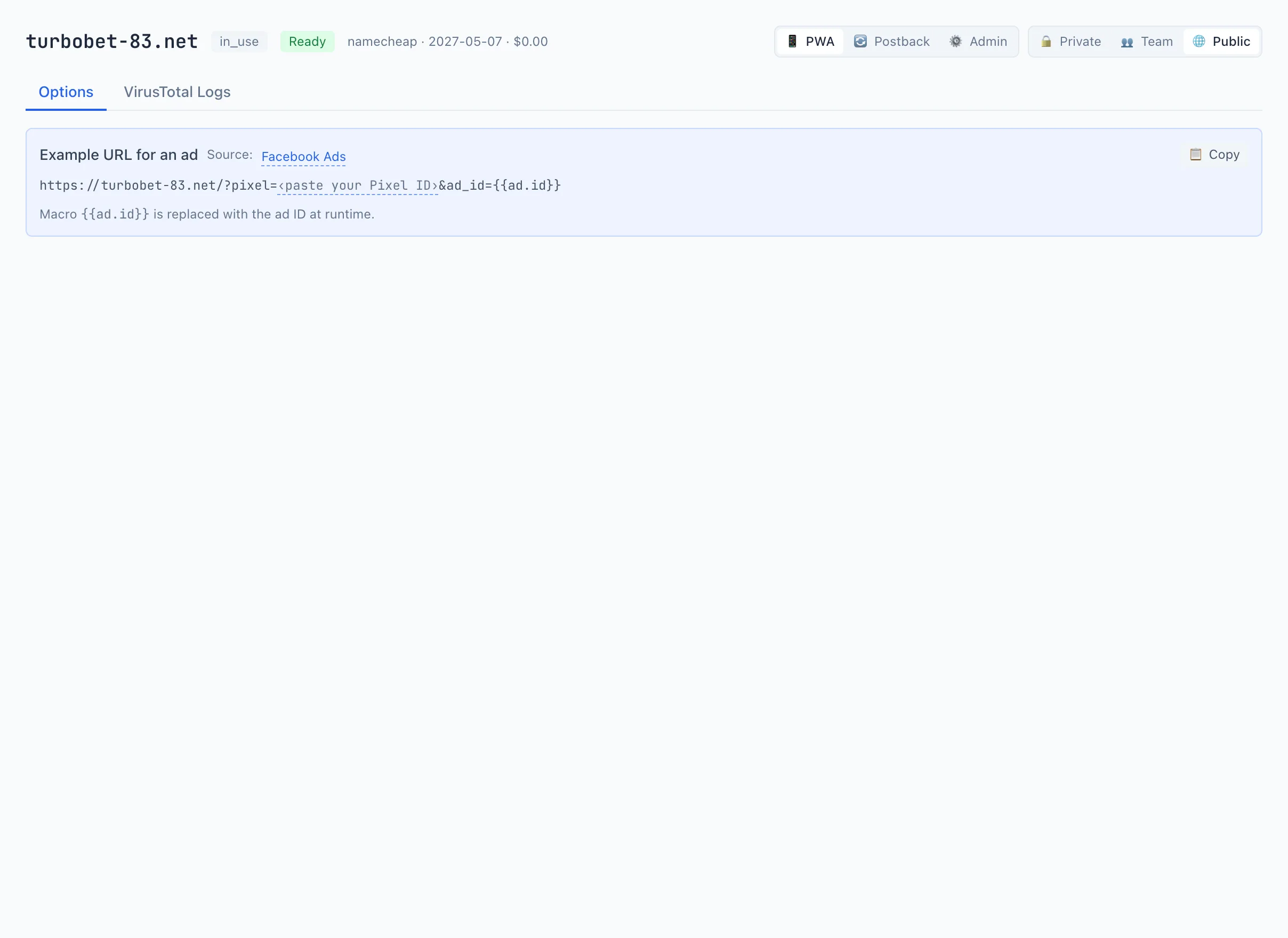
The card has these tabs:
- Settings — roles, postback URL, an example ad link.
- VirusTotal Logs — the history of antivirus checks. See VirusTotal scanning for details.
- DNS records — the domain's Cloudflare DNS records. Appears only for a domain served through Cloudflare. See DNS records for details.
Domain roles
On the right side of the header is the role switcher. A single domain can perform several roles at once — click the one you need to enable or disable it. Changes are saved immediately.
PWA — the domain receives clicks from Facebook and hosts a PWA app.
Postback — the domain receives postbacks (S2S) about conversions from affiliate programs. When this role is enabled, a block with the postback URL appears below.
Admin — the domain hosts the Qubix control panel.
Next to the roles is the visibility switcher — private, team or public. It determines who on the team sees this domain.
Deleting a domain
The Delete domain button in the header removes a domain you no longer need from your list. The domain stops being served and disappears from the registry.
Deleting a domain here does not delete its Cloudflare zone — the zone stays in your Cloudflare account, so nothing is destroyed on the registrar side. You're only removing the domain from Qubix.
Qubix won't let you delete a domain that's still in use, so you can't accidentally cut off live traffic:
- If an active campaign still routes through the domain, deletion is refused and Qubix shows you where the domain is used — free it there first.
- A domain carrying an infrastructure role (the one that hosts the Qubix control panel, for example) can't be deleted until that role is reassigned.
Postback URL
This block appears only when the domain has the Postback role enabled. It shows the ready-made address you need to paste into the postback settings on the affiliate program's side. Click Copy to copy the whole address.
The address contains substituted values (macros) — the affiliate program will replace them with real conversion data:
subid— the click identifier (click_id,sub_id,aff_click_id,tidare also accepted).status— the event type:lead,sale,rejected(alsoevent,goal,action).payout— the payout amount (alsorevenue,amount).currency— the currency:USD,EURand so on.from— the source (affiliate program).
If the affiliate program names the parameters differently, use one of the listed synonyms — Qubix recognizes them all.
Example ad URL
Below, a ready-made example of the link you should put in the Facebook ad is shown. Pick the traffic source — the link assembles automatically. The Pixel ID can be filled in by clicking the corresponding spot in the link. Click Copy to copy the link.