Pixels
The Pixels tab stores Facebook pixels and their access tokens. They are needed so that Qubix can send conversion events back to Facebook via the Conversions API. For more on the event sending itself, see Conversions API.
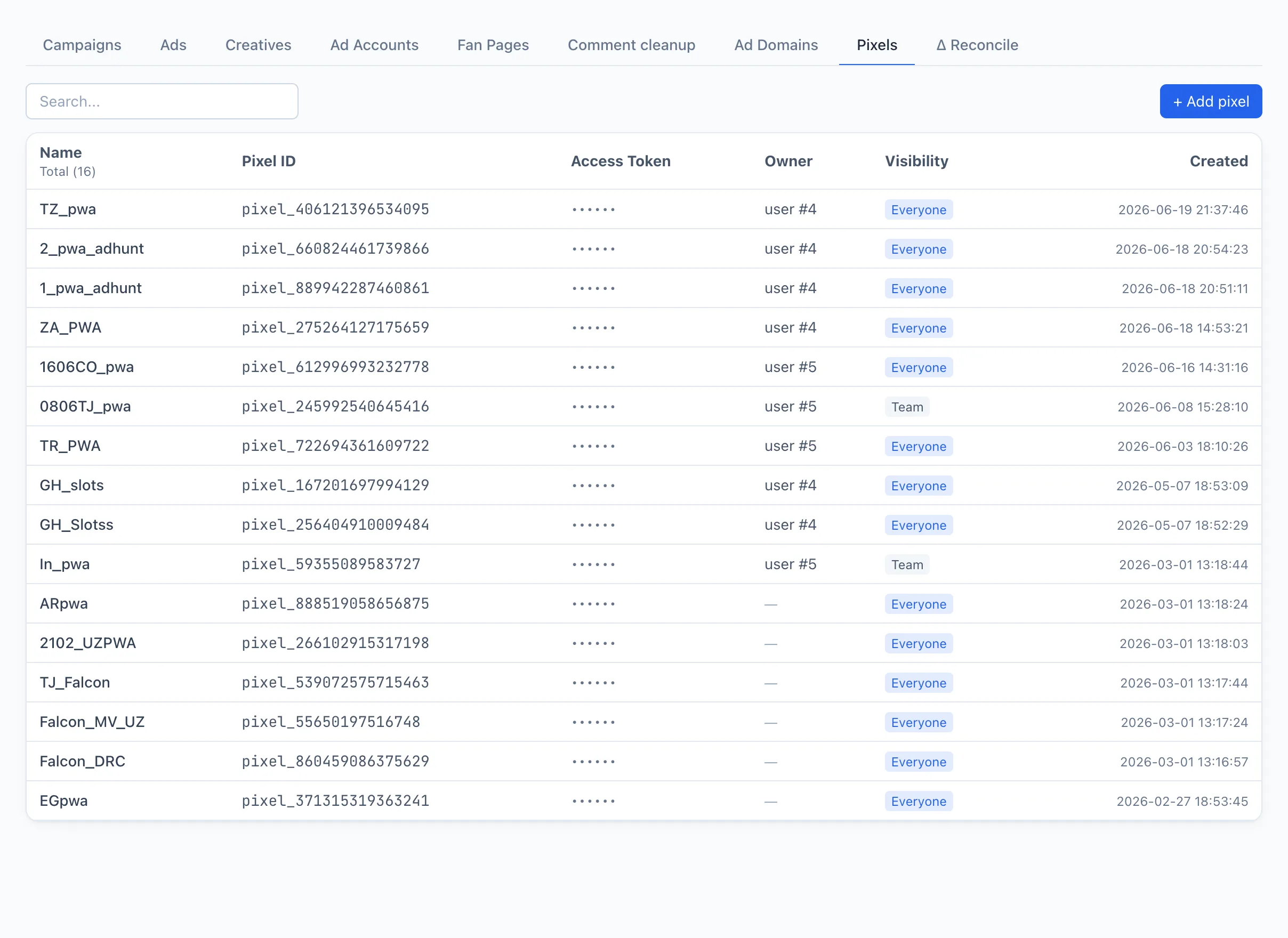
Pixel list
Each row is a single pixel. Columns:
- Name — a human-readable pixel name.
- Pixel ID — the pixel identifier from Facebook.
- Access Token — the token is shown masked; it is never displayed in full.
- Owner — the user the pixel belongs to (and their team).
- Visibility — who has access: everyone, the team, or the owner only.
- Created — the date it was added.
Search works by name. Clicking a row opens the edit window.
How to add a pixel
- Click + Add pixel in the top right corner of the list — a window opens.
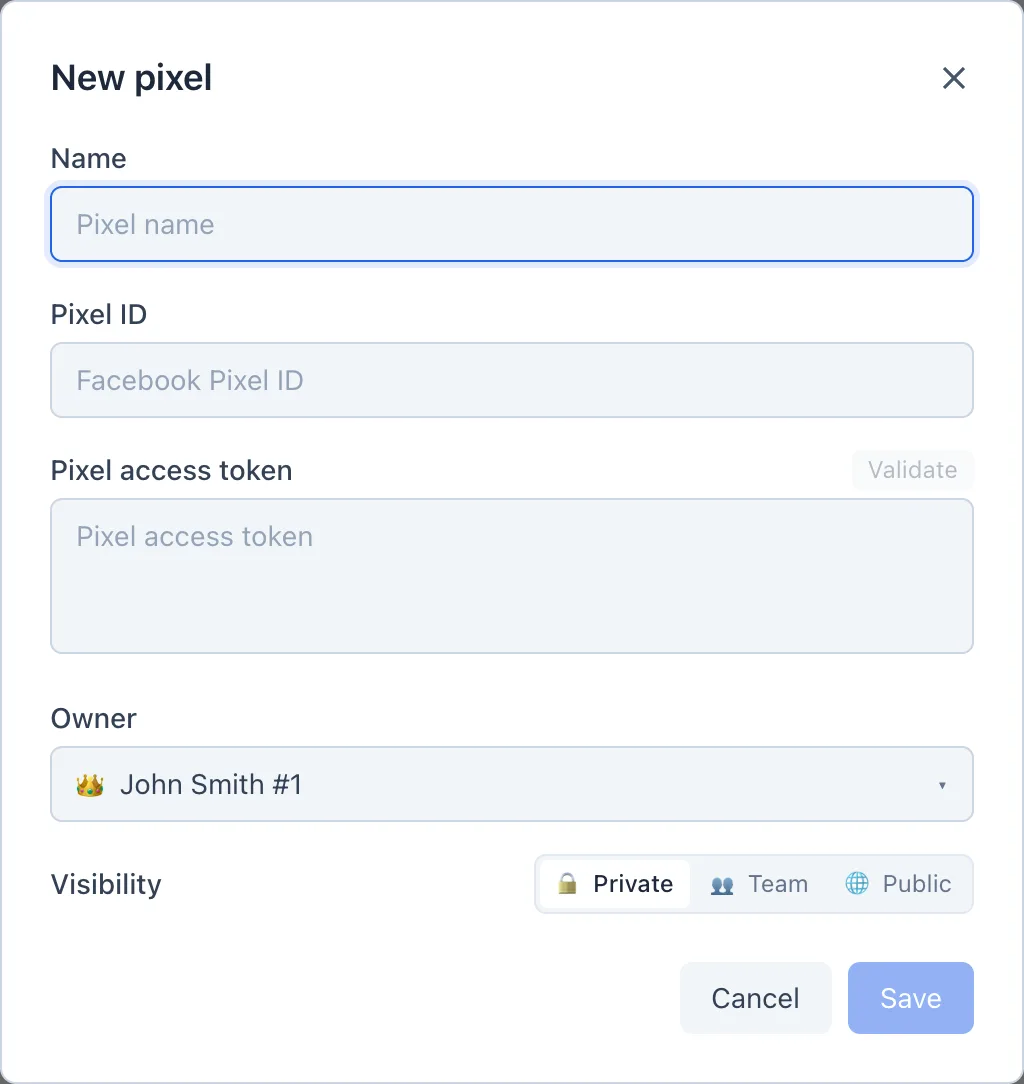
- Fill in the Name — a human-readable name you'll recognize the pixel by in the list.
- Enter the Pixel ID — the pixel identifier from Facebook.
- Paste the Pixel access token.
- (Optional) Click Validate — Qubix will ask Facebook whether the token works. A green checkmark means the token was accepted; a red cross means the check failed.
- Click Save.
Always click Validate before saving. That way you immediately see that the token and Pixel ID match and the pixel will accept events, rather than discovering an error later on live traffic.
Pixel access
If you have an administrator or team lead role, two additional fields are available in the window:
- Owner — who the pixel belongs to.
- Visibility — who sees it: everyone, the owner's team, or the owner only.
A regular buyer doesn't see these fields — the pixel stays with them.
How to replace the token
The Pixel ID cannot be changed after creation — the field is locked. The token is replaced like this:
- Open the pixel by clicking its row.
- Below the token field, click Replace.
- Paste the new token, and optionally click Validate.
- Click Save. If you leave the token field empty, the previous token is kept.
How to delete a pixel
- Open the pixel by clicking its row.
- Click Delete in the bottom left corner of the window.
- Confirm the deletion.
Deleting a pixel cannot be undone. After deletion, Qubix will stop sending conversion events to Facebook through this pixel.