Geo
The Geo section shows all your metrics broken down by country. Here you can see which geos bring profit and which burn budget, how the return changes by hour and weekday, and how many more deposits you can expect from traffic already launched.
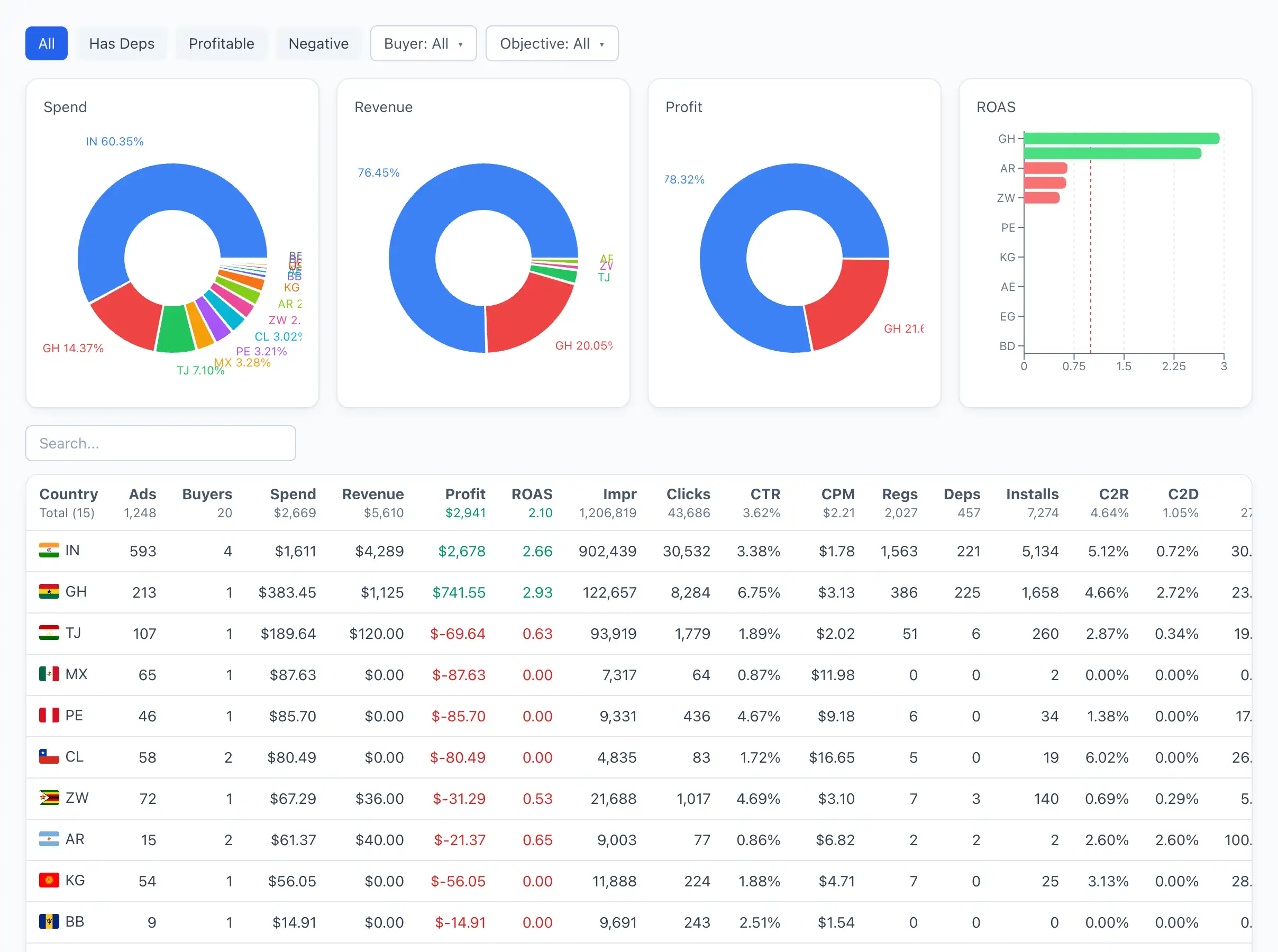
The screen has two levels: the country list (the overall picture across all geos) and the geo card (a detailed breakdown of one country with tabs). Open the list via the Geo menu item, then click a row for the country you want to go to its card.
Country list
Above the table are pie charts of the distribution by Spend, Revenue and Profit, plus a chart by ROAS — they give a quick visual snapshot of which countries account for the main share of budget and return.
Below the charts is the country table. Any column can be sorted by clicking its header, and search works on the Geo field.
Filters
Above the charts is a filter bar.
All — shows all countries with no restrictions (selected by default).
Has Deps — keeps only countries that have at least one deposit.
Profitable — only countries with positive profit.
Negative — only countries with negative profit (traffic running at a loss).
Buyer — a searchable dropdown. Keeps countries where the selected buyer worked.
Objective — a searchable dropdown. Keeps countries for the selected campaign objective.
To quickly find problem geos, turn on the Negative filter and sort the table by the Spend column — the countries that waste the most budget will be at the top.
Table columns
The columns run left to right in the same order as in the interface.
Geo — the country (flag and country code).
Ads — how many ads were launched to this country.
Buyers — how many buyers worked on this geo.
Spend — ad spend.
Revenue — revenue from affiliate programs for this geo.
Profit — the difference between revenue and spend. Green — in profit, red — at a loss.
ROAS — payback: the ratio of revenue to spend. Colour-coded — from red (below payback) to green (a good figure).
Impressions — the number of ad impressions.
Clicks — ad clicks.
CTR — the share of clicks out of impressions.
CPM — the cost per thousand impressions.
Regs — the number of registrations.
Deposits — the number of deposits.
Installs — the number of installs (for apps).
C2R — click-to-registration conversion.
C2D — click-to-deposit conversion.
I2R — install-to-registration conversion.
I2D — install-to-deposit conversion.
C2I — click-to-install conversion.
The set of metrics is the same for all Qubix reports. For details on each one, see the Metrics glossary.
Geo card
Clicking a country row opens its card. At the top are KPI cards and a chart for the selected period; below are tabs with detail. The period and chart granularity are controlled by the shared period switcher in the header.
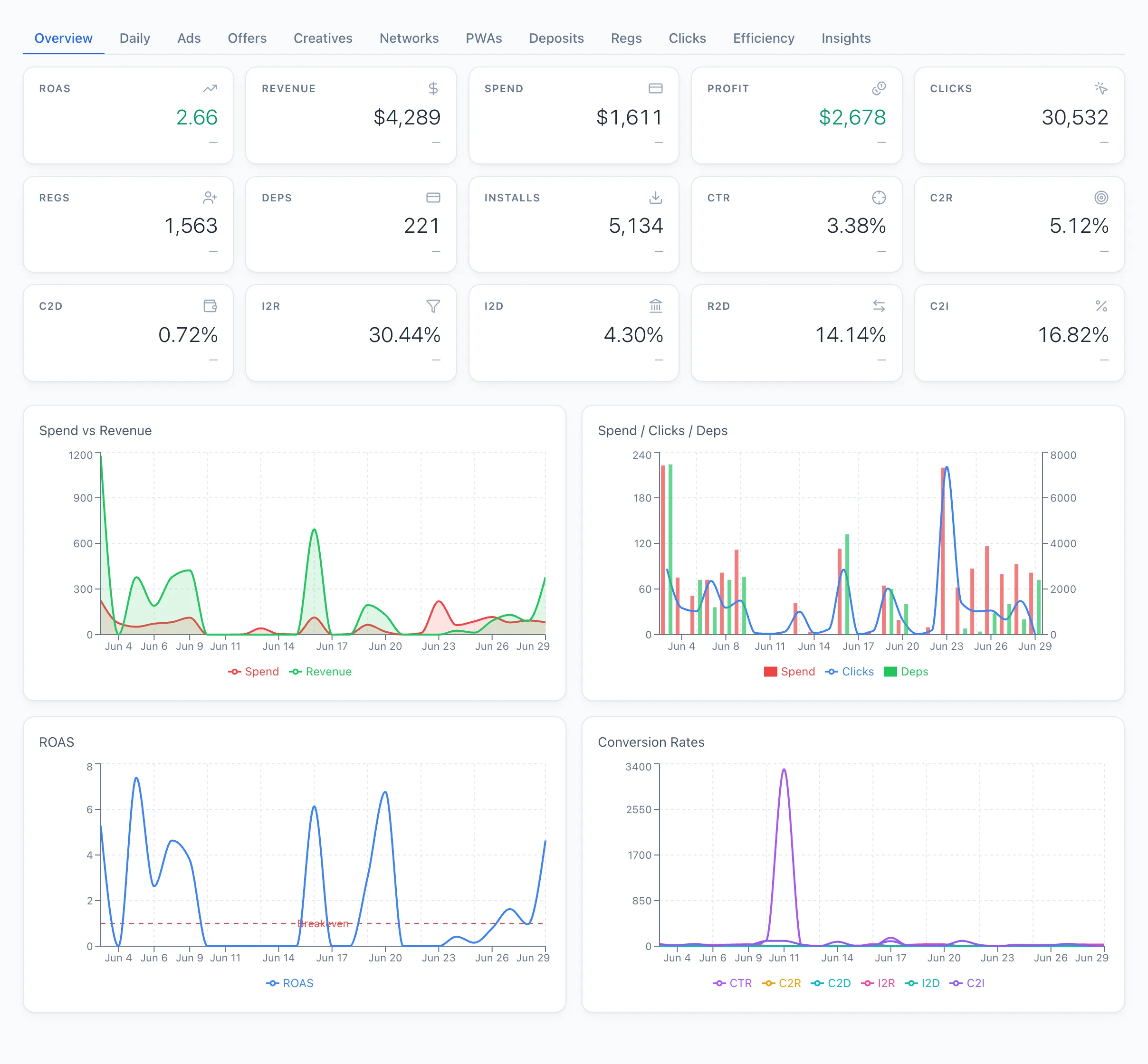
Detail tabs
By Day — the dynamics of the country's metrics by day over the selected period.
Ads — the list of ads launched to this country. Clicking a row opens the ad card.
Offers — the offers that ran on this geo. Clicking opens the offer card.
Creatives — the creatives for this country. Clicking opens the creative card.
Networks — a breakdown by networks (ad networks). Clicking opens the network card.
PWA — the PWA apps through which traffic went to this geo. Clicking opens the PWA card.
Deposits — the list of deposits for the country.
Regs — the list of registrations for the country.
Clicks — the list of clicks for the country.
Efficiency — a heatmap and tables of return by time (see below).
Insights — conversion, time to deposit and forecast (see below).
The «Efficiency» tab
The tab shows when the geo performs best. It consists of three blocks.
Efficiency Heatmap — a heatmap by hour of day and weekday. The "warmer" a cell, the higher the return at that hour of that day.
By Hour — a table by hour of day (in the geo's local time) with columns: Hour, Spend, Revenue, Profit, ROAS, Deposits and Score.
By Weekday — the same table, but broken down by weekday.
Score — a summary efficiency score from 0 to 100: the higher, the more effective that hour or day. Colour-coded from red (low) to green (high).
If the Score is consistently high at certain hours, it makes sense to ramp up launches in exactly those windows, and to cut back or pause the hours with a low score.
The «Insights» tab
The tab answers the question "how and when traffic converts on this geo" and gives a forecast for registrations already launched. Three blocks.
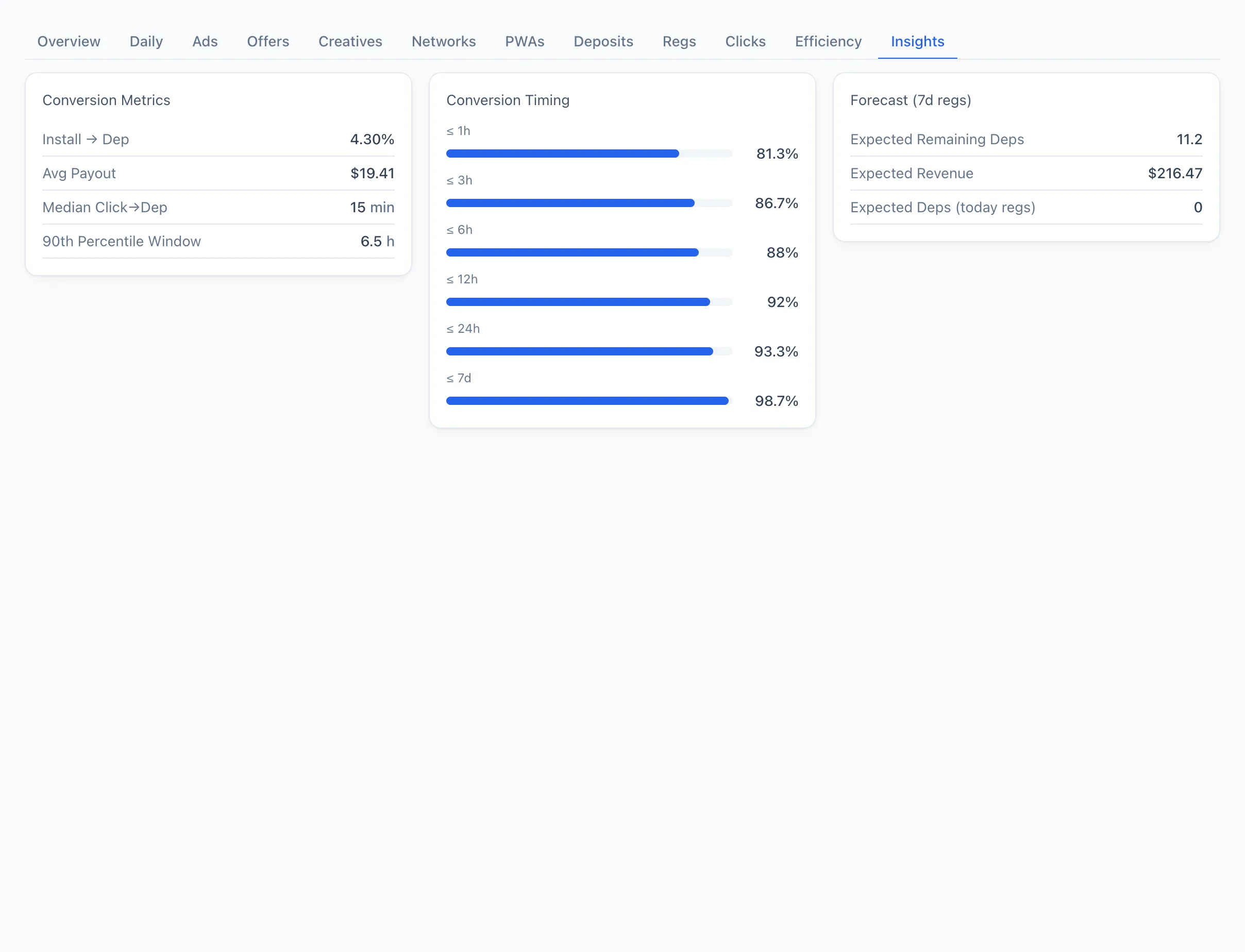
Conversion Metrics — key figures for the geo:
- Click → Dep — click-to-deposit conversion, as a percentage.
- Avg Payout — the average affiliate payout per deposit.
- Median Click→Dep — the typical time from click to deposit (the median), in minutes.
- 90th Percentile Window — how many hours it takes for 90% of deposits to land. This window shows how long it's worth waiting for conversions before considering the traffic "settled".
Conversion Timing — the distribution of deposits by the time since the click: what share of deposits happens within ≤ 1h, ≤ 3h, ≤ 6h, ≤ 12h, ≤ 24h and ≤ 7 days. Each interval is shown as a bar with a percentage.
Forecast (7d regs) — the expected return from registrations already received:
- Expected Remaining Deps — how many more deposits are expected from registrations already launched.
- Expected Revenue — the expected revenue from those deposits.
- Expected Deps (today regs) — how many deposits are expected from registrations received today.
If the Median Click→Dep on a geo is a few hours, but the 90th Percentile Window stretches to a day or more, don't rush to turn off the bundle on the "zero" day: the Conversion Timing block will show what share of deposits is still ahead.
If there isn't enough data for the country, the tab will show "No insights data for this geo".