Install on a server
Qubix runs on your own server — one install command brings up the whole stack (database, backend, web server, helpers). You only need a clean Linux server with SSH access and Docker.
Server requirements
The installer checks the server before it starts and refuses to continue on a machine that is clearly too small. The recommended minimum:
| Resource | Recommended minimum |
|---|---|
| CPU | 4 vCPU |
| RAM | 8 GB |
| Disk | 20 GB SSD or HDD |
These are the values the installer recommends; below them it still runs but warns that ClickHouse will be slow on busy days. There is a hard floor of 10 GB free disk — below it the install stops.
Disk type doesn't matter for serving traffic — both SSD and HDD work, and HDD lets you save; SSD only speeds up admin reports at large volumes. 20 GB is plenty to start: it fits the platform plus thousands of creatives, and traffic history barely weighs anything. For exactly how much traffic and how many creatives a given disk holds, see Choosing your server.
A few hard requirements:
- A 64-bit Linux server (a VPS/VDS or a dedicated machine), not a personal computer or shared hosting.
- A modern 64-bit x86 CPU with the SSE4.2 and AVX2 instruction sets
— the
x86-64-v3baseline, met by any Intel (Haswell, 2013 and later) or AMD (Zen, 2017 and later) server processor. ClickHouse's official builds use these instructions unconditionally: on an older CPU the database won't start — it crashes with "Illegal instruction". The installer checks for both instruction sets up front and stops with a clear message before anything is downloaded, so you never chase a mysterious container crash. If the check fails, ask your VPS provider for a plan or region that runs on newer hardware. - Docker with the
docker composeplugin (V2). The old standalonedocker-compose(V1) is not supported — the installer detects it and stops. - Outbound HTTPS so the server can pull the Qubix images.
Install Qubix on a server dedicated to it. The stack expects ports 80, 443 (and 8443 for the Cloudflare option) to be free. If another web server already holds them, free them first or pick the Cloudflare option later in the wizard.
Installation
-
Connect to the server over SSH as root.
-
Run the install command:
Bashcurl -sSL https://qubix.pro/install.sh | bash(or
wget -qO- https://qubix.pro/install.sh | bash)
-
The installer shows the Qubix banner, checks the server, asks a couple of questions (install folder, which network interface to publish on), then pulls and starts the stack. Wait until it reports that everything is up.
Let the installer finish. Stopping it midway can leave a half-configured stack — if that happens, the safest recovery is to remove the install folder and run the command again on a clean server.
What you get
The installer brings up a small set of containers that make up Qubix: the analytics database, the Qubix backend, the web server, and the auto-update, certificate and AI helpers. You do not manage these by hand — Qubix drives them for you.
Finishing the setup in the browser
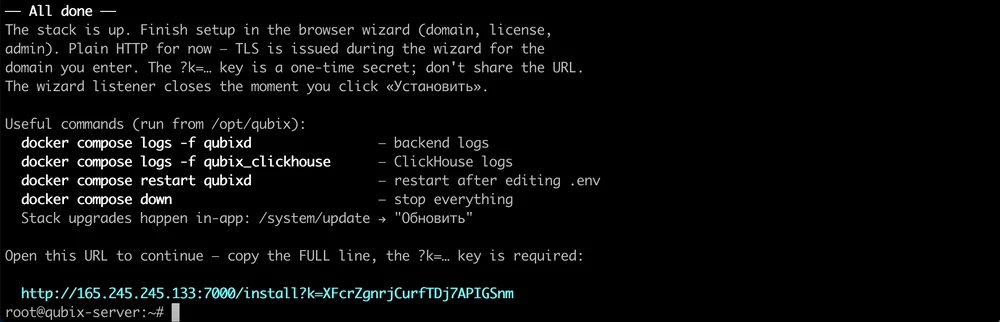
When the stack is up, the installer prints a link like:
http://<your-server-ip>:7000/install?k=…
Open that full link in a browser (the ?k=… key is required). It opens the
setup wizard, where you choose how Qubix will be reached, enter your license, and
create the first administrator.
The setup wizard is only reachable until you finish it. After the first administrator is created the link stops working — that is expected. From then on you log in at your panel's own address.