Connecting a network
An affiliate network is connected in two steps: you create a record and fill in the Options tab. The options describe two directions of data exchange — what you send to the partner (the tail appended to the offer-URL) and what the partner sends back to you (a conversion postback).
How to add a network
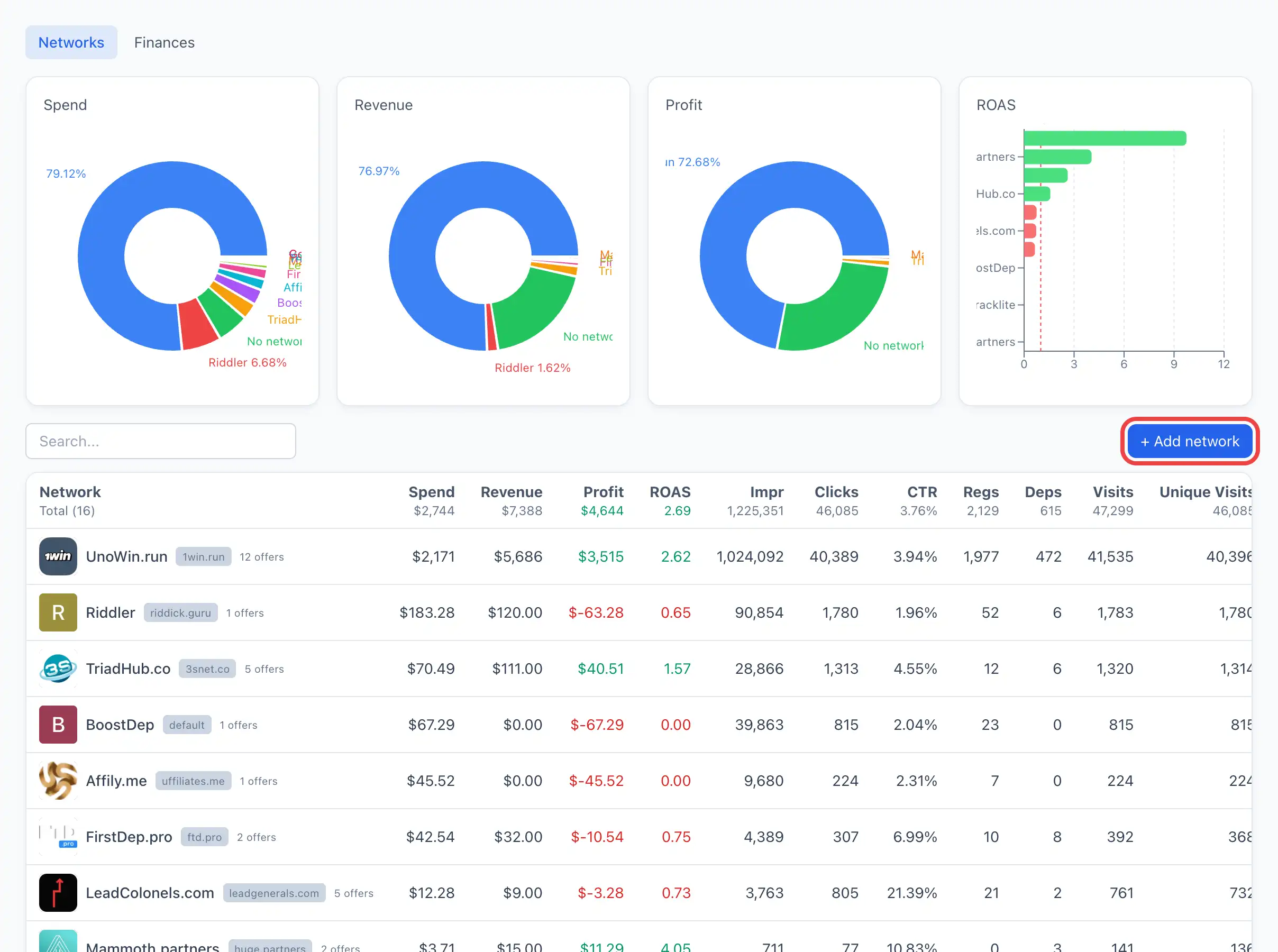
- Open the Networks section and on the Networks tab click + Add network in the top-right corner of the table. The card of the new network opens immediately on the Options tab.
- (Optional) Pick a value in From template — a ready-made preset of a known network. The template automatically fills in the name, offer params and postback reading rules.
- Fill in the rest of the fields (see below).
- Click Save. After saving a Saved mark appears.
Saving is available only with the permission to manage networks. Without it the fields are visible, but the Save button is disabled and a Read-only note is shown beneath it.
Field breakdown (the «Options» tab)
The fields are grouped by meaning. To the right of the form there is a built-in «How it works» help — it duplicates the explanations from this article.
Network
From template — a preset of a known network. Picking a template fills in the name, offer params and postback reading rules. If your network is not in the list — leave it empty and fill in the fields manually.
Name — what the network is called in your interface. This same value goes into the from= label of the postback URL, so the system knows which network the postback came from.
Until the Name is set, the postback URL is not generated — the system shows the hint «set the network name first».
What we send to partner
Offer params — the «tail» the system automatically appends to the offer URL when the user is redirected to the network. For example, with the value sub1={click_id} a user leaving for https://partner.com/offer/1 will land on https://partner.com/offer/1?sub1=<user identifier>.
The macro in curly braces is substituted automatically: {click_id} and {subid} are the unique user identifier (piuid). This way the network remembers who it was sent and returns this identifier in the postback.
What partner sends to us (postback)
Here the system shows a ready Postback URL — you need to copy it and paste it into the network's panel in the postback settings. When a user converts, the network will hit this address and report the conversion to you. Click Copy next to the address.
How many addresses are shown depends on the network:
- If the network can pass the event type in a single postback, one address is shown.
- If it can't — two addresses are shown: Postback URL — registration and Postback URL — deposit. Each one must be pasted into its matching slot (postback for registration / for deposit) in the network's panel.
Macros in this address (for example {subid}, {payout}) are partner tracker macros, not yours; the network substitutes the values when firing the call.
The postback address is built automatically and cannot be edited by hand. A detailed breakdown of postbacks — see Network postback.
If the address does not appear, check the hint under the field — usually the reason is one of:
- the postback hash has not been generated;
- the network's Name has not been set;
- there is no domain with the postback role (it needs to be assigned in the domains list).
TRC20 wallets
A list of USDT-TRC20 addresses for payouts from this network. Click + Add to add a row and ✕ to remove one. The addresses are used by the financial module to reconcile payouts — see Wallet.
The address is validated for the TRC20 format (34 characters, starts with T). The system will not save an invalid address and will show an error indicating the problematic value.
Other
Status — Active or Paused. Pausing does not delete the network, it marks it as inactive.
Notes — free-form text for the team (terms, manager contacts, etc.).
If your network is in the From template list, start with it — it will immediately fill in the offer params and postback reading rules, and all that's left is to copy the ready Postback URL into the network's panel.