Networks
An affiliate network is an external source of offers and payouts. You send the user to it via an offer-URL, and it sends you postbacks about conversions (registrations and deposits). The Networks section shows all connected networks, their performance and a financial summary.
Section tabs
At the top of the section there are two tabs:
- Networks — a table of all networks with metrics for the selected period.
- Finances — a summary of payouts and spend by month. Breakdown — see the article Network finances.
The networks list
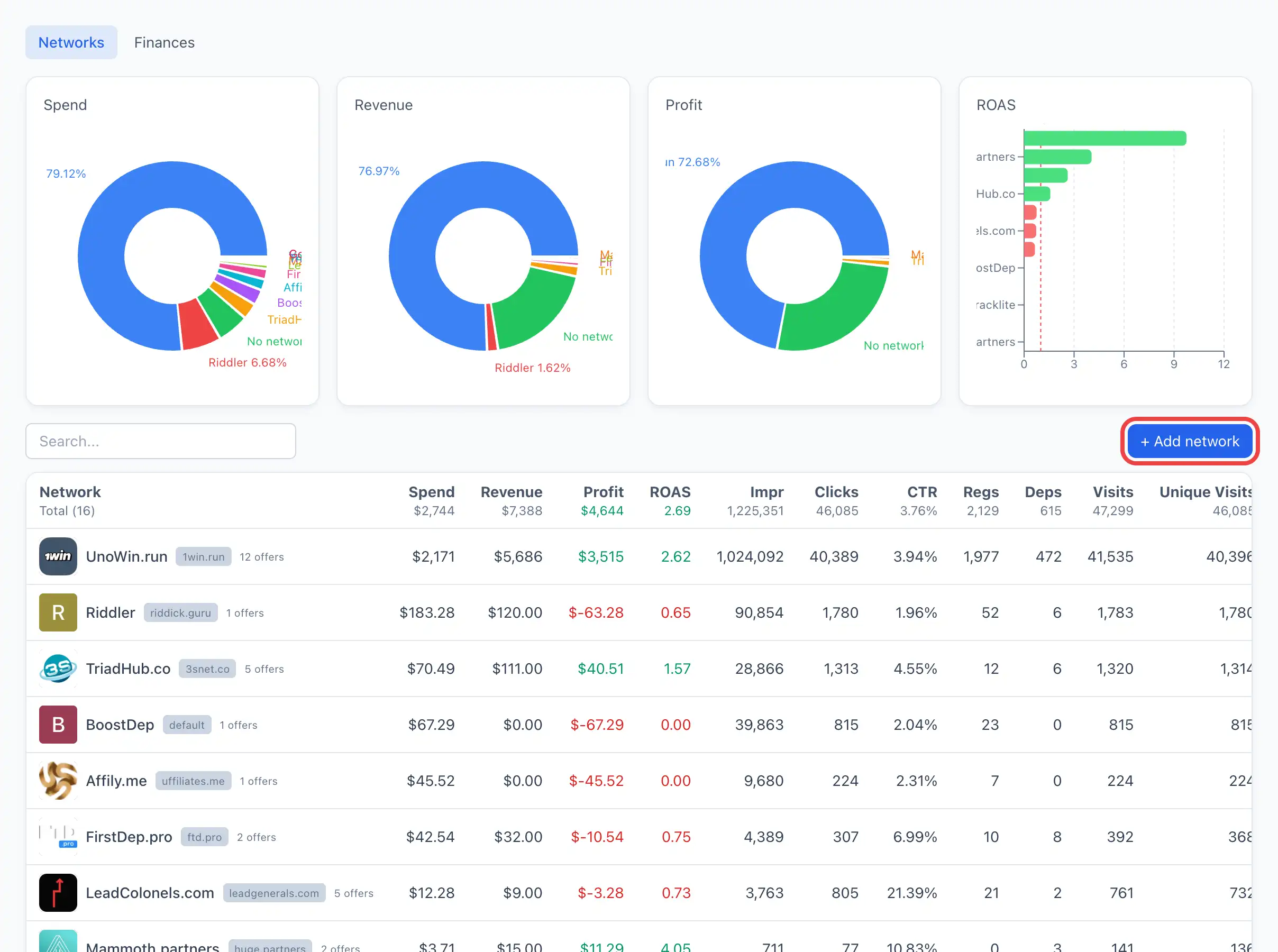
On the Networks tab, distribution pie charts are shown above the table, and below them — the table. Each row is one network; clicking a row opens its card.
To add a new network, click + Add network in the top-right corner of the table. For more — see Connecting a network.
The + Add network button is visible only with the permission to manage networks. Without it the section is available for viewing only.
Table columns
The first column holds the network name with its logo, a template label next to it (if the network was created from a template) and the number of attached offers. The remaining columns are metrics for the selected period:
- Spend — traffic spend.
- Revenue — income (payouts from the network).
- Profit — revenue minus spend; green when positive, red when negative.
- ROAS — traffic payback.
- Impressions, Clicks, CTR — ad metrics.
- Registrations, Deposits — conversions.
- Visits, Unique Visits, Installs — app visits, unique visits and installs.
- C2R, C2D — click→reg and click→dep conversion.
- I2R, I2D — install→reg and install→dep conversion.
- C2I — click→install conversion.
Metric values can be sorted by clicking the column header; totals are shown at the bottom of the table. A breakdown of all metrics — see the Metrics reference.
The network card
Clicking a row opens the network card. At the top — the name, the number of offers, an overall chart and KPI tiles for the period. Below — tabs:
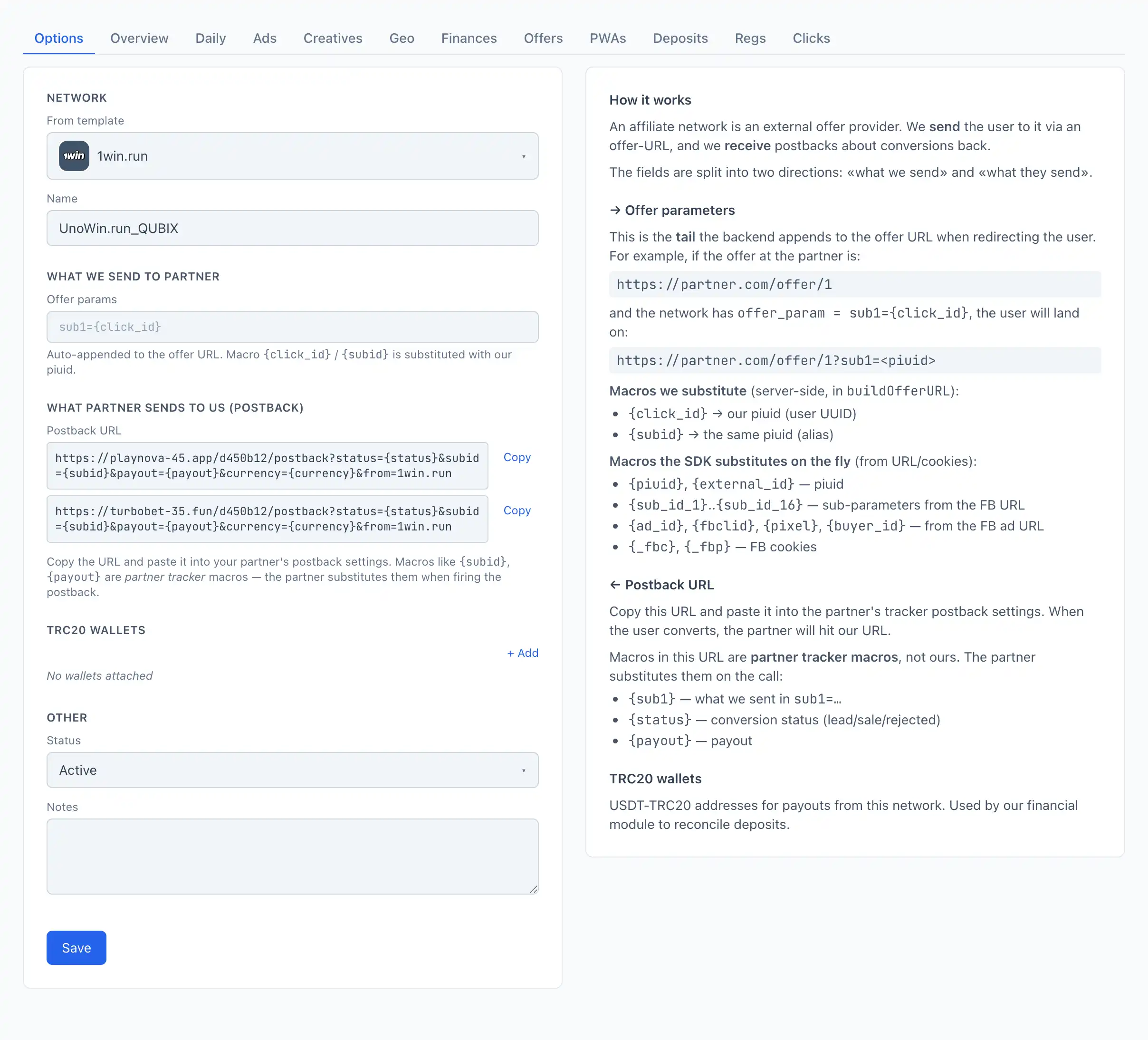
- Options — the network parameters: name, what you send to the partner, how the incoming postback is read, wallets, status. Full breakdown — see Connecting a network.
- By day — daily dynamics of the metrics for the selected period.
- Ads — the ads that ran traffic to this network; clicking opens the ad card.
- Creatives — creatives associated with traffic to this network.
- Geo — a breakdown by country.
- Finances — payouts and spend specifically for this network. The same logic as on the shared Network finances tab.
- Offers — the offers of this network. For more on offers — see Offers.
- PWA — the apps that drove traffic to the network.
- Deposits, Registrations, Clicks — lists of conversions and clicks for this network.