Creating an offer
An offer is the card of an affiliate proposal: the link a visitor follows to the network, plus its payout, currency, cap and the list of geos. This article shows how to add an offer, work through the options fields and build a link with macros.
How to create an offer
- Open the Offers section and click + Add offer.
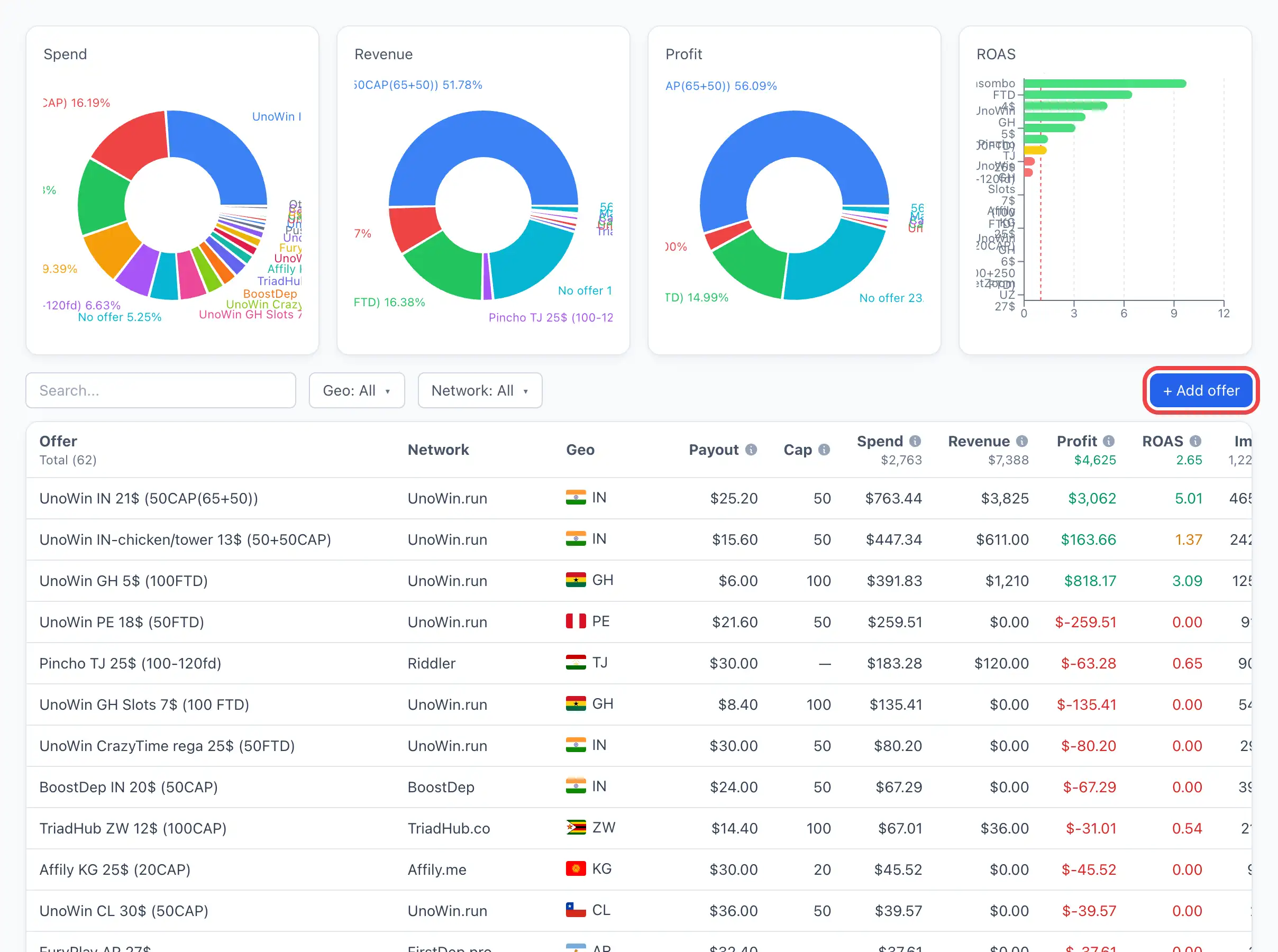
- An empty offer is created right away, and its card opens on the Options tab. There is no separate form window — you fill it in right in the card.
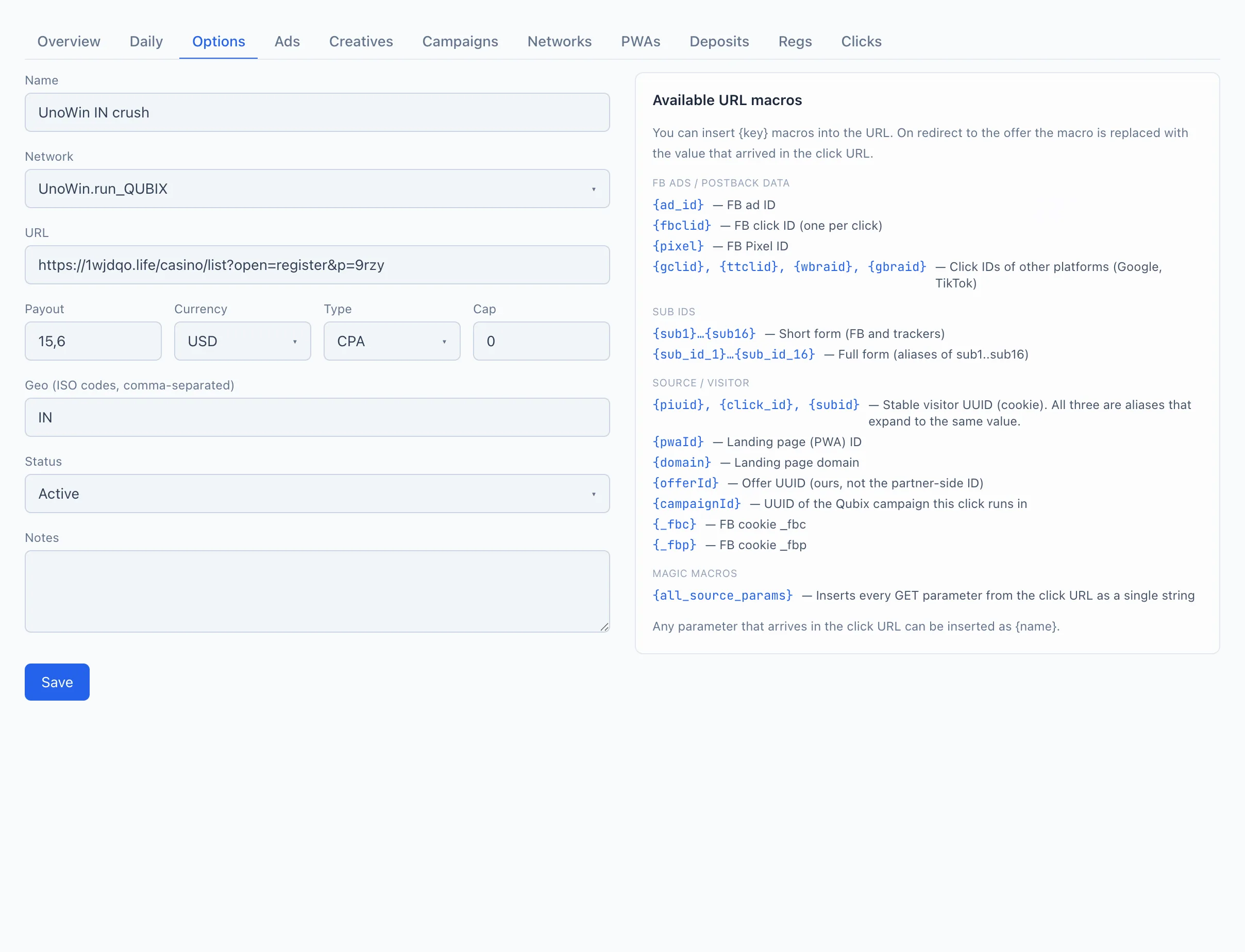
- Fill in the options fields (breakdown below). At a minimum, specify the Name, pick the Network and paste the URL.
- Click Save. A Saved mark appears under the button.
The + Add offer button, saving and duplicating are available only with the permission to manage offers (tracker.offer_manage). Without it the card opens in Read-only mode.
Field breakdown
The fields go in the same order as on the Options tab.
Name — what the offer is called inside Qubix. Visible in the offers list, in reports and filters. This name has nothing to do with the network — write it however is convenient for you.
Network — the affiliate network the offer belongs to. Picked from the list of already-created networks (a field with search). The selected network determines which technical parameters are appended to the link automatically. For more — see Networks.
URL — the network link the visitor goes to. You can also insert macros here (see below). You don't need to add the network's own parameters to the URL by hand — they will be appended automatically on redirect.
When a network is selected, a block appears to the right of the form with its name and the exact string of parameters that will be appended to your URL. Handy for checking that you aren't duplicating anything by hand.
Payout — the payout amount per conversion. A number (decimals allowed).
Currency — the payout currency: USD, EUR or RUB.
Type — the payout type: CPA (per action), CPL (per lead) or RevShare (a share of revenue).
Cap — the daily conversion limit for the offer. 0 means «no limit».
Geo — the offer's countries, as two-letter ISO codes separated by commas (for example, BR, IN, TJ, UZ). Case doesn't matter — the codes are uppercased. Values shorter or longer than two letters are dropped.
Status — Active or Paused. When paused, the offer stays in the system but is marked as inactive.
Notes — free-form text for yourself or the team. It does not affect how the offer works.
Macros in the URL
In the URL field you can insert {key} macros. On redirect to the offer the macro is replaced with the value that arrived in the click URL. Any parameter that arrives in the click URL can be inserted as {parameter_name} — the list below covers the most common ones.
{ad_id}— Facebook ad ID.{fbclid}— Facebook click ID (arrives with every click).{pixel}— Facebook Pixel ID.{gclid},{ttclid},{wbraid},{gbraid}— click IDs of other platforms (Google, TikTok).
{sub1}…{sub16}— short form (Facebook and trackers).{sub_id_1}…{sub_id_16}— full form, synonyms for{sub1}…{sub16}.
{piuid},{click_id},{subid}— the stable visitor identifier (from the cookie). All three are aliases of the same value.{pwaId}— landing page (PWA) ID.{domain}— landing page domain.{offerId}— the offer ID inside Qubix (not the partner-side one).{campaignId}— the ID of the Qubix campaign the click runs in.{_fbc},{_fbp}— the values of the Facebook_fbcand_fbpcookies.
{all_source_params}— inserts all parameters from the click URL at once as a single string.
Duplicating an offer
To avoid filling in a similar offer from scratch, open a ready one and click Duplicate. A duplication window opens.
🎬 GIF: clicking «Duplicate» and the duplication window
- Set the New offer name (by default the original name with a
(copy)mark is filled in). - In the What to copy block, use the checkboxes to select what to carry over: Network (together with the URL), Payout, Cap, Geo. An unchecked box — the field is created empty.
- Click Duplicate. The card of the new copy opens — you can fine-tune it right there.
Uncheck Geo if you are making the same offer for different countries — you'll copy the payout and the link, and enter a new geo.