Creating a push campaign
A push campaign is a notification broadcast to the subscribers of your PWAs. The Push section shows a list of all campaigns with their status, audience, and results (sent, clicks, CTR). Creating a campaign opens its card, where you configure the type, audience, schedule, and content.
How to create a campaign
-
Open the Push section and click + Create.
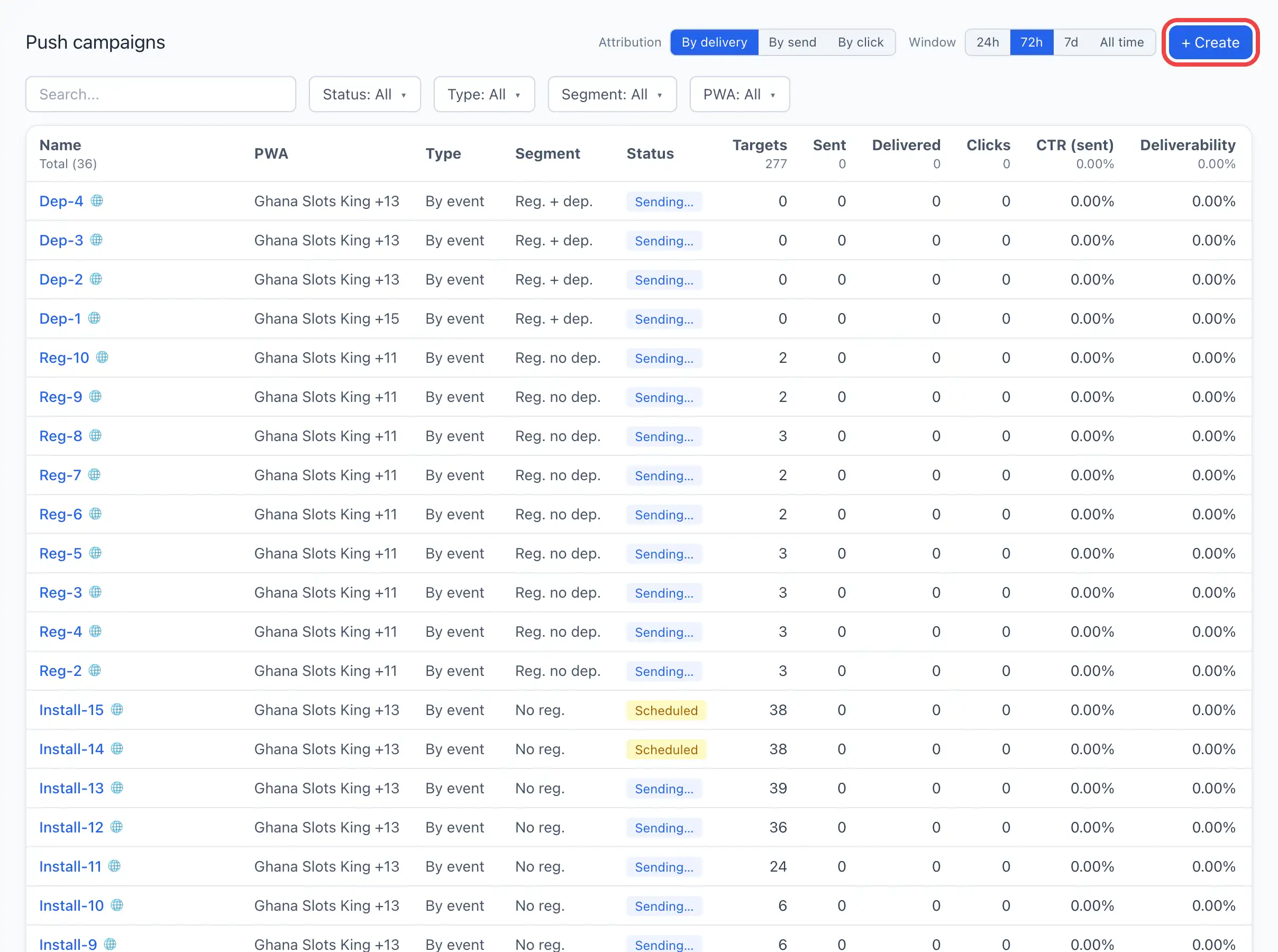
The campaign is created right away in the Draft status and its card opens.
-
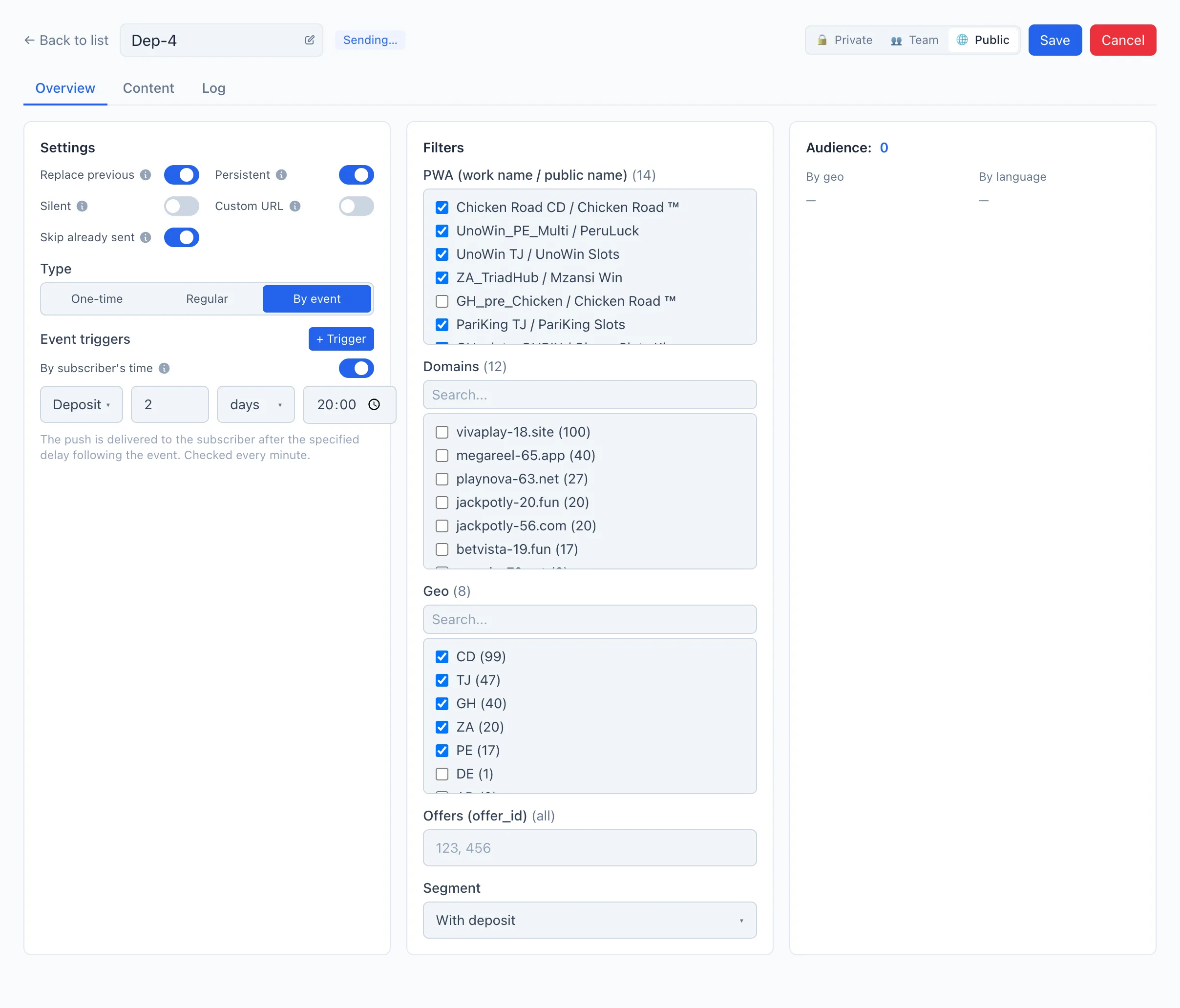
Set the campaign name in the field at the top (next to the «← Back to list» button).
-
On the Overview tab, choose the campaign type, configure the delivery settings and audience filters. More — Segments and Scheduling.
-
On the Content tab, add the notification text and images for at least one language. More — Localization and AI.
-
Click Save.
-
When everything is ready, click Send (for a one-time campaign) or Activate (for a regular or event-based one). The button appears in the header while the campaign is in the Draft status.
Save the campaign as you go. Launching it (Send / Activate) first saves the changes and then puts the broadcast into action.
Card tabs
The campaign card is split into three tabs:
- Overview — delivery settings, campaign type, schedule, and audience filters with the audience size.
- Content — notification texts and images per language, AI translation, and AI generation. More — Localization and AI.
- Log — a line-by-line journal of send events. More — Content and log.
The send results (Targets, Sent, Delivered, Clicks, CTR/DR) are not a tab — they are columns in the campaign list.
Campaign types
The type is set with the Type switch on the Overview tab:
- One-time — sent once: immediately or at the appointed date and time.
- Regular — sent on a schedule (cron), for example every Friday at 18:00.
- By event — the push goes to a subscriber after a set delay following an event (registration, deposit, push subscription).
A detailed breakdown of each type — in Scheduling.
Campaign statuses
- Draft — the campaign is created but not yet launched. It can be edited freely.
- Scheduled — waiting for the appointed time or the next scheduled trigger.
- Sending… — the broadcast is going out right now.
- Sent — a one-time broadcast is finished.
- Cancelled — the launch was stopped manually.
A scheduled or in-progress campaign can be stopped with the Cancel button in the header. After cancelling, the same broadcast cannot be resumed — create a new one.