Localization and AI
Notification content is prepared on the Content tab — a separate card for each language. Each language has its own Title, Body, Icon, and Banner. One of the languages is the primary one (marked default); it is set in the campaign and serves as the source for translation.
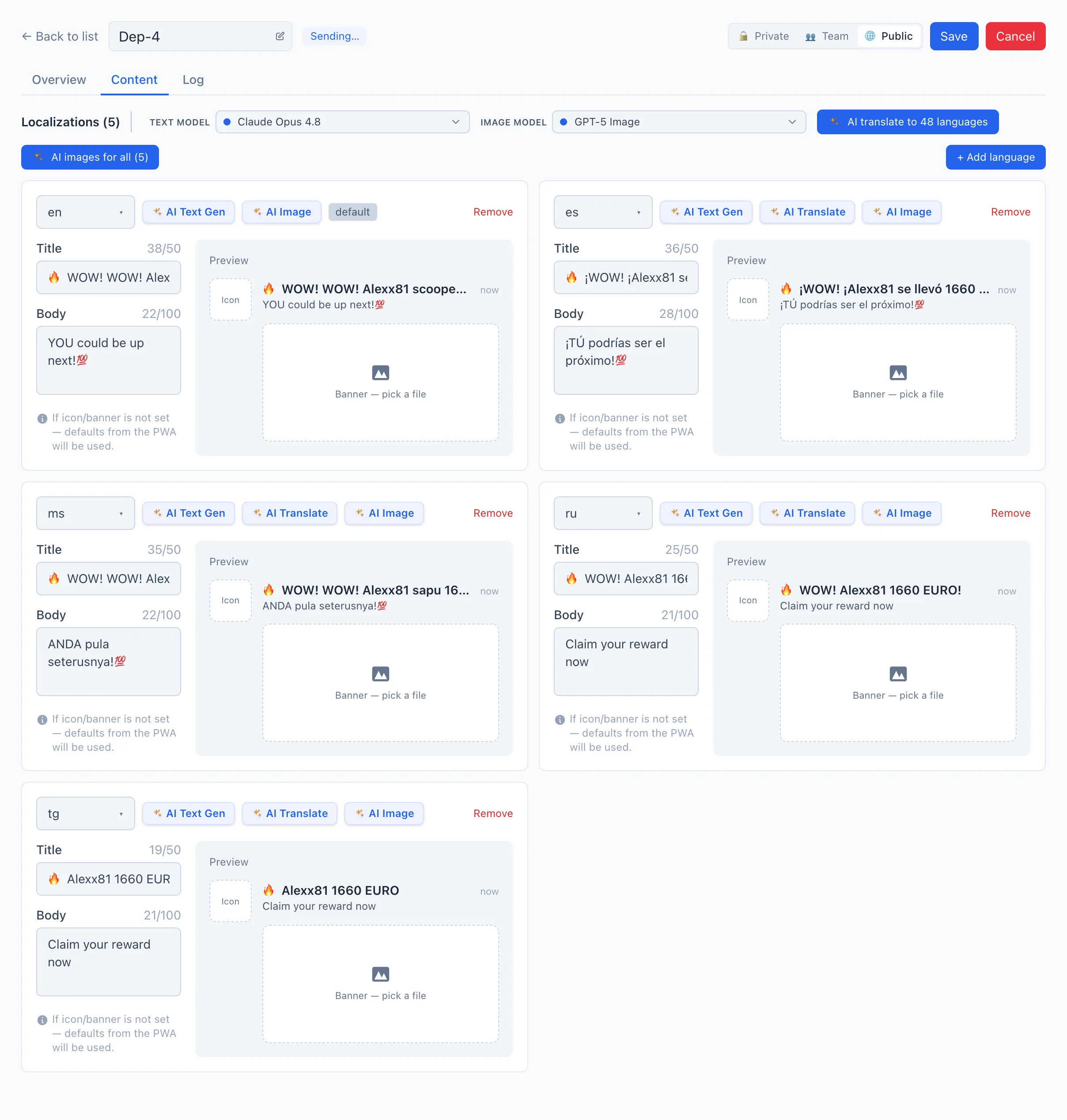
How to add a language manually
- Open the Content tab.
- Click + Add language — a new card appears. Pick the language code in the dropdown at the top of the card.
- Fill in the Title (up to 50 characters) and Body (up to 100 characters).
- If needed, upload an Icon and Banner: drop a file into the preview area or click it and choose a file. The image is automatically resized to the required dimensions.
- Click Save in the campaign card header.
If the icon and banner aren't set, the notification will take them from the PWA's default settings.
To remove a language, use the Remove button in the top-right corner of the card.
AI translation into all languages
Fill in the primary language (default), then translate it into the rest in one action:
- Fill in the Title and Body of the primary language.
- At the top, pick a Text model (see below).
- Click AI translate to {{count}} languages.
🎬 GIF: AI translation of a push into all languages
- In the window that appears, you can add translation hints (for example «winter theme, bonus 100 FS») or leave the field blank. Click Run.
- Wait until the cards are filled in, then click Save.
To translate just one card, use the AI Translate button inside it (available in every language except the primary one).
AI text generation
If there is no source text, you can generate it from scratch right in the card's language — the AI Text Gen button. The generation takes into account the selected audience segment, country, and app name. Before running, you can add hints the same way.
AI images
The AI Image button in a card creates a pair of images for that language — an icon and a banner. The AI images for all ({{count}}) button at the top does the same for all languages at once; progress is shown by a counter.
🎬 GIF: AI generation of an icon and a banner
For AI images, an Image model is chosen (separate from the text one). Generation relies on the campaign's segment, country, and app name.
Choosing models
Above the cards — two selectors:
- Text model — for AI translation and AI text generation.
- Image model — for AI icons and AI banners.
Both are pre-filled with defaults from the integration settings. You can pick a different model for the current session.