Scheduling and testing
When the notification goes out is determined by the campaign Type on the Overview tab. Below the type switch, a schedule configuration block appears, specific to each type.
One-time send
The One-time type — the broadcast goes out once.
- Send at — the send date and time. If the field is empty, the broadcast goes out right after you click Send now.
- Send now — launches the broadcast immediately (saving the campaign first).
- By subscriber's time — if enabled, every subscriber gets the push at the specified hour in their own local time. Disabled — everyone receives it simultaneously in UTC.
Regular send
The Regular type — the broadcast goes out on a schedule (cron). In the schedules block:
- Add one or more schedule rows. A human-language explanation and error highlighting are shown under each row.
- AI helper in the row: describe the schedule in words (for example «Every Friday at 18:00»), and the system will pick a correct expression.
For a regular campaign, keep the Skip already sent option enabled — otherwise every schedule trigger will resend the push to those who already received it.
Event-based send
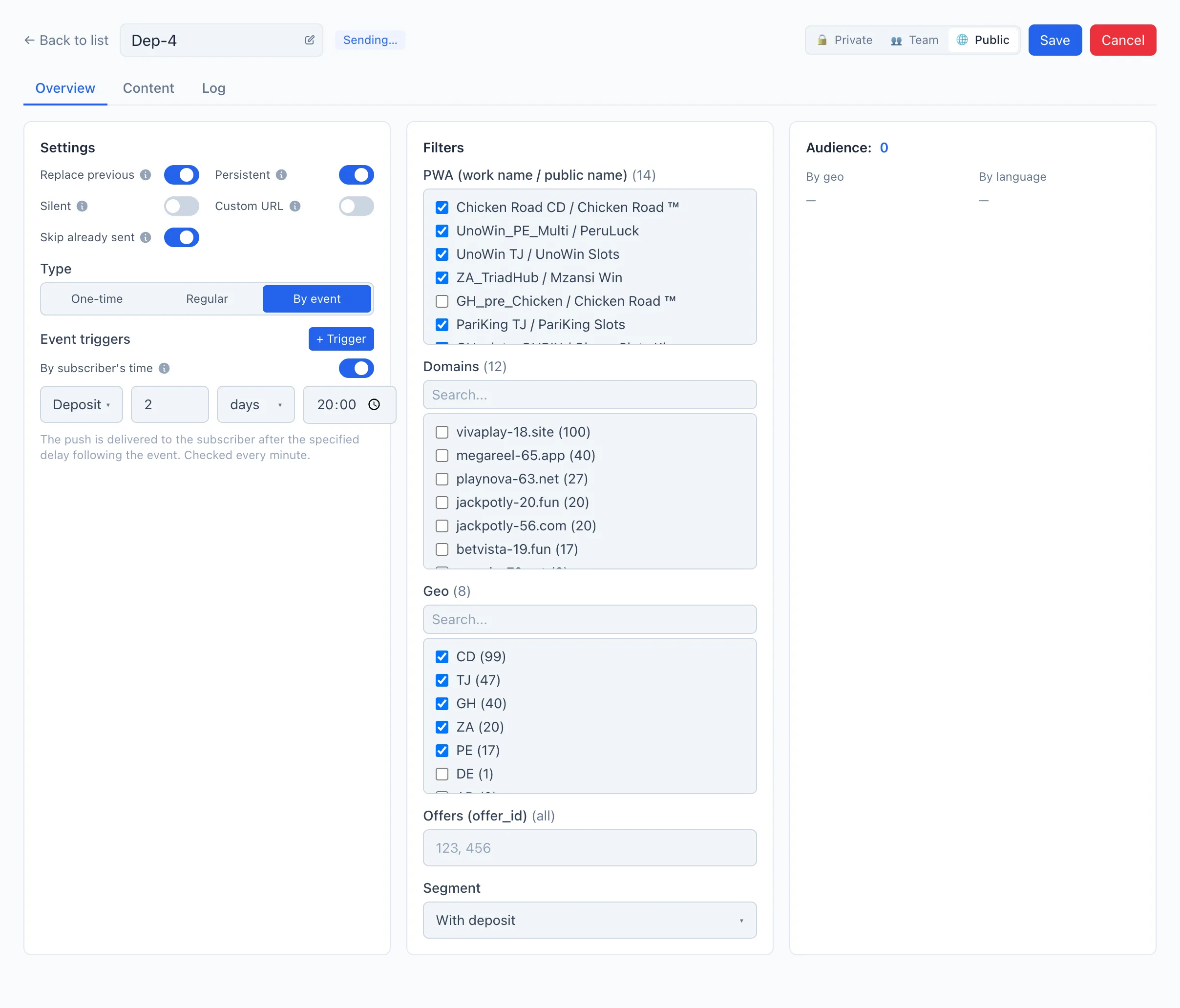
The By event type — the push goes to a subscriber after a set delay following an event. In the Event triggers block, add one or more triggers; each has:
- Event — Registration, Deposit, or Push subscription.
- Delay — a number and a unit: min, hr, or days.
- By subscriber's time — when the unit is «days», you can set the delivery hour (HH:MM) in the subscriber's local timezone. For minutes and hours, the delay is counted in UTC from the moment of the event.
Event checks and sending run once a minute.
Launch
After configuring the schedule, click Save, then in the header:
- Send — for a one-time campaign.
- Activate — for a regular or event-based one (the pushes go out on the schedule, not to everyone at once).
There is no separate «test send» button in the interface. The closest way to check a one-time broadcast immediately is Send now.