Set up a team with roles
This scenario sets up access for a group of buyers: you build a role (a permission template), create a team to group people, and add users — each bound to a team and a role that decides what they see and can do. The model is three independent parts — data visibility, menu items and actions — explained in Roles and permissions.
What you need beforehand: an administrator account (only an admin manages teams, users and templates).
1. Build a role template
Open the People & Access page from the gear menu and switch to the Templates tab. Click + New, enter a Name, then fill the three sections: in What data is visible set what data is visible (Own / Team / All), in Menu items tick which sections show in the menu, and in Allowed actions tick what the user may do. Click Save. For more — see Templates.
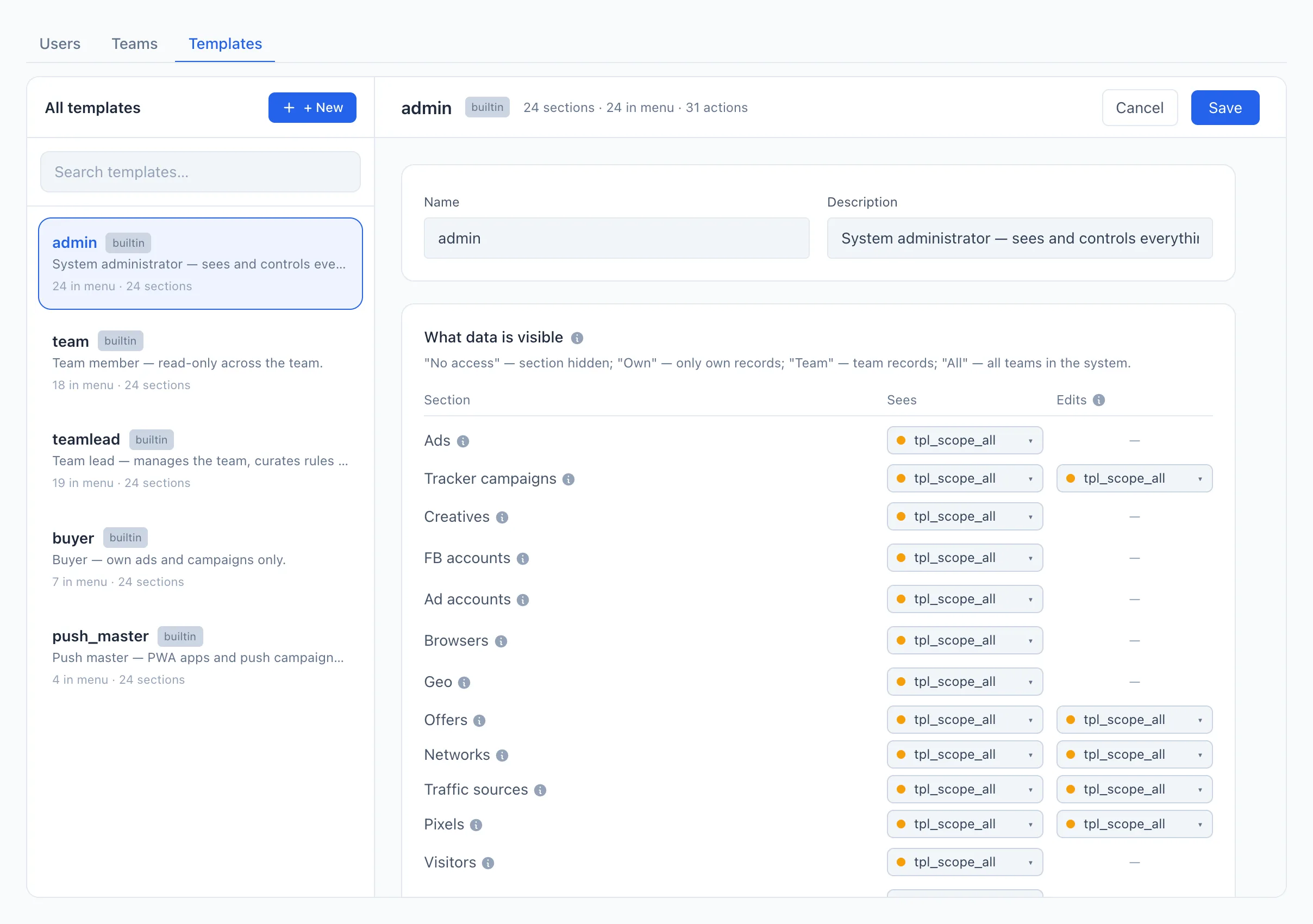
Five ready roles already ship — admin, teamlead, team, buyer, push_master. You can use one as is, or copy its idea instead of building from scratch. For what each part means — see Roles and permissions.
2. Create a team
On the same People & Access page open the Teams tab and click + New. Enter a Name (and, if needed, a Description) and click Save. For more — see Teams.
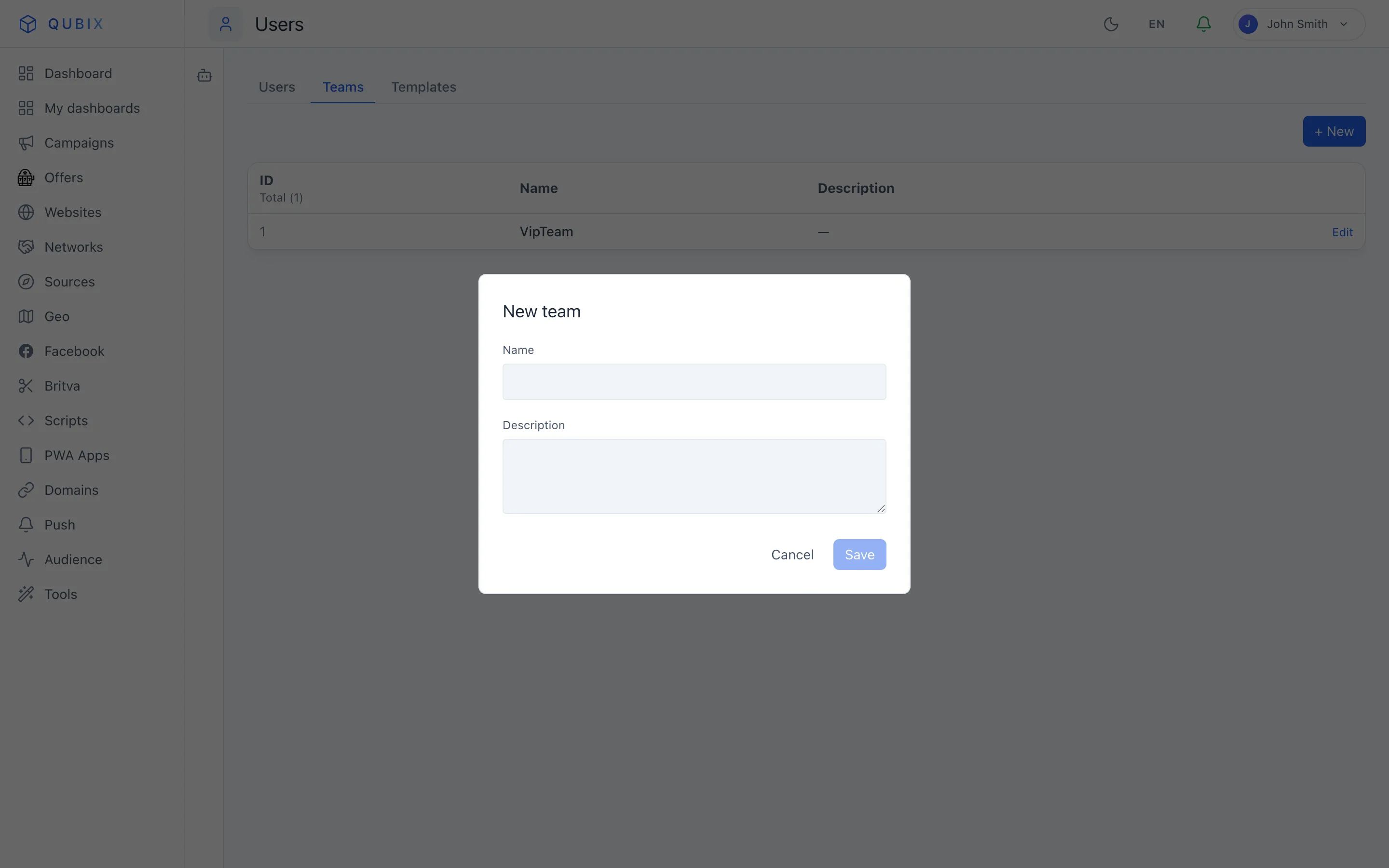
The team only decides who is "in the same group". What that group actually sees is decided by the template's Team scope — the two are set separately.
3. Add users to the team
Open the Users tab and click + New. For each person fill the Email (the login) and a Password, choose the Team from step 2 and the Permission template from step 1, then click Save. For a team lead, also tick the teamlead flag. For more — see Users.
🎬 GIF: creating a user and assigning a team and a template
Done
The team exists, the role is built, and each user signs in seeing exactly what their role allows. Next: