Writing a script
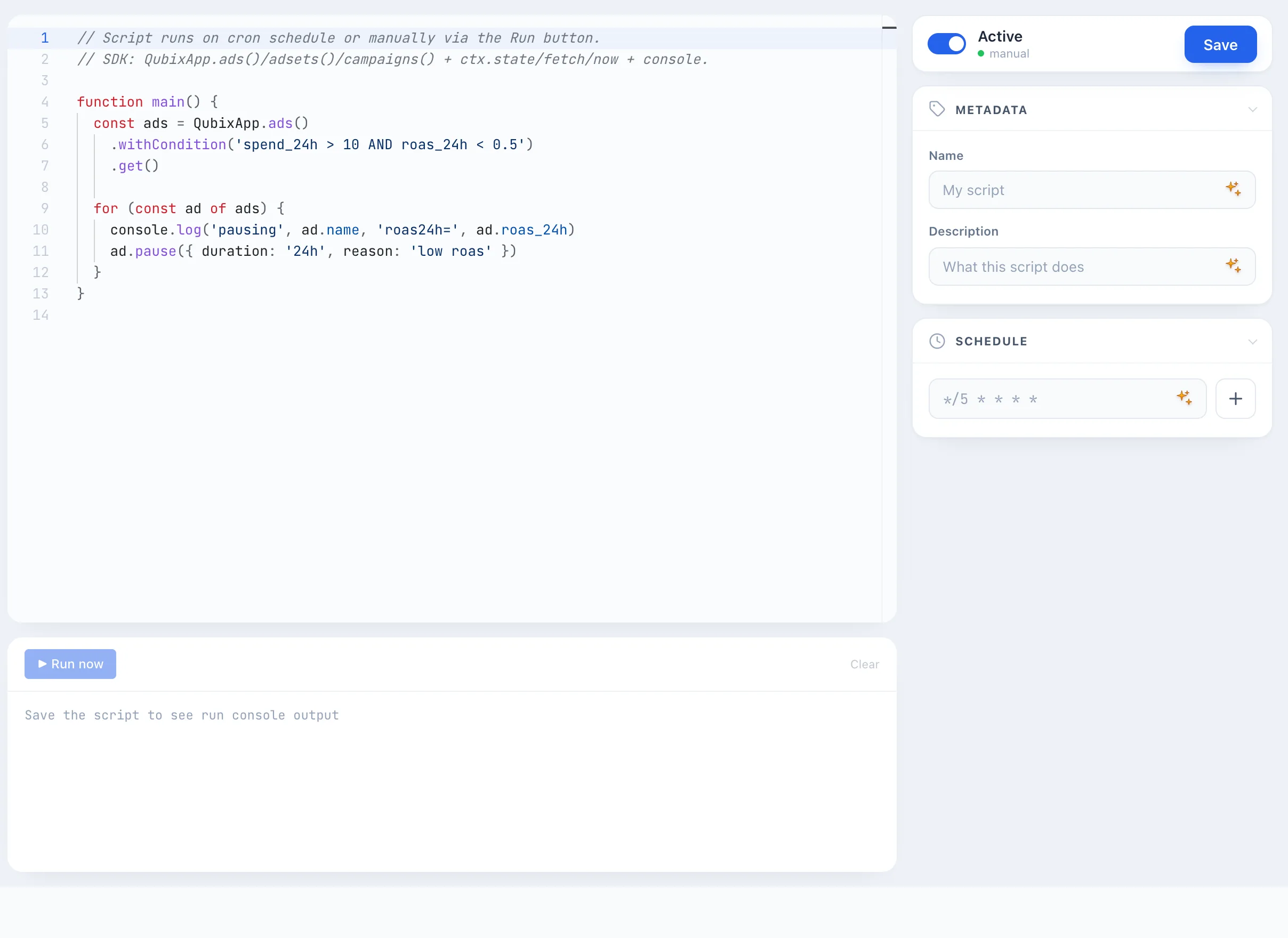
The script editor is the workspace where you write code, test it on live data and set up the schedule. The screen is split into three parts: on the left — the AI assistant, in the center — the code editor and the console, on the right — the settings panel (metadata, schedule, state, run history).
How to create a script
- Open the Scripts section and click + Create script. The editor opens with a code template.
- In the right panel, in the Metadata section, fill in the script Name and Description.
- In the central editor, write the body of the
main()function — exactly what the script should do (see the QubixApp SDK section below). - In the Schedule section, set how often the script will run automatically (see Schedule). You can leave it empty if you will only run it manually.
- Click the Run button below the editor to test the script on live data — the result appears in the console (see Testing the script).
- Turn on the Active toggle in the top-right corner and click Save.
You can save with the keyboard shortcut Ctrl + S (on macOS — Cmd + S) right from the editor, without moving the cursor to the button.
AI assistant
The left column is a chat with the AI assistant. Describe the task in plain words ("stop ads with ROAS below 0.5 and spend over $20"), and the assistant will generate ready-made code against the Qubix SDK. The Insert into Code button under the answer puts this code right into the editor.
Below the input field there are ready-made example prompts — click any of them to get started quickly.
The assistant can also come up with a Name and Description for the script from its code — click the AI icon next to these fields in the Metadata section.
🎬 GIF: a request to the AI assistant and inserting the code into the editor
QubixApp SDK
A script is a main() function, inside which you work with ad data through the QubixApp set of commands. Three levels are available:
QubixApp.ads()— ads,QubixApp.adsets()— ad sets,QubixApp.campaigns()— campaigns.
Each of them returns a selection that can be filtered and iterated over. The selection has methods:
.withCondition('...')— select by a condition on metrics (for example,'spend_24h > 10 AND roas_24h < 0.5');.orderBy('field', 'desc')— sort;.withLimit(n)— limit the count;.get()— get an array of items;.first()— get the first item.
Every ad, ad set or campaign has actions:
.pause({ duration: '24h', reason: '...' })— pause for the specified period;.activate({ reason: '...' })— turn back on;.getStatsFor('24h')— get metrics for a period.
Basic example: pause ads with spend over $10 and ROAS below 0.5 over the past day.
function main() {
  const ads = QubixApp.ads()
    .withCondition('spend_24h > 10 AND roas_24h < 0.5')
    .get()

  for (const ad of ads) {
    console.log('pausing', ad.name, 'roas24h=', ad.roas_24h)
    ad.pause({ duration: '24h', reason: 'low roas' })
  }
}
More ready-made snippets are in the Script examples section.
Autocomplete works in the editor: start typing ad. or QubixApp. — Qubix will suggest the available fields and methods with descriptions. That way you won't have to keep the list of metrics in your head.
Database queries
Besides the current ads available through QubixApp, a script can read data straight from the Qubix database with the sql command. It is a read-only query written as a tagged template:
const rows = sql`
  SELECT country, sum(spend) AS spend
    FROM hourly_insights
   WHERE date >= ${'2026-06-01'}
   GROUP BY country`
for (const row of rows) console.log(row.country, row.spend)
A query returns an array of rows; each row is an object whose keys are the column names. Values you pass through ${…} are sent as safe parameters — you do not escape anything by hand, and SQL injection is not possible. Queries are read-only: a script can read data but cannot change anything. What a query can reach is limited to the data your role is allowed to see.
State between runs
A script can remember values between runs through ctx.state — this is its personal memory:
ctx.state.set('key', value)— save;ctx.state.get('key')— read;ctx.state.delete('key')— delete.
For example, this lets you remember which ads have already been processed and not touch them again. The current contents of the memory are visible in the right panel in the State section — from there an individual entry can also be deleted manually.
Requests to external services
The ctx.fetch(url, opts) command makes an HTTP request to the outside — for example, to send a notification to a messenger or to call someone else's API.
Outbound requests are only allowed to addresses from the allowlist. The administrator configures it in System → the JavaScript tab. If the list is empty, outbound requests are disabled. When trying to reach an address that is not on the list, the script will show a clear hint in the console.
Schedule
In the right panel, the Schedule section sets when the script runs automatically. There can be several schedules — for example, once an hour and additionally at a specific time.
- Enter the schedule in cron format (for example,
*/5 * * * *— every 5 minutes) and click +. - Below the line, Qubix immediately shows a plain-words explanation — check that you understood each other correctly.
- To avoid recalling the cron syntax, click the AI icon in the line and describe the schedule in words ("every day at 9 a.m.") — Qubix will fill in the ready-made expression.

If no schedule is set, the script will not run on its own — only via the Run button. For auto-run to work, the Active toggle must be on.
Testing the script with the "Run" button
Below the code editor there is a console and a ▶ Run button. It executes the code currently in the editor on live data — this is a safe way to test the logic without waiting for the schedule. Everything the script outputs via console.log appears in the console along with the run time, status and duration.
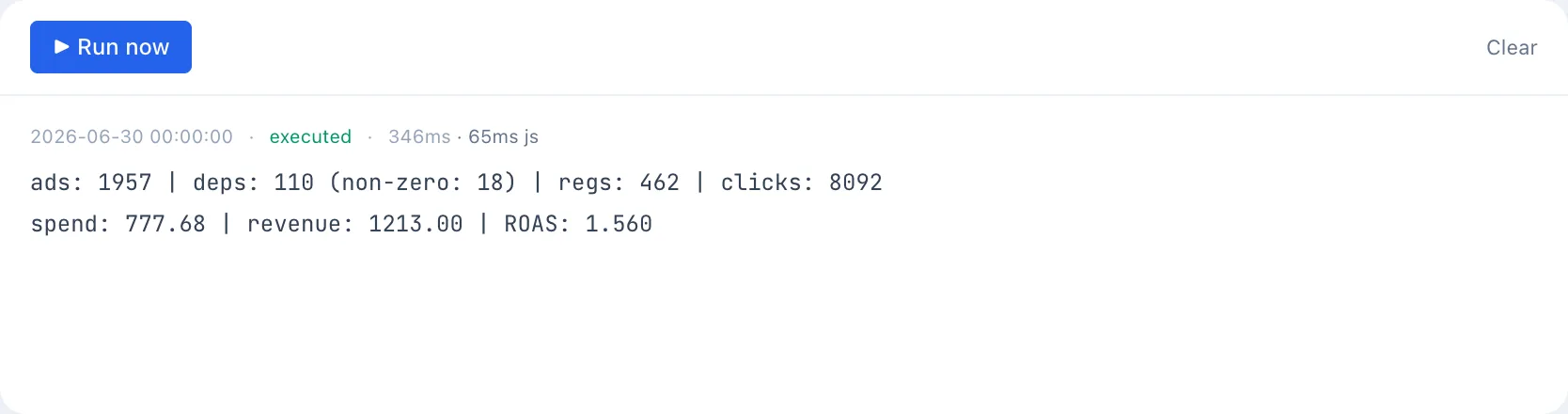
The Run button performs real actions. If the code contains pause() or activate(), ads will actually be paused or turned on. To test the logic without consequences, first comment out the lines with actions and leave only console.log.
The Run button becomes available after the script is saved for the first time.
Run history
The Runs section in the right panel keeps the history of all executions: time, status (success, error, timeout), duration and the number of actions performed. Clicking a row expands the full console output of that run — handy for figuring out why the script behaved unexpectedly.