Browsers
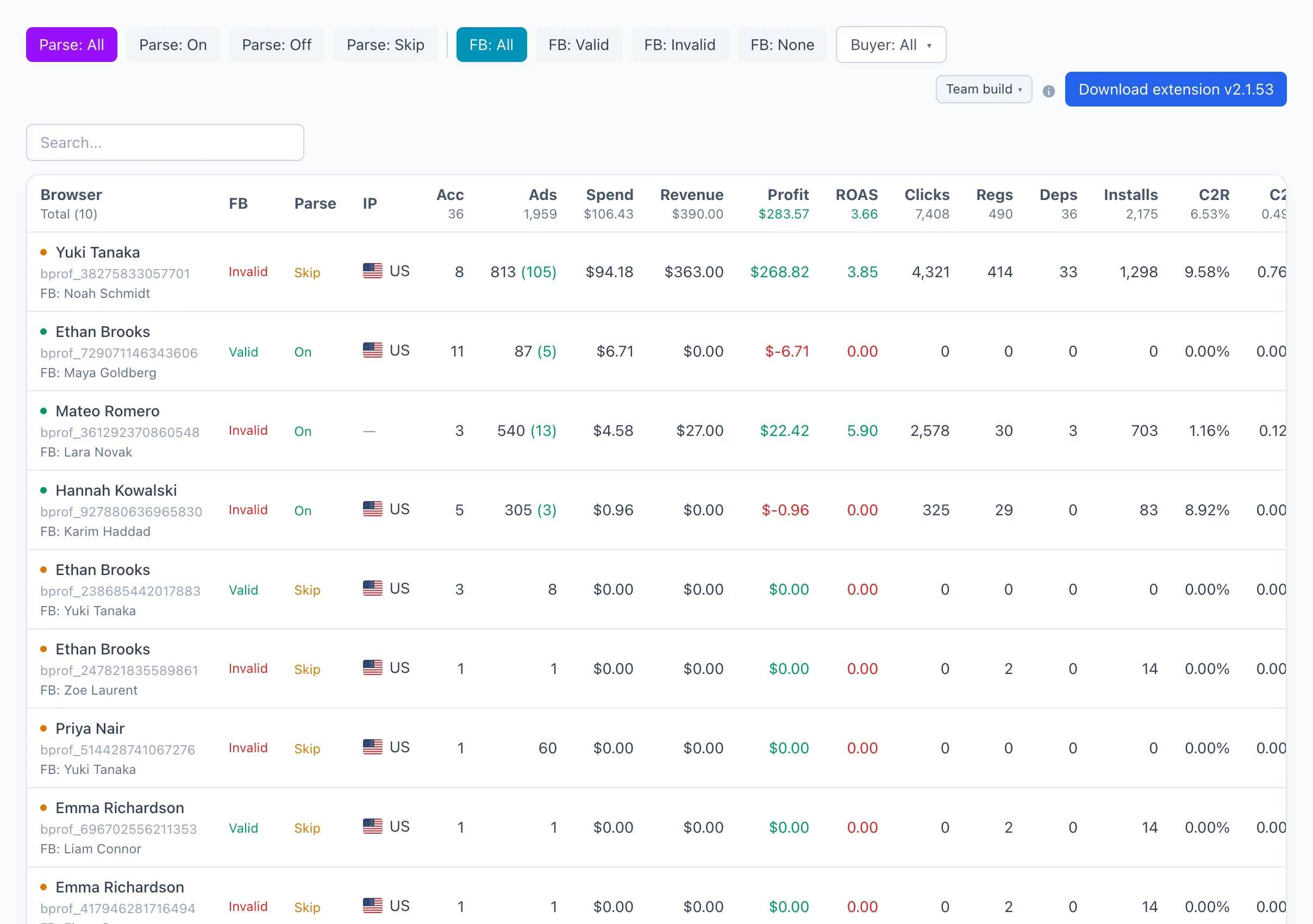
A list of the antidetect browser profiles that Qubix uses to collect data from Facebook ad accounts. Each row is one profile of your antidetect browser (for example, AdsPower, Dolphin Anty): a Facebook account, a proxy and a set of ad accounts are bound to it. From here you can see which profiles are valid, which take part in parsing and how much money they bring in.
How to connect a browser to parsing
For data to start coming in, the connector extension must be installed on each working computer. It captures data from the logged-in browser and passes it to Qubix.
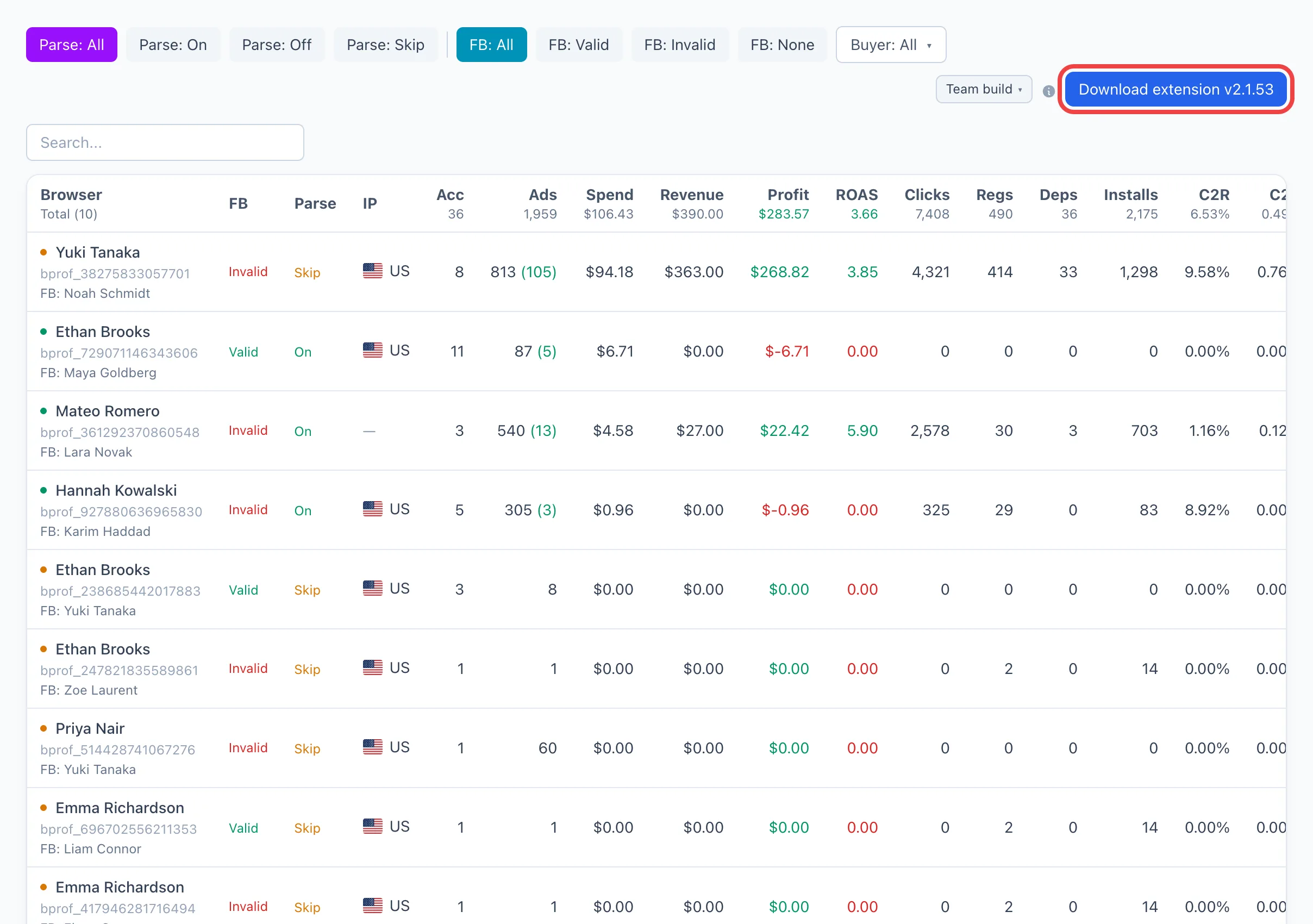
- Open Browsers and click Download extension in the top-right corner.
- Install the downloaded extension into your antidetect browser.
- Log into the required profile in Facebook. After the first collection, the profile will appear in the list.
- Open the profile card and make sure that Parsing is on (see below).
The button shows the number of the current extension version (for example, Download extension v1.4). If an old version is installed — download and reinstall the fresh one.
Filters and search
Above the table are three groups of filters and a search field by profile name:
- Parse — all / On / off / Skip. Shows only the profiles in the required parsing state.
- FB — all / Valid / Invalid / none. Filters by the state of the Facebook token.
- Buyer — a dropdown: keep only the profiles of the selected buyer.
Column breakdown
Browser — the profile name and its identifier; below — the bound Facebook name (if any). The colored dot on the left shows the state: green — active and taking part in parsing, yellow — active but parsing is skipped, gray — off.
FB — the state of the Facebook token: Valid, Invalid (with the error text) or No FB, if no account is bound to the profile.
Parse — whether the profile takes part in automatic collection: On, Skip or Off.
IP — the flag of the country the profile exits from (by its proxy).
Accounts — the number of ad accounts available to the profile.
Ads — the total number of ads; in parentheses in green — how many of them are active.
Spend, Revenue, Profit, ROAS, Clicks, Regs, Deposits, Installs, CPC, CPD and conversions — the profile's metrics for the selected period (the period is set in the header).
Last Parse — the date and time of the last successful collection for this profile.
Profile card
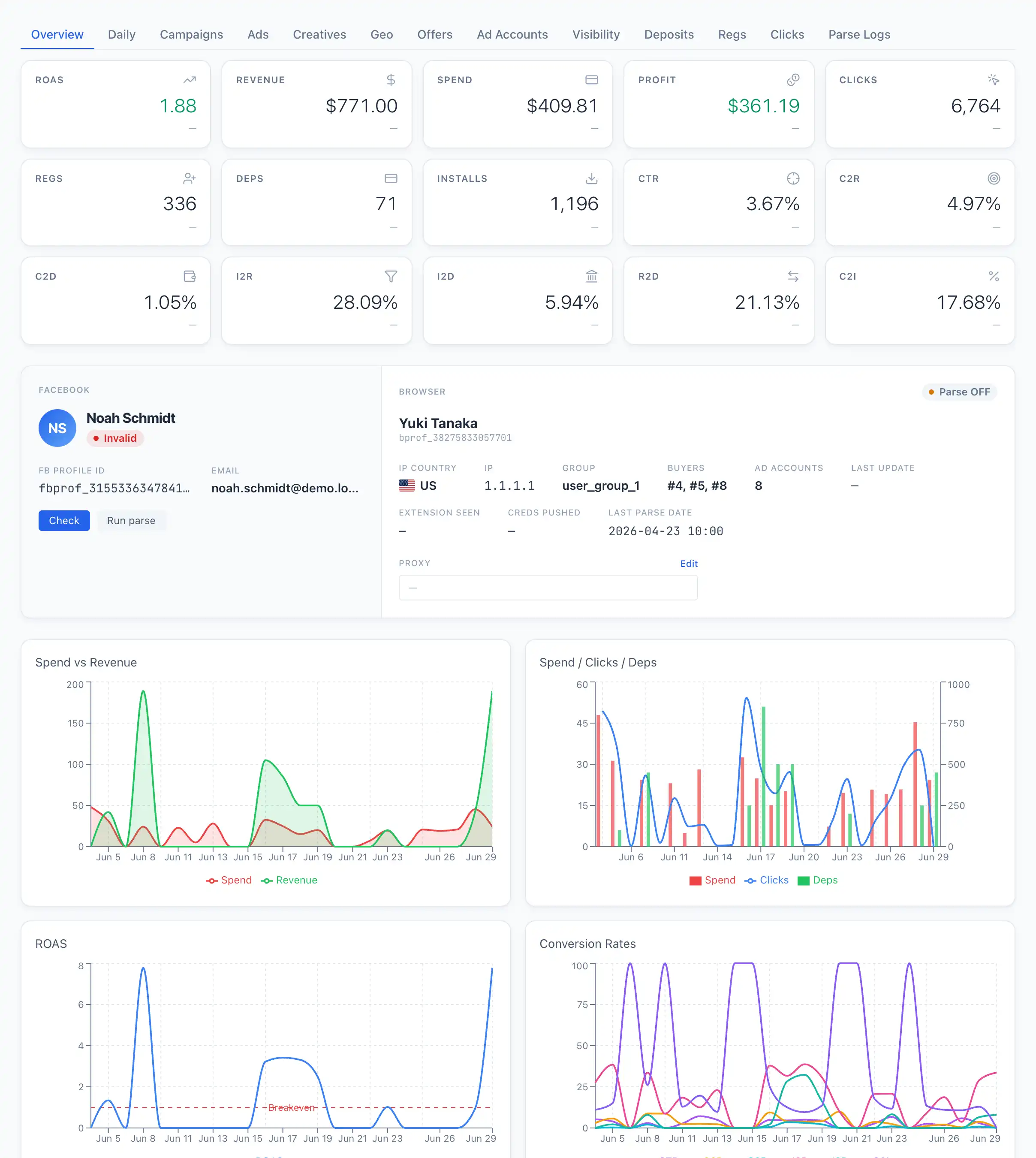
Click a row to open the card. On the left — the Facebook block, on the right — the Browser block.
Facebook block
Shows the name and identifier of the Facebook account, the email and the token status (Valid / Invalid / No FB). If the token is invalid, the error text is shown below the block.
Two buttons:
- Check — a quick lightweight check: is the Facebook token alive right now. It does not start data collection.
- Run parse — a full data collection for the profile "here and now", without waiting for the scheduled run. The result will appear in the Parse Logs tab.
If Check or Run parse returned an error, the cause is most often one of two: the browser has no proxy configured, or the profile is not logged into Facebook — open it and log in again.
Browser block
The profile name and identifier, as well as the Parse ON / Parse OFF toggle — it includes or excludes the profile from automatic collection.
Below — facts about the profile: IP Country, IP, Group, Buyers, the number of Accounts, the date the login data was last updated and the date of the last parsing. At the very bottom is the Proxy field: click Edit to set the proxy string in the format user:pass@host:port (an empty value clears the proxy).
Card tabs
Below the card are a chart and a set of tabs with details for the selected period:
- By day — the dynamics of metrics by day.
- Campaigns, Ads, Creatives, Geo, Offers, Ad Accounts — statistics breakdowns; clicking a row opens the corresponding entity.
- Visibility — which campaigns the profile currently sees, with the owner of each indicated. Useful when a profile sees other people's campaigns through a shared account.
- Pages — the Facebook pages of the profile; each is shown as a card (page name, ad counts, spend/revenue) with the list of its ads below it.
- Deposits, Regs, Clicks — conversions for the profile.
- Parse Logs — the history of collection runs: start time, status (SUCCESS or error), duration, the number of accounts, ads and insights. Clicking a row opens the full text of the run log.