Notifications
This is where you connect your personal Telegram to the Qubix bot and choose which events you personally get messages about. This is different from the Telegram → Notification bot tab: there the administrator sets up the bot and the shared alert channels, while here you manage your personal subscriptions.
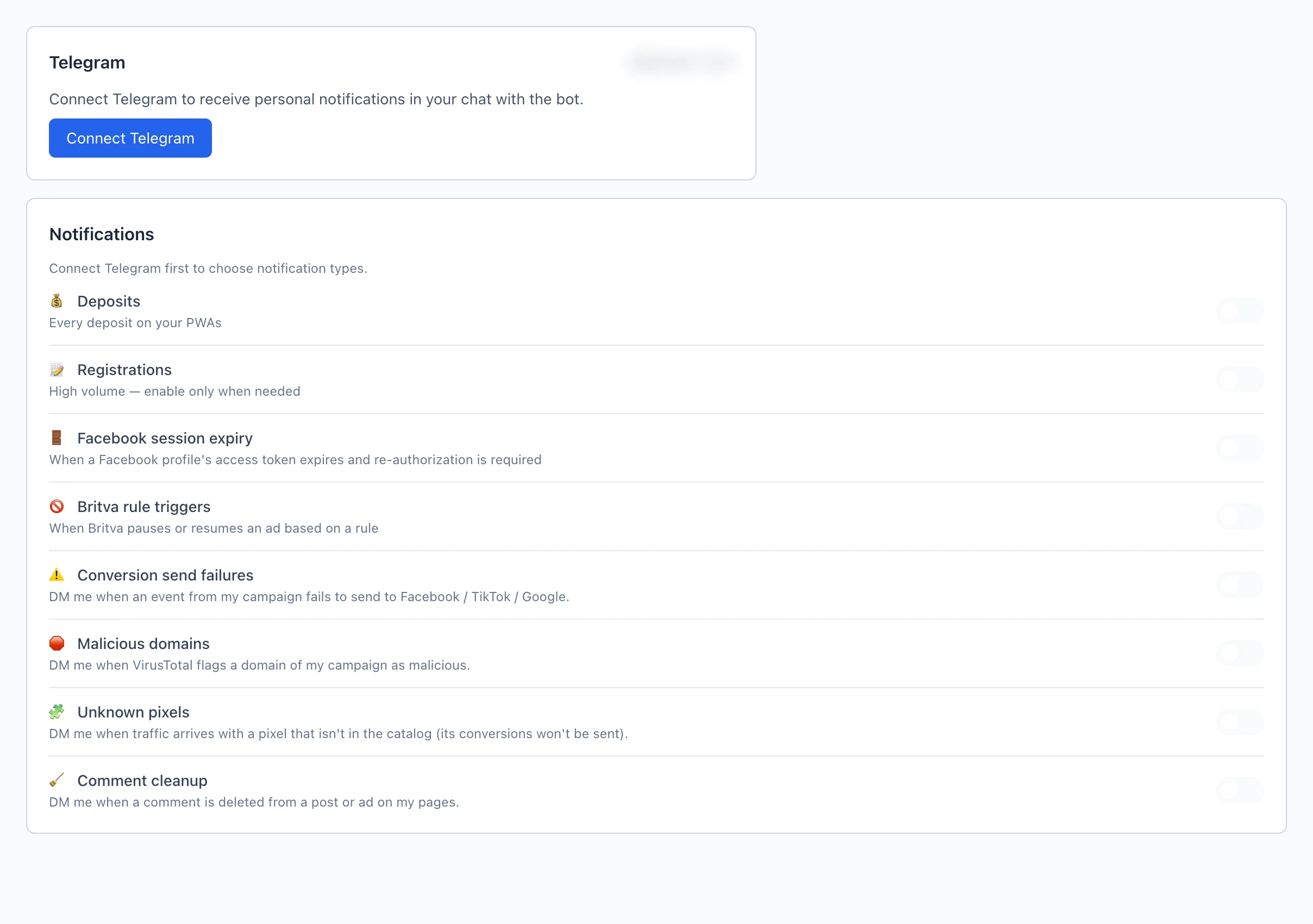
How to connect Telegram
- In the Telegram block, click Connect Telegram.
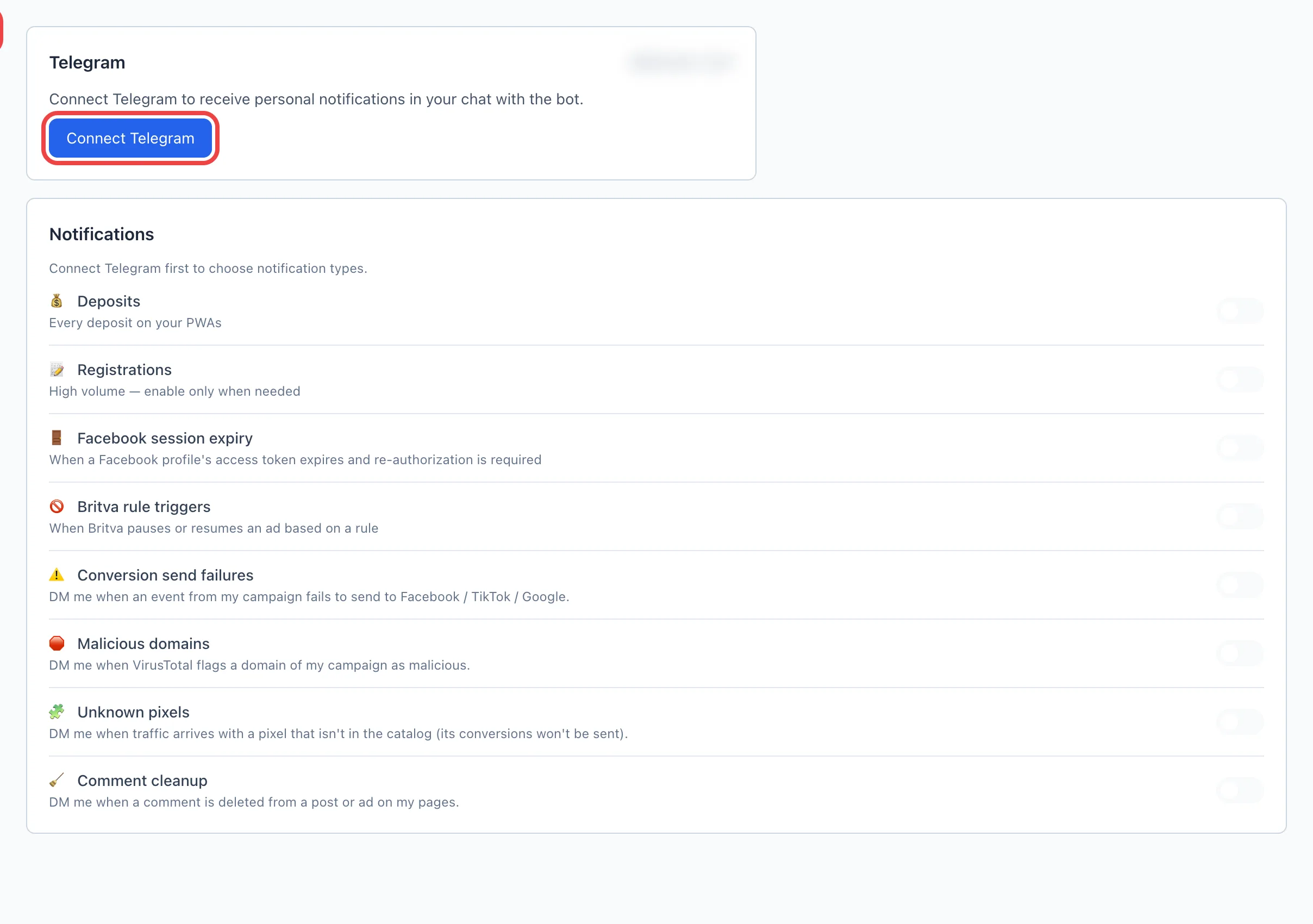
- A chat with the bot will open. Click Start in this chat.
- Return to the admin panel — under Telegram you will see which Telegram is connecting. If it is yours, click Connect; if not, click Decline. Nothing is connected until you confirm. The status then reads “Connected as @username” (just Connected if your Telegram has no username), and the rows below show the bot and the time of connection.
After connecting, the Send test message (to check that the bot writes to you) and Disconnect… (to turn off personal notifications) buttons become available. Disconnecting asks first — Disconnect Telegram? — and personal notifications stop only after you confirm. A test message can be sent no more than five times a minute — beyond that, the panel answers "Too many requests in a row. Wait a minute and try again."
If the block says the bot is not configured yet, connecting the bot is done by the administrator in Telegram → Notification bot. Without that, personal notifications will not work.
Mentions
The Mentions (@) — files and chat block chooses where you learn that someone mentioned you with @: In-app — Show mentions in the bell; Telegram — Send a Telegram DM when you're mentioned. The Telegram row stays off and dimmed until your Telegram is linked above.
Personal subscriptions
In the Notifications block, turn on the toggles for the events you want to get personal messages about:
- Deposits — every deposit on your PWAs.
- Registrations — every registration (high volume; turn on if needed).
- Facebook session expiry — when a profile's token has expired and re-authorization is needed, when the profile's browser hits a Facebook security check, and when the profile's proxy stops responding.
- Britva rule triggers — when Britva turns an ad on or off by a rule.
- Conversion send failures — when a registration or deposit from your campaign could not be sent to Facebook. The reason is given in the message itself — see FB CAPI.
- Malicious domains — when VirusTotal flags a domain of your campaign as malicious.
- Unknown pixels — when traffic arrives with a pixel we cannot use. This can mean one of several things, and the message says which one:
- the pixel has no access token filled in;
- there is no such pixel in the Pixels section;
- the value that arrived with the traffic is not a pixel at all.
- Comment cleanup — when a comment under a post or an ad on your pages is deleted.
- Landing broken — when a check finds your landing broken on its domain or on an ad link of your campaign. The message comes once, when the address breaks, not on every save while it stays broken. An ad link beyond the ten that are checked keeps no result, so if it comes back among them still broken, the message comes again. The toggle is on by default. What the check opens — Landing check.
Subscriptions can be turned on only after Telegram is connected. Changes are saved immediately; there is no separate save button.
A long alert arrives in full — as several messages in a row, in the correct order. How the bot delivers long and frequent alerts — see Telegram → Notification bot.
Mentions
The block Mentions (@) — files and chat sets how a mention of you with @ reaches you. It holds two toggles:
- In-app — Show mentions in the bell (the notification bell of the menu bar, see Desktop);
- Telegram — Send a Telegram DM when you're mentioned
A toggle is saved at once. While the connection of Telegram is not confirmed, the Telegram toggle is dimmed and off. When Telegram is known to be not connected, the line Connect Telegram first to choose notification types. stands under the block, and, when the bot of Qubix is set up, the button Connect Telegram next to it.
Push notifications on this device
The Push notifications block switches this device on: the browser asks for permission, and then notifications come to this device both in the open tab and while the panel is closed. Notifications come to this device; each device keeps its own choice. On an iPhone the switch works in the panel added to the Home screen; when the browser or the address does not allow push, the row says why.
When the device is on, choose what it shows:
- TeleQube — Message notifications, Mentions, Incoming calls, Missed calls.
Each group is shown when you have that section.
While the panel is closed, a notification about a message also puts the number of the TeleQube icon on the icon of the installed panel — on the Home Screen of an iPhone, or on a computer where the panel is installed as an app. When on another device you read the chat up to the message of its notification, its notifications here — about messages and a missed call — are replaced for a moment by a silent one with the same title and go away, and the icon gets the new number. On an Android phone the system shows a dot on the icon instead of a number.
Team subscriptions (for a team lead)
If you have the team lead role, the same list gets a second column of toggles — Team, next to Mine. The Team toggles are the same events, but for all members of your team, not only yours. For example, the Team toggle in the Deposits row sends deposits for any team member.