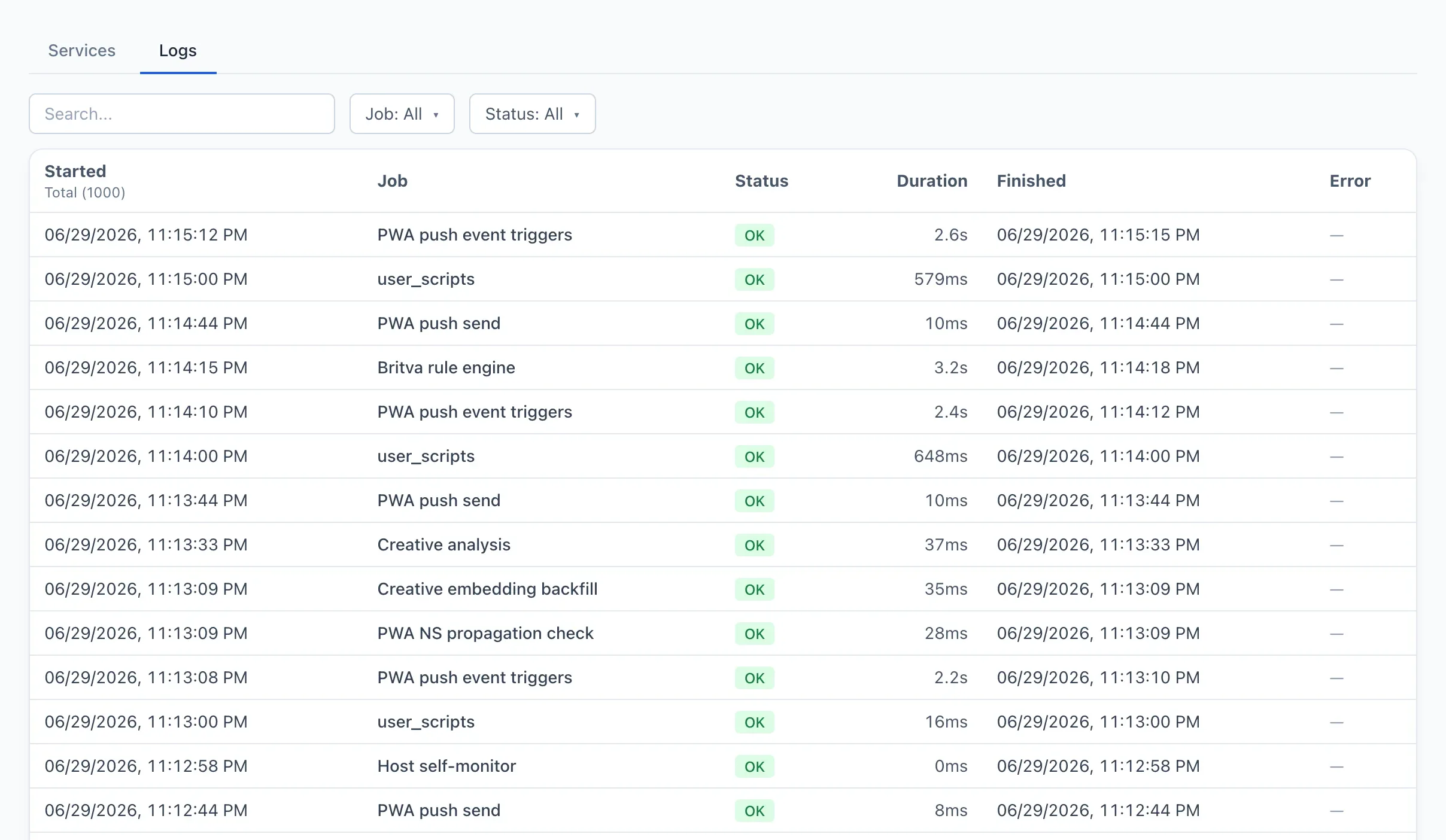
Services
Qubix does scheduled work in the background: it collects statistics, syncs data with the tracker, checks domains, sends notifications. On this screen you can see the state of all background tasks, and any of them can be run manually if needed.
How much of the screen you get depends on your role. The Services tab is always there. The Logs tab is added only when your role has the Action log section set to All teams in the Sees column; without that the screen has a single tab and no tab strip above it.
How to run a task manually
- Open Services and jobs → the Services tab.
- Find the required task in the list.
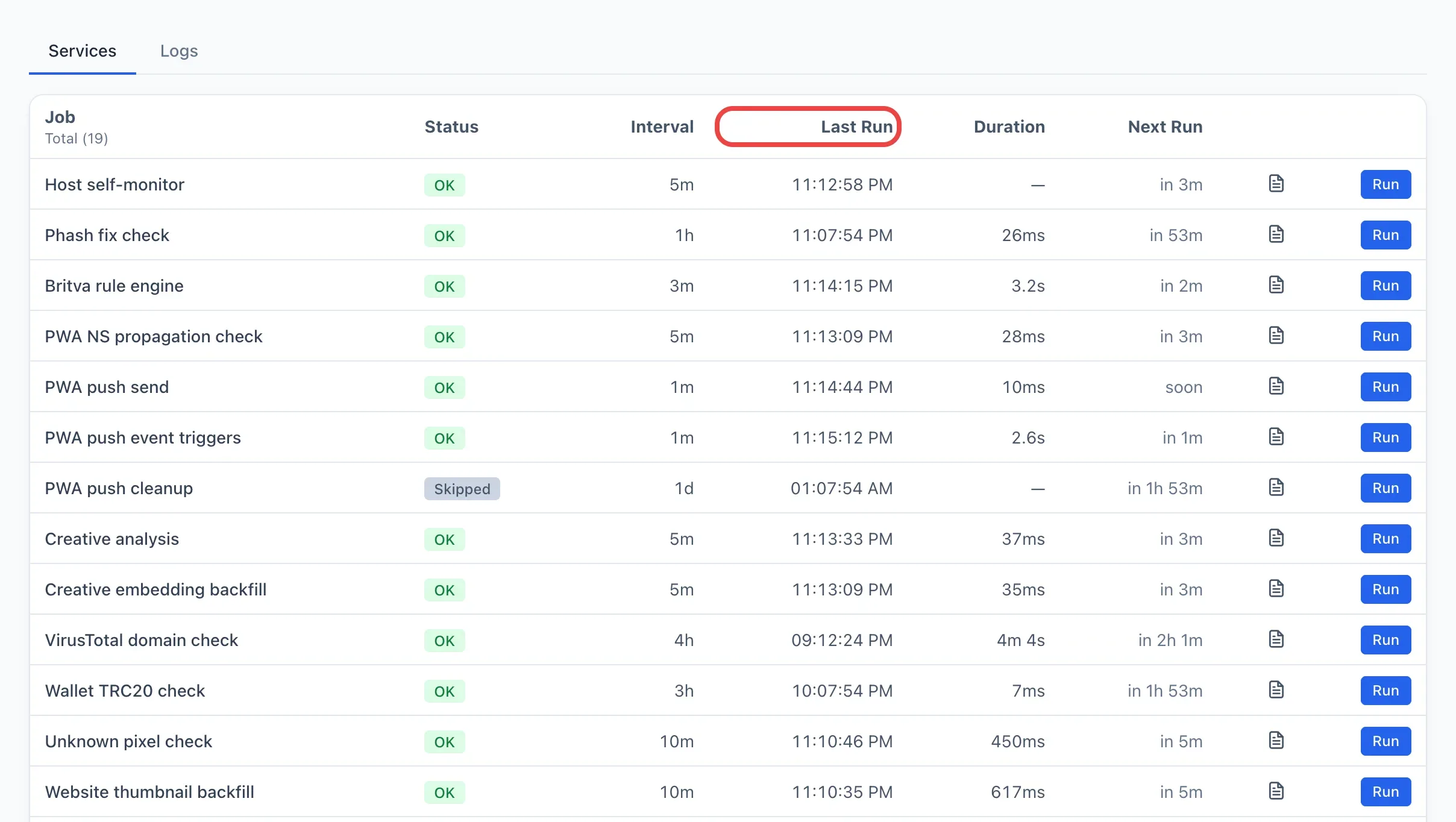
- Click Run in its row.
- While the task is running, an indicator blinks next to its name, and the next-run column shows running…. On completion the screen switches to the Logs tab, where the result is visible — but only if that tab is available to you. Otherwise you stay on Services, and the outcome appears in the Status column of the task's row.
The Run button appears only when your role carries the Run background jobs permission; without it the table has no such column at all. Some tasks are additionally reserved for the administrator — their button is shown to an administrator only, even when the permission is in place.
A manual run is useful when you need fresh data right away, without waiting for the scheduled tick. It does not affect the regular schedule.
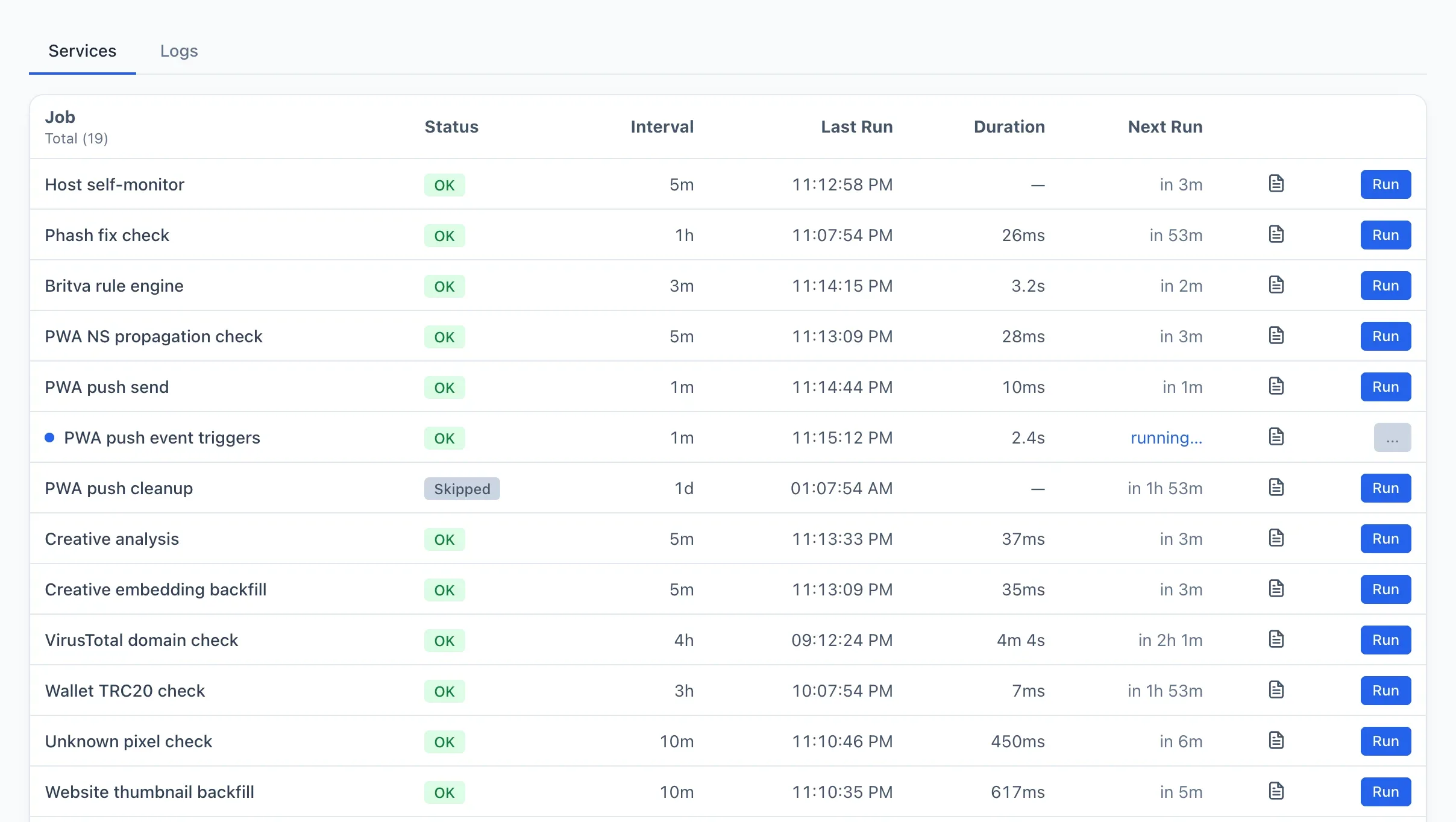
The "Services" tab
A table of all background tasks. The columns:
Job — the task name. An indicator blinks before it if the task is running right now.
Status — the result of the last run: OK (green) or ERROR (red).
Interval — how often the task runs on schedule.
Last Run — the time of the last execution.
Duration — how long the last run lasted.
Next Run — when the task will run next (or running…, if it is running now).
The two rightmost columns hold buttons, and each of them appears only together with its own permission:
- The button with the document icon opens the last log of the task. Its column is present only when your role has the Action log section set to All teams — the same condition as for the Logs tab. The log appears after the job runs for the first time.
- The Run button runs the task immediately. Its column is present only with the Run background jobs permission.
The "Logs" tab
The tab is available only when your role has the Action log section set to All teams. Otherwise it is not shown at all, and a direct link to it opens the Services tab instead.
The history of all background-task runs. The columns: Started, Job, Status (OK / ERROR), Duration, Finished and the error text if the run failed. Above the table are filters by task and status. Clicking a row opens the full text of that run's log.