System
A technical section for the administrator. Its tabs are Update, Geo and cloak databases, Documentation, On-box models, JavaScript, Watermark, Anti-abuse, Limits, Calls, Bases, Server and Panel domain. The last two are limited by role: they are shown only to a role that is allowed to manage the system.
This article covers Update, Geo and cloak databases, JavaScript and Watermark: here you update the Qubix version, manage the geo/cloak databases and set up protective limits. The other settings of this screen are described in their own articles — Documentation index, Speech recognition, Semantic search, Anti-abuse, AI request ceiling, Reports, Drive, Calendar, Domain for calls, Storage and Admin domain.
Update
The tab shows the current versions and lets you update the system to the desired release.
At the top are two version cards:
- qubixd binary — the version of the Qubix executable (build, build date, data schema version).
- live container — the version of the running container (tag and image, updater version).
If the binary version does not match the container tag, a warning appears: usually this means the container was started outside the standard update flow, and the next update will overwrite it.
How to run an update
- In the Run update block, enter the target version — for example,
1.1.2, orlatestfor the freshest one.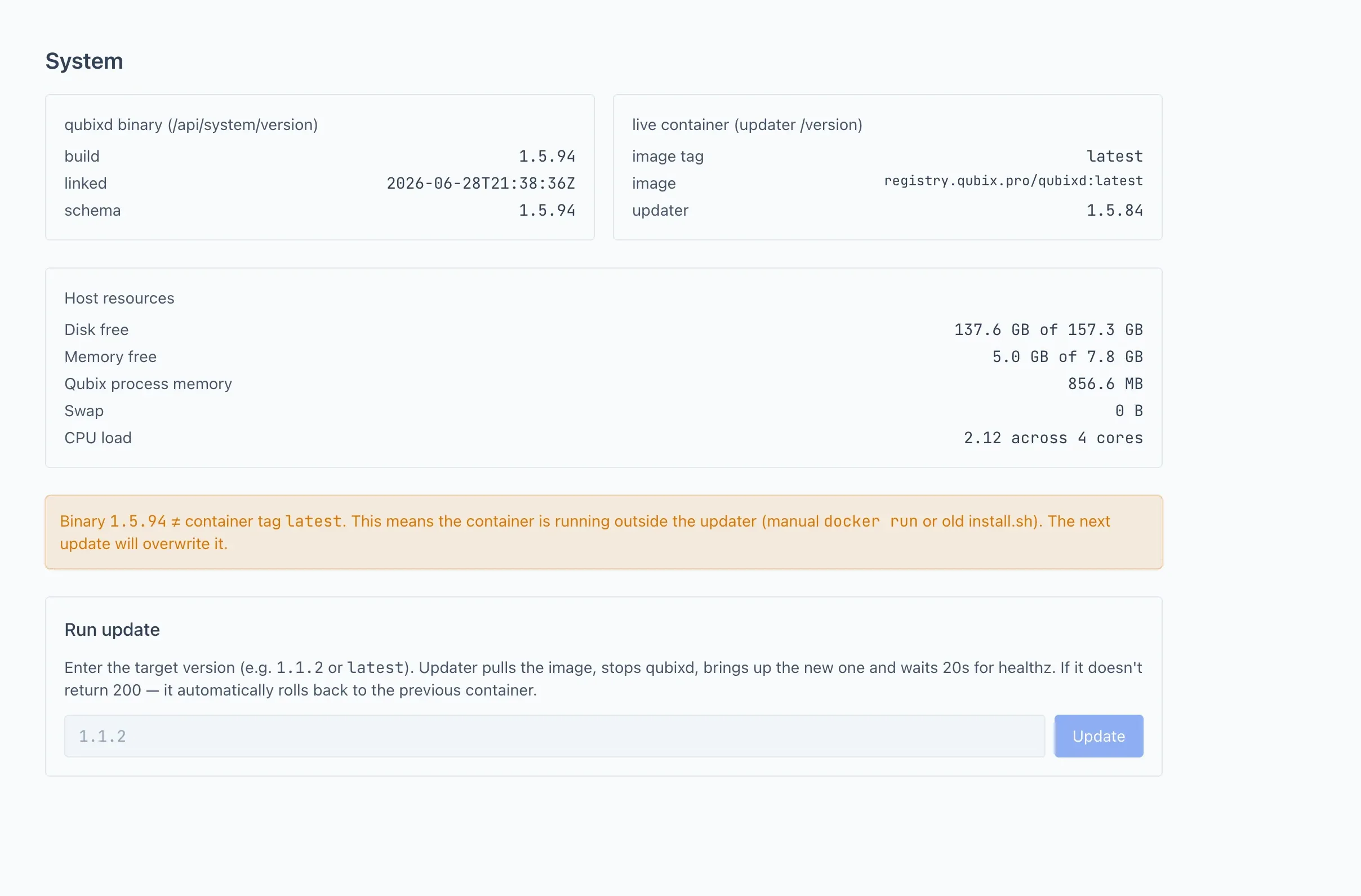
- Click Update.
- Watch the progress: the system pulls the new image, stops the old version, brings up the new one and checks its health. The phases are shown as a list, and on completion you can expand the detailed log.
If the health check of the new version fails, Qubix automatically rolls back to the previous container — nothing needs to be done manually.
While the update is in progress, do not reboot the server or stop the containers manually. The auto-rollback is designed only for a normal health-check failure. If the rollback also fails (an extremely rare case), manual intervention by the administrator on the server will be required.
Host resources
Below the version cards, Qubix shows a live snapshot of the server's resources. It is collected in the background and refreshed automatically, so the page reflects the current state.
- Disk free — free space on the disk that holds the data.
- Memory free — available RAM on the server.
- Qubix process memory — how much RAM the Qubix process itself occupies. Handy for telling whether Qubix is the one eating memory or something else on the server is.
- Swap — how much swap the Qubix process uses. Normally this is zero; any noticeable value means the server has run short on RAM and started paging to disk, which slows everything down.
- CPU load — the average processor load over the last 5 minutes, against the number of cores.

A line appears only for what the server can actually measure; on some setups a particular metric may be unavailable and is hidden.
Resource alerts
Qubix does not only display these numbers — it watches them on its own and sends a Telegram alert to the technical channel when something goes wrong:
- disk space is running low (with a separate, sharper alert when it gets critically low);
- available memory is running low (also with a separate critical alert);
- the Qubix process has started using swap;
- the processor stays heavily loaded.
This way you learn about a problem before the instance grinds to a halt, even without opening this page. To avoid noise, a brief spike does not raise an alert, and the same warning is not repeated too often. When a metric returns to normal, Qubix sends a recovery message.
The technical channel is set up by the administrator in Connections → Telegram. Without it the alerts have nowhere to go.
The Qubix process should not go into swap. If Swap shows a non-zero value (or you receive the swap alert), the server is out of memory — add RAM. Running from swap makes everything noticeably slower.
Geo/cloak DBs
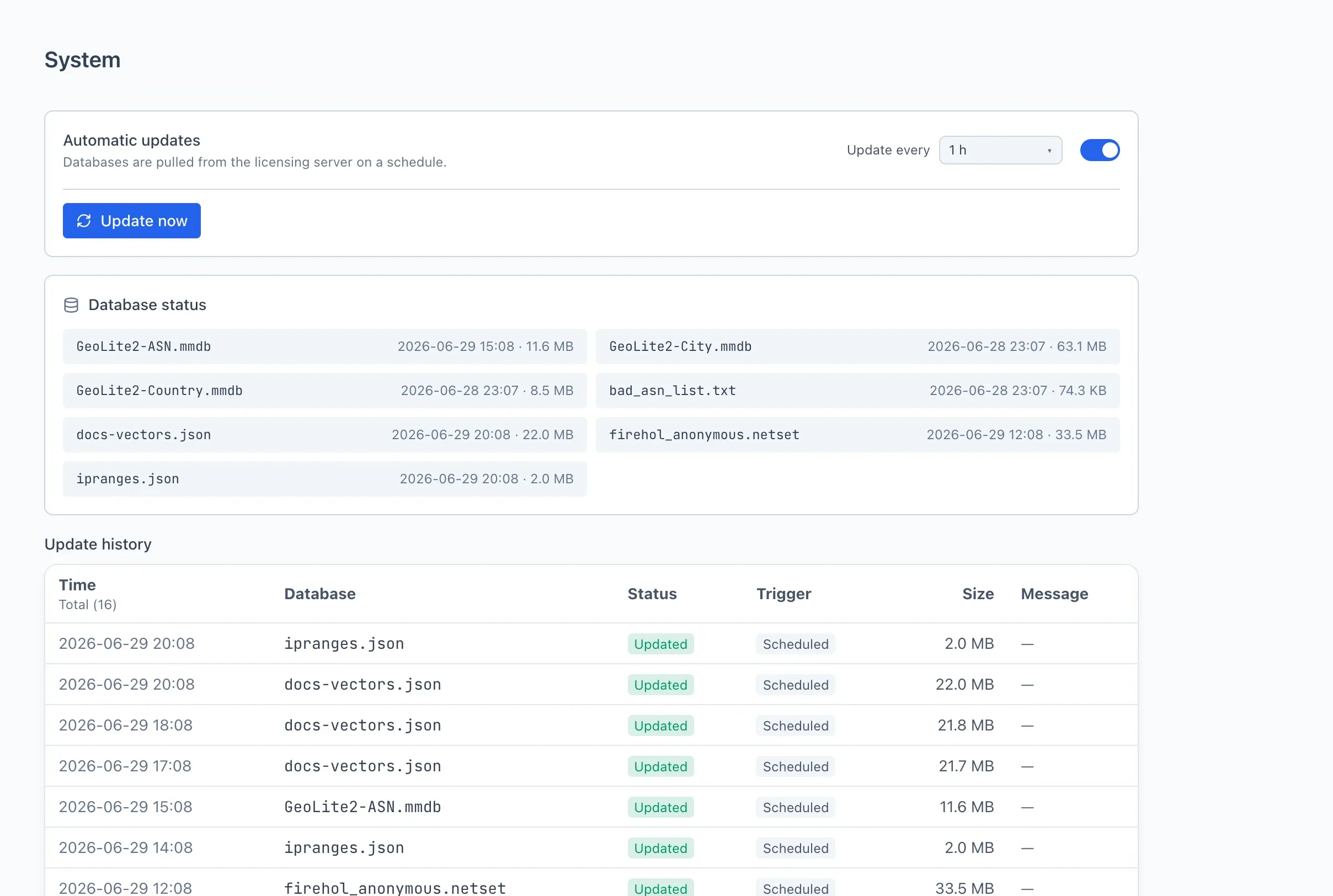
The geo and cloak databases used for detection and cloaking. The tab has two update modes:
- Automatic updates — the databases are pulled from the licensing server on a schedule. You set how often with the Update every field (in hours).
- Manual updates — the scheduler is off; the databases update only via the Update now button.
The mode switch and the Update every field are shown to administrators only, and the Update now button only to a role that is allowed to run background jobs by hand. Anyone who can open this tab still sees the databases and the update history. The message column of that history, however, belongs to administrators alone: to everyone else the server sends that field empty, and the column is then dropped from the table entirely rather than shown as dashes.
Below are the Database status (each database with its current state and size) and the Update history, with the columns Time, Database, Status, Trigger (scheduled or manual), Size and Message.
JavaScript
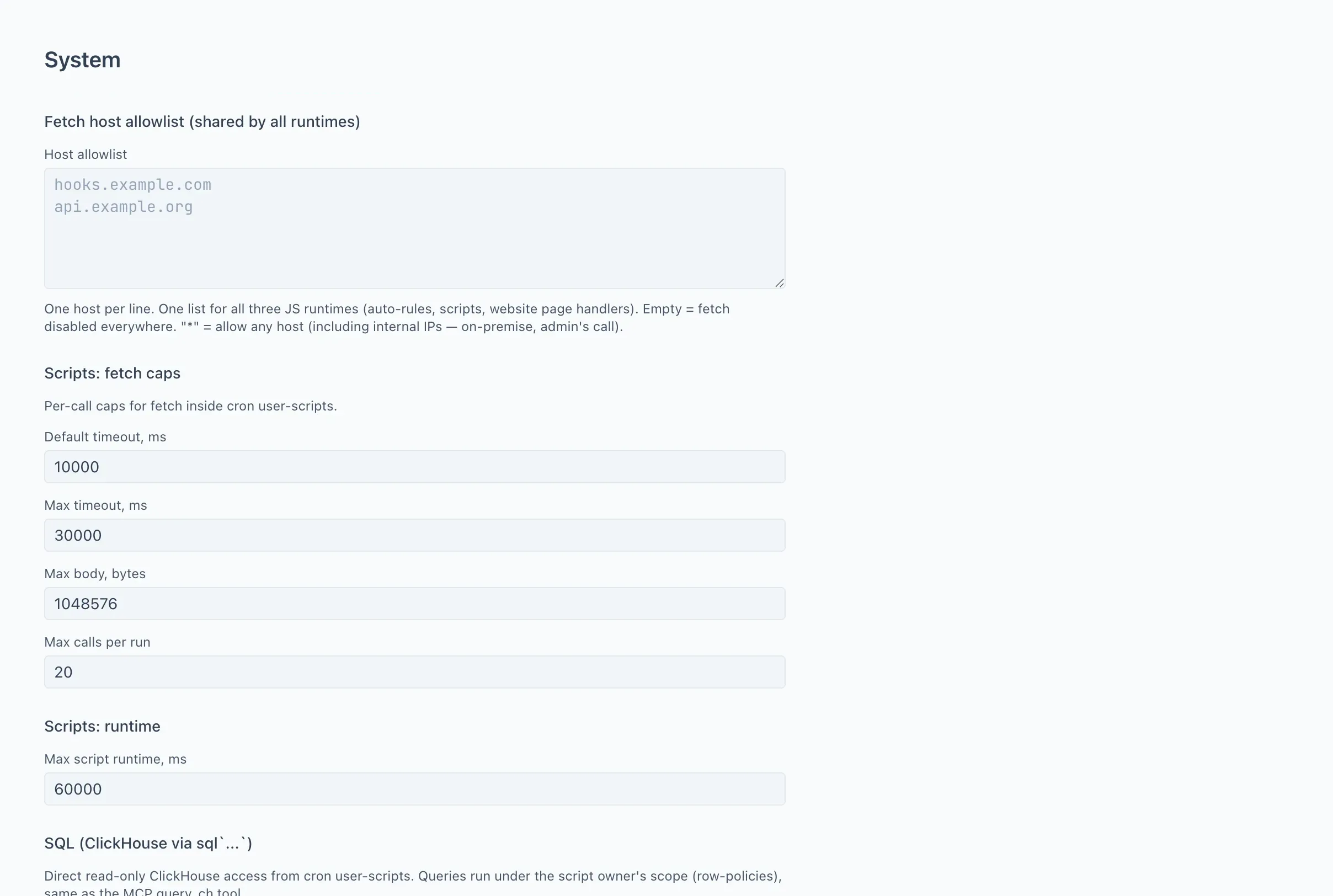
Limits for user scripts. These settings change on the fly and apply to all scripts at once. They are grouped into several blocks:
- Fetch — rules for outbound HTTP requests from scripts:
- Host allowlist — the list of allowed addresses, one per line. If the list is empty, outbound requests from scripts are disabled.
- Default timeout and Max timeout — the default and maximum allowed request timeouts (in milliseconds).
- Max body — the maximum response size in bytes.
- Max calls per run — how many outbound requests are allowed per single script run.
- Runtime — Max script runtime: the maximum execution time of a single script (in milliseconds).
- SQL — limits on data queries from scripts: the number of queries per run, the number of rows per query, the timeouts. Queries run read-only and within the rights of the script owner.
- Memory — a memory limit; coming soon, not available yet.
After editing, click Save.
An asterisk * in the allowlist lets scripts reach any address, including internal ones. Use it deliberately — it is the administrator's responsibility.
Watermark
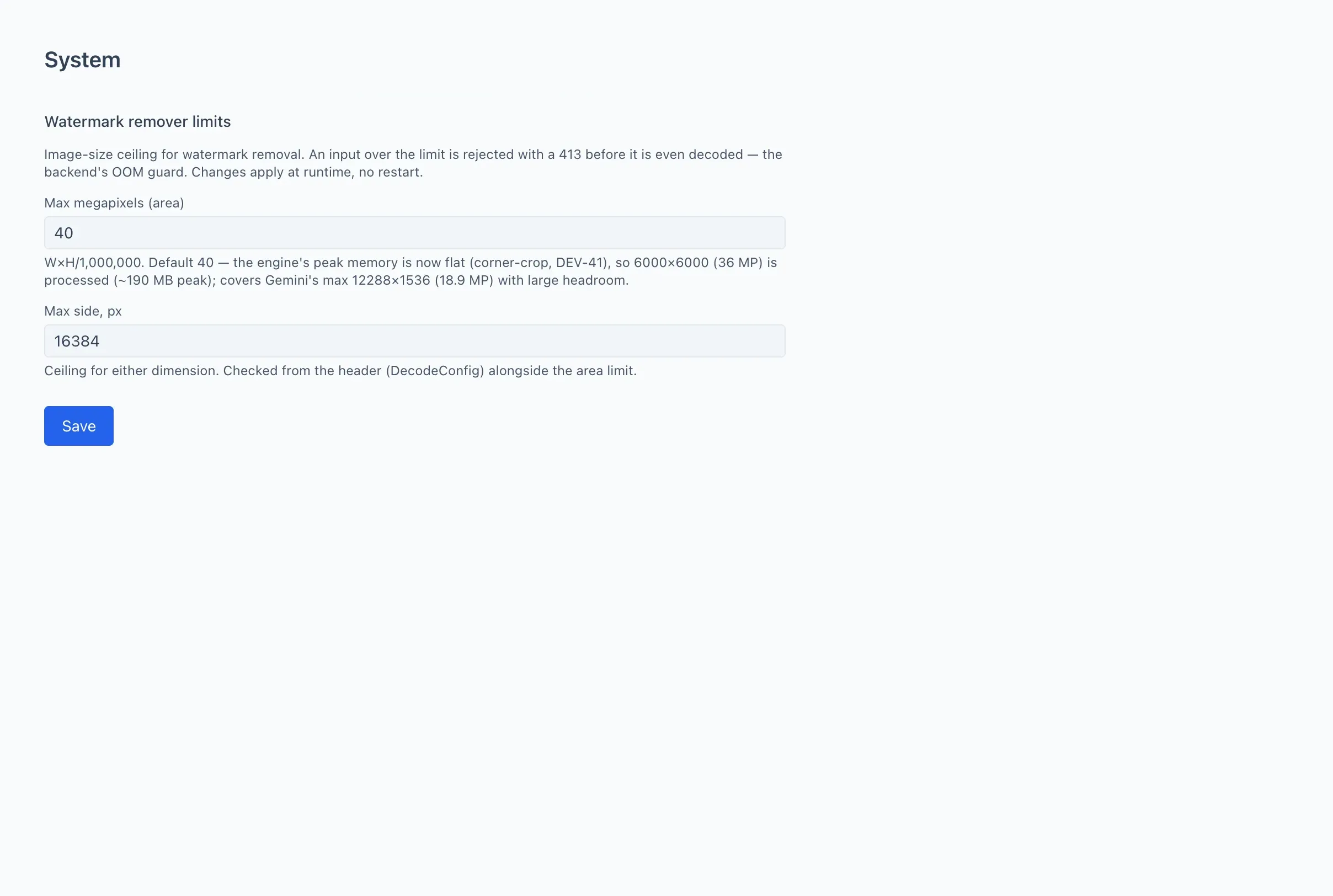
Limits for the watermark remover tool. They set the ceiling on the size of the uploaded image — this protects the server against memory overload. An image over the limit is rejected before it is even processed.
- Max megapixels — the maximum image area (width multiplied by height).
- Max side — the maximum length of either side, in pixels.
After editing, click Save. Under each field there is a hint with the recommended value.