Teams
A team is a group of users who work together and share data. The Teams screen itself is short — a team is just a name and a note — but which team a user is in changes what they see and can edit across the whole product. This page covers both: the screen, and what a team actually gives a user.
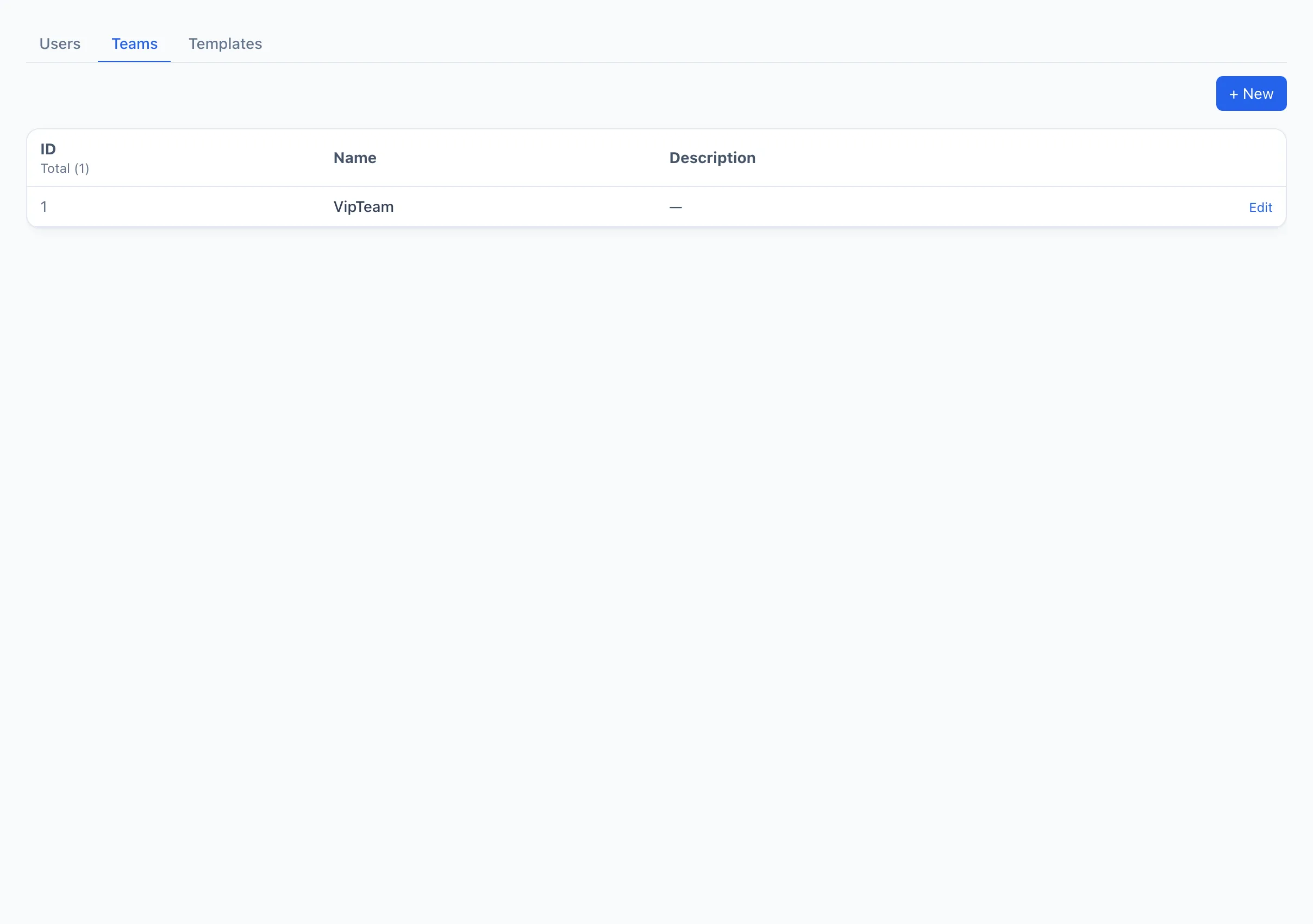
The Teams list
Each row is one team:
- ID — the internal number.
- Name — the team name.
- Description — a short note about the team's purpose.
On the right of the row is the Edit button, which opens the same form as creating a team.
Create a team
- Click + New in the top-right corner — the new team
dialog opens.
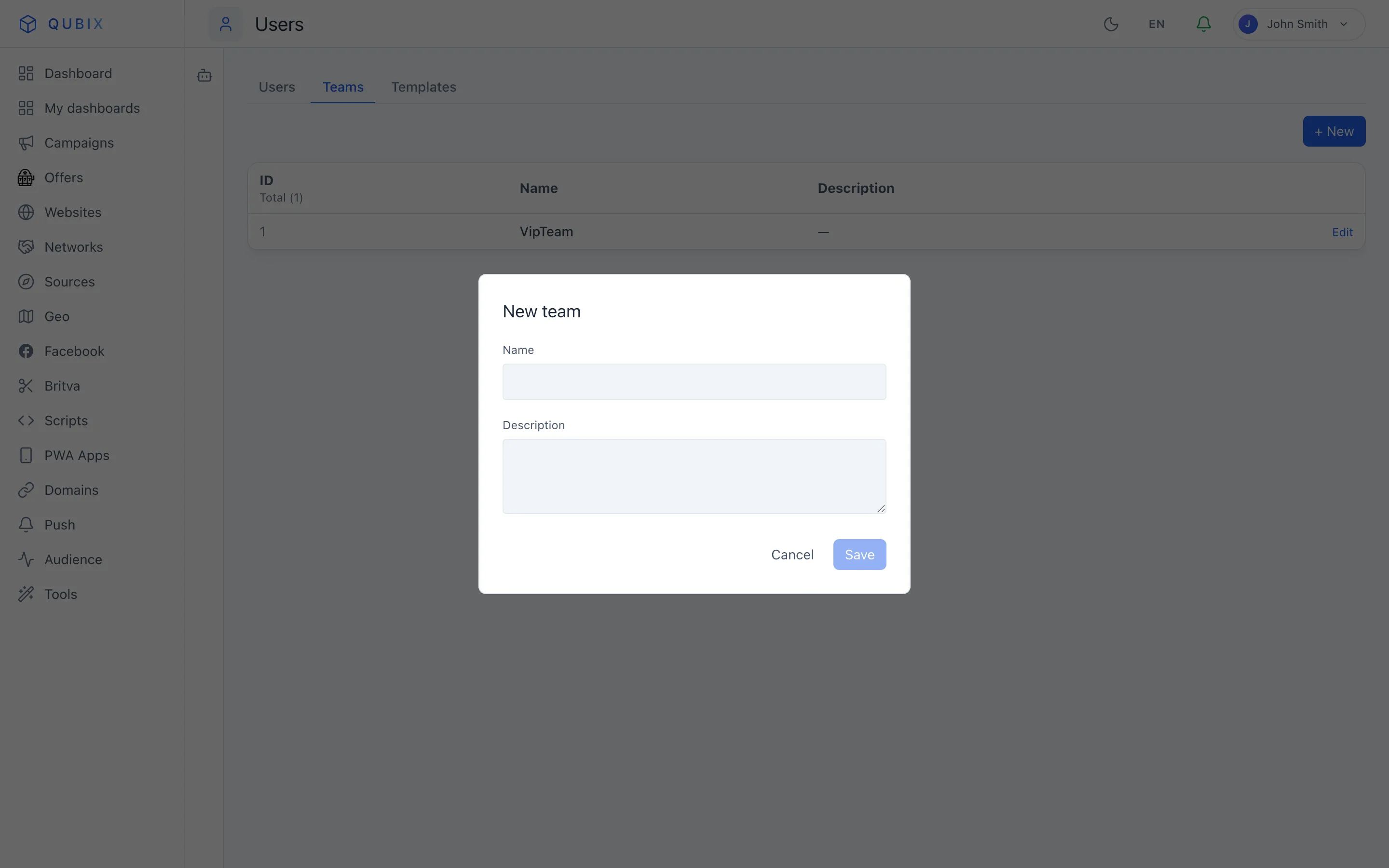
- Enter the Name — the only required field.
- Optionally add a Description.
- Click Save.
That's the whole form: name and description. Everything else about a team — who's in it and what they may do — is set elsewhere, described below.
Put users in a team
A user joins a team on their card on the Users page — an administrator picks the team in the user's Team field (or leaves it as none). A team-lead can only place users into their own team.
What being in a team gives a user
A team on its own grants nothing — it's the user's permission template that decides scope. When a template is set to the Team scope, being in a team means the user sees and works with their teammates' data, not just their own:
- Reports and analytics — figures for everyone on the team, not only the user's own campaigns.
- Drive — files shared to the Team area are visible to the whole team.
- Automation — team-scoped Britva rules and scripts: a team-scoped rule applies to the ads of every user on the team, and teammates can edit each other's team-owned rules and scripts.
So the template says how wide ("Own" / "Team" / "All"), and the team says who counts as "us".
Team-lead
A user can be marked as a team-lead. A team-lead manages only their own team: they can add and edit users within it, and (with a team-lead template) see the team's data including finances — but they can't touch other teams or grant administrator rights.
Deleting a team
A team can be deleted only when no users are left in it — active or deactivated. If anyone is still assigned, deletion is refused and Qubix lists who's blocking it; move those users to another team (or to none) first, then delete.
Think of it as two dials: the template sets how much a role may see ("Own" / "Team" / "All"), and the team sets the circle of people that "Team" refers to. Change either and access shifts accordingly.