Templates
A permission template is a user role. It answers three questions at once: which data a person sees, which menu items to show them and which actions they can perform. A template is assigned to a user on the Users page; one template can be given to many employees.
Built-in templates
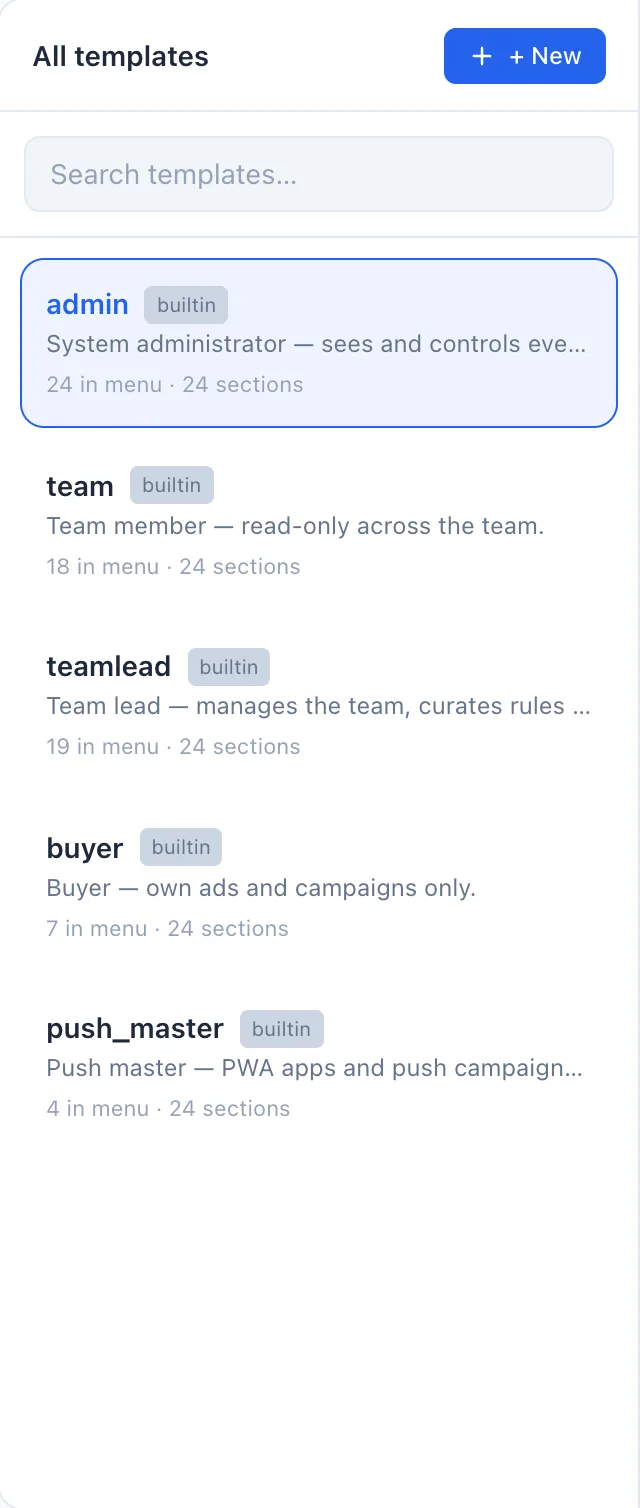
The system already has five ready-made roles. They can be used as is or edited to your needs — each carries a builtin badge.
- admin — the system administrator: sees and controls everything.
- teamlead — the team lead: manages their team, runs rules and PWA.
- team — a team member: read access within their team.
- buyer — a buyer: only their own ads and campaigns.
- push_master — responsible for PWA apps and push campaigns.
In addition to the built-in ones, you can create your own templates for your processes.
Breaking down the list
The page is a master-detail view: on the left is the list of templates as cards, on the right — the editor of the selected one. There are no table columns here. Each card shows:
- The template name, with a builtin badge for the five system roles.
- The description — a short note about the role (a dash if empty).
- A meta line — N in menu · M sections: how many menu items the template opens and how many data sections have visibility configured.
Click a card to open its editor on the right. There is no per-row Edit or Delete: editing happens in the right-hand pane, and deleting a non-builtin template is done from inside that editor (see Deleting a template).
How to create a template
- Click + New above the list — the template editor opens on the right.
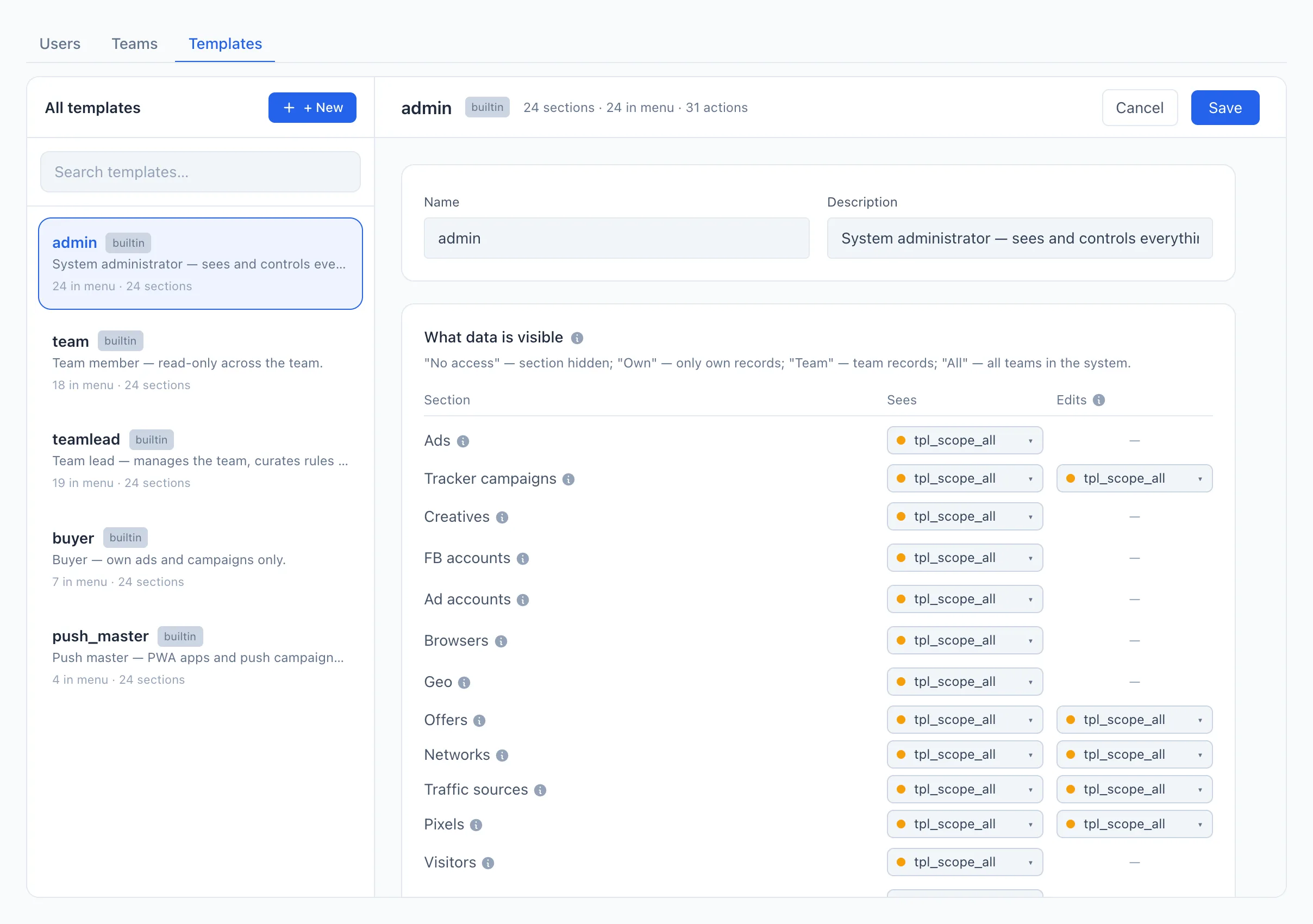
- Enter the Name and, if you wish, a Description.
- In the What data is visible section, set the visibility by section (see below).
- In the Menu items section, mark which sections to show in the sidebar.
- In the Allowed actions section, mark what the user is allowed to do.
- Click Save.
The "What data is visible" section
A matrix by data sections. For each section two scopes are set: Sees (read) and Edits (write).
The Sees column — what the user can open and read:
- No access — the section is closed, the data is not read.
- Own — only the records they launched themselves.
- Team — everything their team launched.
- All — the data of all teams in the system.
The Edits column — whose objects the user can act on (create, change, delete): Own, Team or All. This column is shown only for sections where there is something to edit (for example, PWA, domains, offers, networks, Britva, scripts). For sections that are statistics only, the column has a dash.
Visibility ("Sees") and the right to edit ("Edits") are independent. You can let a user see the whole team's data but edit only their own.
For Britva, the Edits scope means the scope of the rules' action — whose ads a rule is allowed to affect.
The "Menu items" section
Check marks indicate the sections the user will see in the sidebar. If they try to open a hidden section by a direct link — they will see a "No access" page.
Menu-item visibility and data access are configured separately: a section can be removed from the menu without touching access to its data, and vice versa.
The "Allowed actions" section
Check marks indicate which actions the user can perform: pause ads, manage Britva rules, PWA, push campaigns, domains, offers, networks, run background tasks and so on. Without the required check mark, the corresponding button in the interface will either not work or be hidden — even if the section itself is visible.
Hover over the question mark next to an action to read exactly what it opens.
Deleting a template
You can delete only your own template (built-in ones have no button). If a template is already assigned to some users, the system will not let you delete it and will show who it is given to — first move those people to another template.
Changes to a template apply to all users with that role at once. Before changing a built-in template, make sure you do not cut off access to those who work on it.