Users
A list of all the employees who have access to Qubix. Here the administrator creates new users, assigns them a team and a permission template, and, if needed, blocks access. A teamlead sees only their own team on this page.
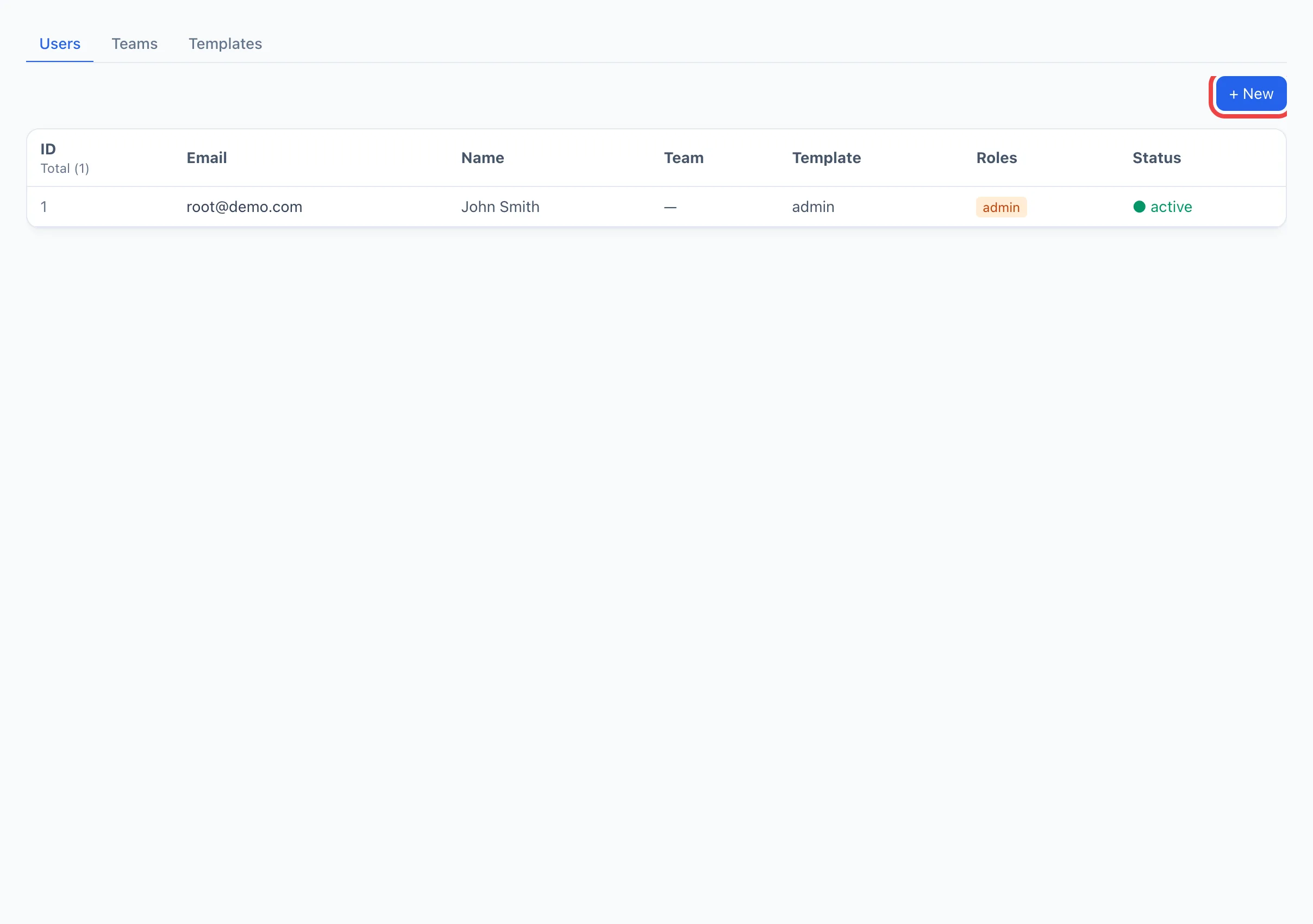
Breaking down the list
Each row is one user. The columns:
- ID — the internal number.
- Email — the login for signing in.
- Name — the employee's display name.
- Team — which team they are bound to.
- Template — the assigned permission template, which determines what a person sees and can do.
- Roles — the admin and teamlead marks, if they are granted.
- Status — active (can sign in) or disabled (sign-in is blocked).
Clicking a row opens the user card with detailed settings and tabs (general, campaign-name patterns, browser profiles, the user's campaigns).
How to create a user
- Click + New in the top-right corner — the new user dialog opens.
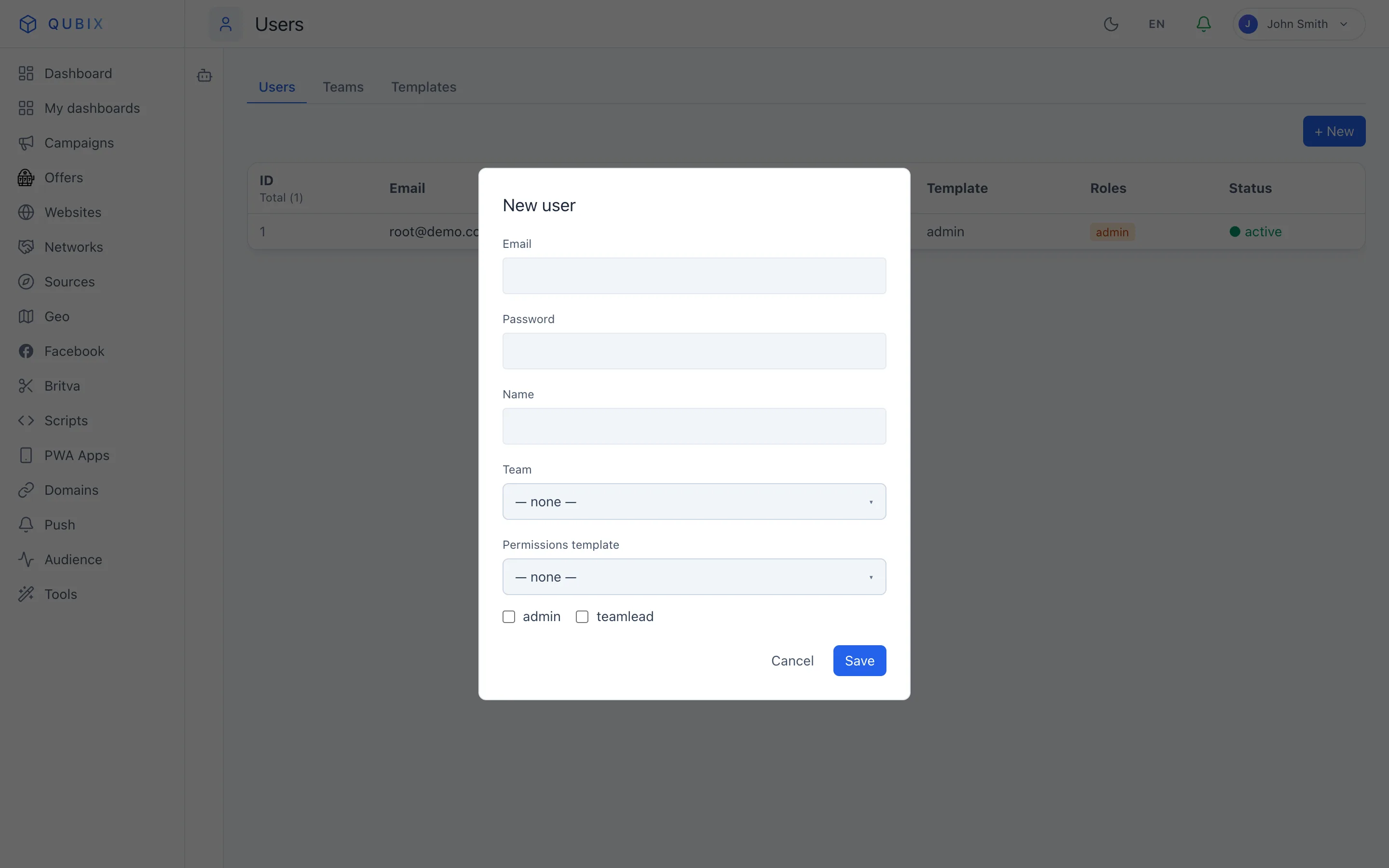
- Fill in the Email — it is also the login.
- Set a Password.
- Specify a Name (optional).
- Choose a Team (available to the administrator).
- Choose a Permission template — the role that will determine access. More — Templates.
- If needed, check the admin and/or teamlead flags (available to the administrator).
- Click Save.
The new user will appear in the list and will be able to sign in with the specified email and password.
Breaking down the card fields
- Email — the login. Can be changed later.
- Password — required at creation. When editing, leave the New password field empty to keep the current one.
- Full name — shown in lists and headers.
- Team — which team the user is bound to. Changed by the administrator.
- Permission template — the assigned role. Can be changed at any time, the permissions apply immediately.
- admin — full access to all users, teams, templates and admin actions.
- teamlead — managing only the users of their own team, without admin rights.
- active — uncheck to block sign-in without deleting the account.
You cannot remove the admin flag from yourself or deactivate your own account — this is protection against accidental lockout. If an administrator needs to be demoted, ask another administrator to do it.
Invalidate all sessions
The Invalidate all sessions button in the user card ends all their active sign-ins — they will be forced to log in again on all devices.
Use it if an employee's device is lost or compromised, or to immediately "kick out" a dismissed person. Before doing it, the system will ask for confirmation.
To permanently close access but keep the user's action history, uncheck the active flag — the account stays in the system, but it will not be possible to sign in under it.