Websites
The Websites section is the storage for uploaded pages you use in campaigns: whitepages, prelandings, and landings. Each website is stored in full (HTML, styles, scripts, images, fonts); you can open it, view a preview, and edit it right in the interface.
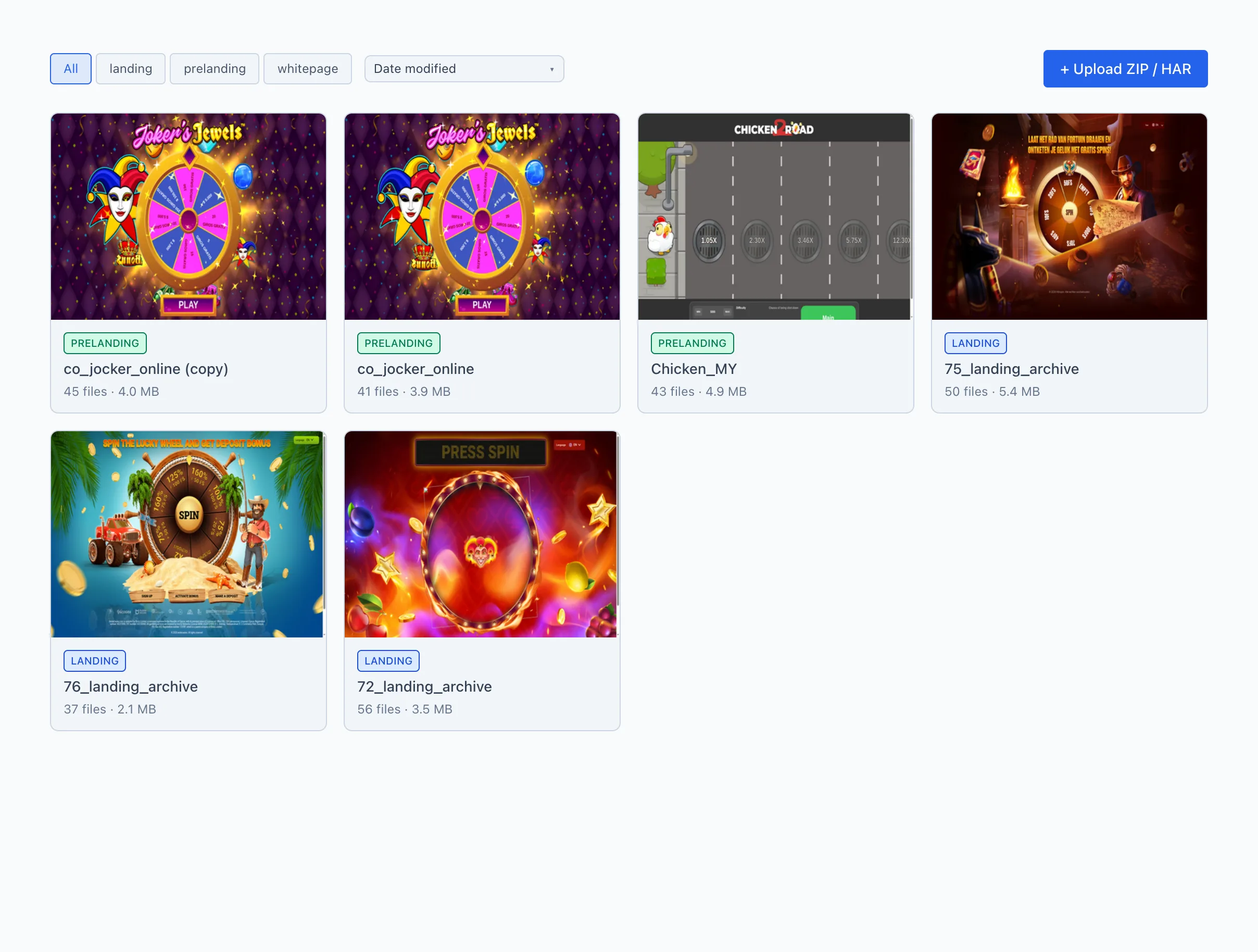
Website list
Websites are shown as cards in a grid. On each card:
- Preview — a thumbnail of the first page. While the thumbnail isn't ready yet, the first letter of the name on a colored background is shown instead (the color matches the website type).
- Type — a colored label: landing, prelanding, or whitepage.
- The website name.
- Summary — the number of files and the total size (for example,
12 files · 4.3 MB).
Clicking a card opens the website card.
Filter by type
Above the list — a type switch: all, landing, prelanding, whitepage. Click the type you need to leave only websites of that type in the list. all shows all websites.
Upload
To the right above the list — the + Upload ZIP / HAR button. You can upload a website either via this button or by dragging an archive right onto the page. More — Uploading a website.
To quickly find all prelandings before launching a bundle, switch to the prelanding filter — the cards immediately show the size and file count of each variant.
Website card
The card opens by clicking a website and consists of three tabs. The active tab is saved in the address bar — you can copy a link to a specific tab and forward it to a colleague.
In the top-right corner of the card, next to the tabs, are:
- Type — the website type (whitepage / prelanding / landing). If you have the website management permission, you can change the type right here by picking from a list; the change applies immediately. Without this permission, the type is shown as a read-only label.
- Delete — moves the website to the trash.
Only a user with the website management permission can change a website's type. If you don't have the permission (or the website belongs to another user), the system reverts to the previous type and shows the message «You don't have permission to change this site's type».
Delete removes the website from the list (moves it to the trash). The website is no longer available in campaigns. The file history is preserved, and recovery is done manually — so delete only what you're sure you don't need.
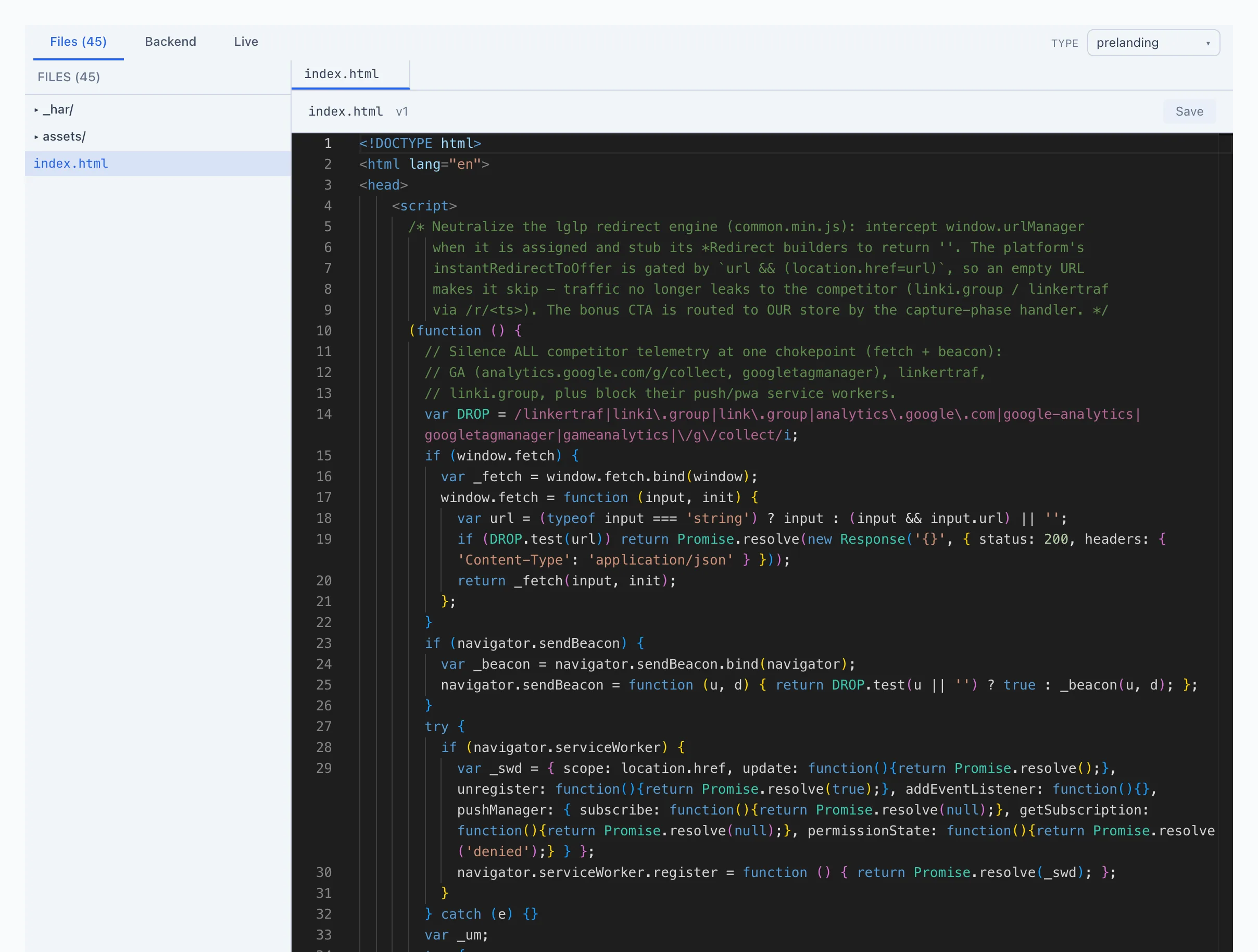
The «Files» tab
The main tab — this is where all the website's files are stored and edited. The tab header shows the file count, for example Files (12).
- On the left — the file tree. Folders and files; folders expand on click. Clicking a file opens it in the editor.
- On top — the tabs of open files (as in a code editor): you can keep several files open and switch between them. An unsaved file is marked with a dot.
- On the right — the file content.
- Text files (HTML, CSS, JS, PHP, etc.) open in a code editor with syntax highlighting. Saving — with the Save button or the Cmd+S shortcut (on Windows — Ctrl+S).
- Images are shown with detailed information: file size, pixel dimensions, format, compression level, and, if present, the photo's metadata.
- Video and audio play right in the card.
- Fonts and other binary files offer a Download.
Files can be dragged between folders within the tree, and new ones can be added by dragging from your computer. More — Uploading a website.
The «Backend» tab
A tab for the website's server logic — handlers for individual addresses (for example, accepting a lead via a POST request or responding to a specific path).
- On the left — a list of handlers with their path, method, and priority. The + new button creates a new one from a template.
- In the center — the handler code editor with syntax checking and hints.
- For each handler, you set: a path pattern, a method (GET, POST, etc., or any), a priority (higher = fires earlier), and an enabled flag (on / off).
- On the right — the Test runner: you can send a test request (method, path, parameters, body, geo, click_id) and see the handler's response — status, headers, body, log records.
The «Backend» tab is only needed if the page must process something on the server. For ordinary static whitepages and landings, it isn't required.
The «Live» tab
A live preview of the website — the way a real visitor will see it.
- The view / edit switch:
- view — a preview for viewing only.
- edit — editing mode: click on text or an element right on the page and change it. The Save button writes the changes to
index.html.
- The device switch: desktop, tablet, mobile — changes the preview width.
- refresh — reload the preview, open ↗ — open the page in a new browser tab.
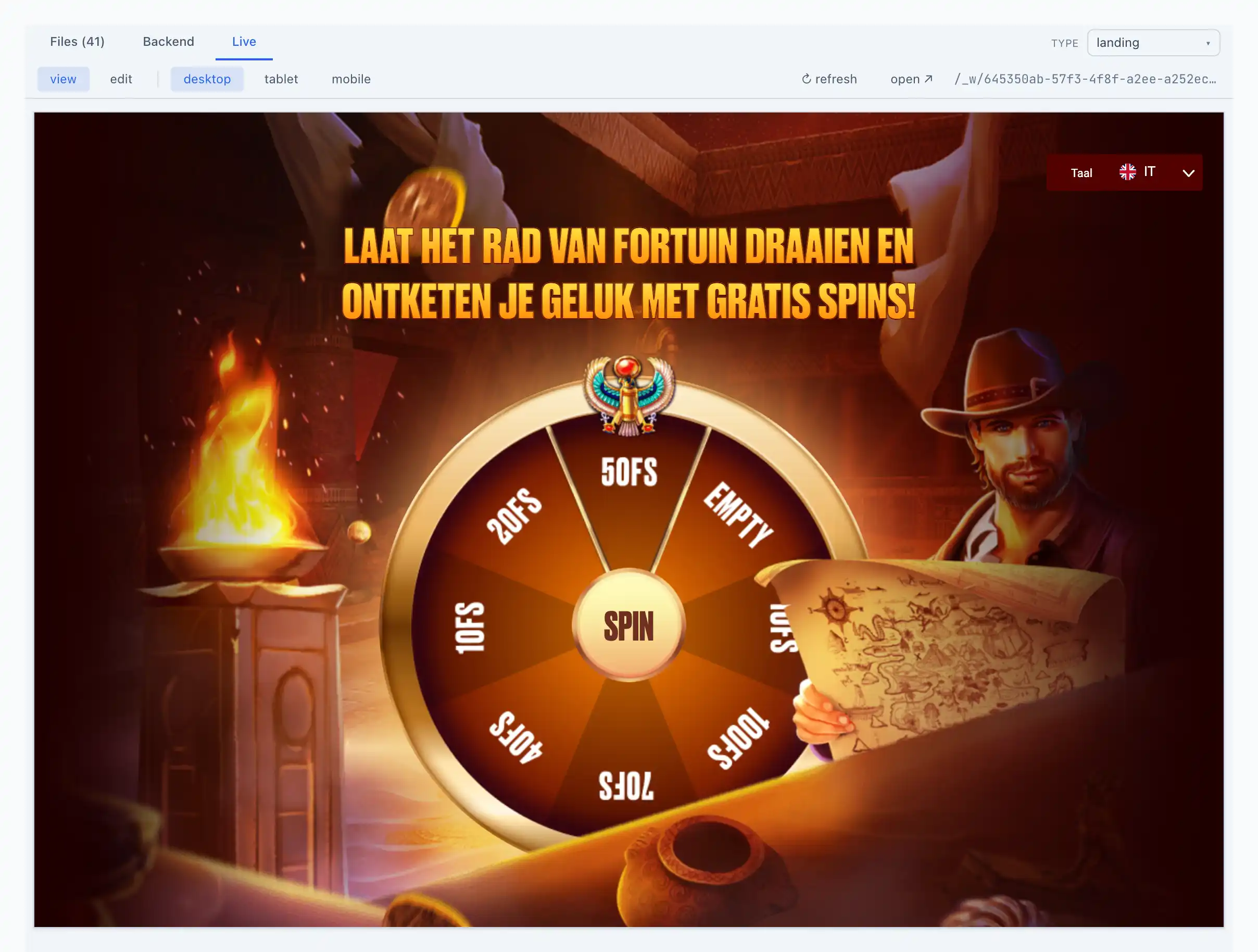
The edit mode is convenient for quick text edits (a heading, a button, a disclaimer) without opening the code. For deeper changes, edit the files on the Files tab.