Uploading a website
A website is uploaded as a single archive — in full, with all its files. Two formats are supported: ZIP (a ready-made set of website files) and HAR (a recording of the page's network traffic from the browser developer tools). After uploading, the website appears in the list right away, and you can open and edit it.
How to upload a website
- Open the Websites section.
- Click + Upload ZIP / HAR or just drag a
.zipor.harfile onto any spot on the page.🎬 GIF: dragging an archive onto the page and a new website appearing in the list
- Wait for the upload to finish. A progress panel for each file is shown in the top-right corner.
- If you uploaded a single archive, the website card opens automatically. If several, all the websites appear in the list — open a card by clicking it.
You can drag or select several archives at once — they upload one after another, and the panel on the right shows the progress and result for each (done / error).
One archive — up to 200 MB. A larger file can't be uploaded. Remove the unnecessary parts from the archive (heavy videos, duplicates) and try again.
Only files with the .zip and .har extensions are uploaded. Files of other formats dragged onto the page are ignored.
How to edit the files
After uploading, open the website card and go to the Files tab.
- In the tree on the left, select a file — it opens in the editor on the right.
- Make your edits. Text files (HTML, CSS, JS, etc.) are edited in a code editor with highlighting.
- Click Save or Cmd+S (on Windows — Ctrl+S) to save.
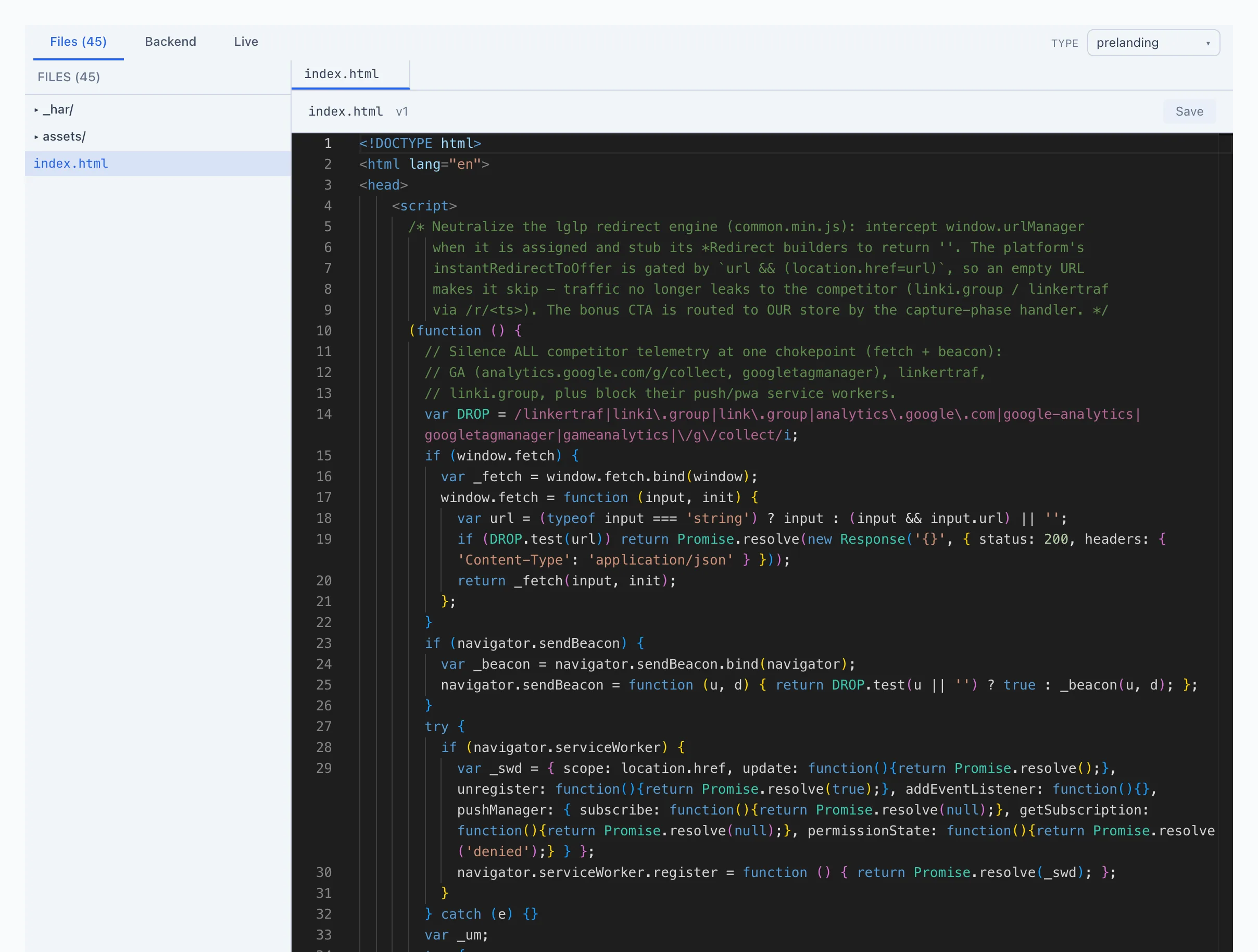
A breakdown of all the card's tabs and capabilities — in the Websites section.
Add files to an existing website
Drag files from your computer right onto the Files tab — they will be added to the website. The new file's path will equal its name.
If an uploaded file matches an existing one by name, the old file isn't lost — a new version is saved over it. The previous versions remain in the file history.
Move a file to another folder
Drag a file in the tree onto the folder you need. To move a file to the website root, drag it onto an empty spot in the file list.
How to change a website's type
A website's type (whitepage, prelanding, or landing) is set in the top-right corner of the card, in the Type field.
- Open the website card.
- In the Type field, pick the type you need from the list. The change applies immediately.
Only a user with the website management permission can change the type. Without it, the type is shown as a read-only label. More — Websites.